<?xml version="1.0" encoding="utf-8"?><feed xmlns="http://www.w3.org/2005/Atom" ><generator uri="https://jekyllrb.com/" version="4.4.1">Jekyll</generator><link href="https://the-lean-ecommerce.gitlab.io/feed.xml" rel="self" type="application/atom+xml" /><link href="https://the-lean-ecommerce.gitlab.io/" rel="alternate" type="text/html" /><updated>2026-05-19T14:44:34+00:00</updated><id>https://the-lean-ecommerce.gitlab.io/feed.xml</id><title type="html">The Lean Ecommerce Blog</title><subtitle>Practical notes, product ideas, and operating guides for lean ecommerce teams.</subtitle><entry><title type="html">How to Build a Shopify Blog Automation Workflow That Still Sounds Human</title><link href="https://the-lean-ecommerce.gitlab.io/2026/05/19/how-to-build-a-shopify-blog-automation-workflow-that-still-sounds-huma/" rel="alternate" type="text/html" title="How to Build a Shopify Blog Automation Workflow That Still Sounds Human" /><published>2026-05-19T14:43:41+00:00</published><updated>2026-05-19T14:43:41+00:00</updated><id>https://the-lean-ecommerce.gitlab.io/2026/05/19/how-to-build-a-shopify-blog-automation-workflow-that-still-sounds-huma</id><content type="html" xml:base="https://the-lean-ecommerce.gitlab.io/2026/05/19/how-to-build-a-shopify-blog-automation-workflow-that-still-sounds-huma/"><![CDATA[<p>I keep seeing the same problem in Shopify stores: everyone agrees the blog matters, but the process depends on one person finding a spare afternoon. When that fails, the content goes stale, the SEO work slows down, and the AI draft that finally gets published sounds like it was written for a different store.</p>

<p>The version that works for me is simpler. Automate the repeatable parts of the blog workflow and keep a human review step for the parts that affect trust. <a href="https://supra-blog-automation.sktch.io/">Supra Blog Automation</a> is useful because it handles the planning, drafting, visuals, and scheduling, while still letting you choose whether a post publishes immediately or sits as a draft.</p>

<p>If you want the short version, I would automate:</p>
<ul>
  <li>topic selection</li>
  <li>SEO structure</li>
  <li>internal links</li>
  <li>visuals</li>
  <li>scheduling and publishing</li>
</ul>

<p>I would still review:</p>
<ul>
  <li>product accuracy</li>
  <li>brand voice</li>
  <li>promotional claims</li>
  <li>any pricing, seasonal, or policy-sensitive language</li>
</ul>

<h2 id="what-i-automate-vs-what-i-review">What I automate vs what I review</h2>

<p>The split matters because generic AI content is cheap to produce but expensive to trust. I do not want a tool to invent a personality for the brand. I want it to handle the boring parts of the workflow so I can spend my time checking whether the post is actually useful.</p>

<p>This is where product-aware content makes a difference. If the draft knows what the store sells, who it is for, and what problem it solves, the post is usually better before I touch it.</p>

<p><img src="/assets/img/posts/2026-05-19-how-to-build-a-shopify-blog-automation-workflow-that-still-sounds-huma/image-01-131eac20adbd.png" alt="Comparison of generic AI draft versus product-aware blog draft" /></p>

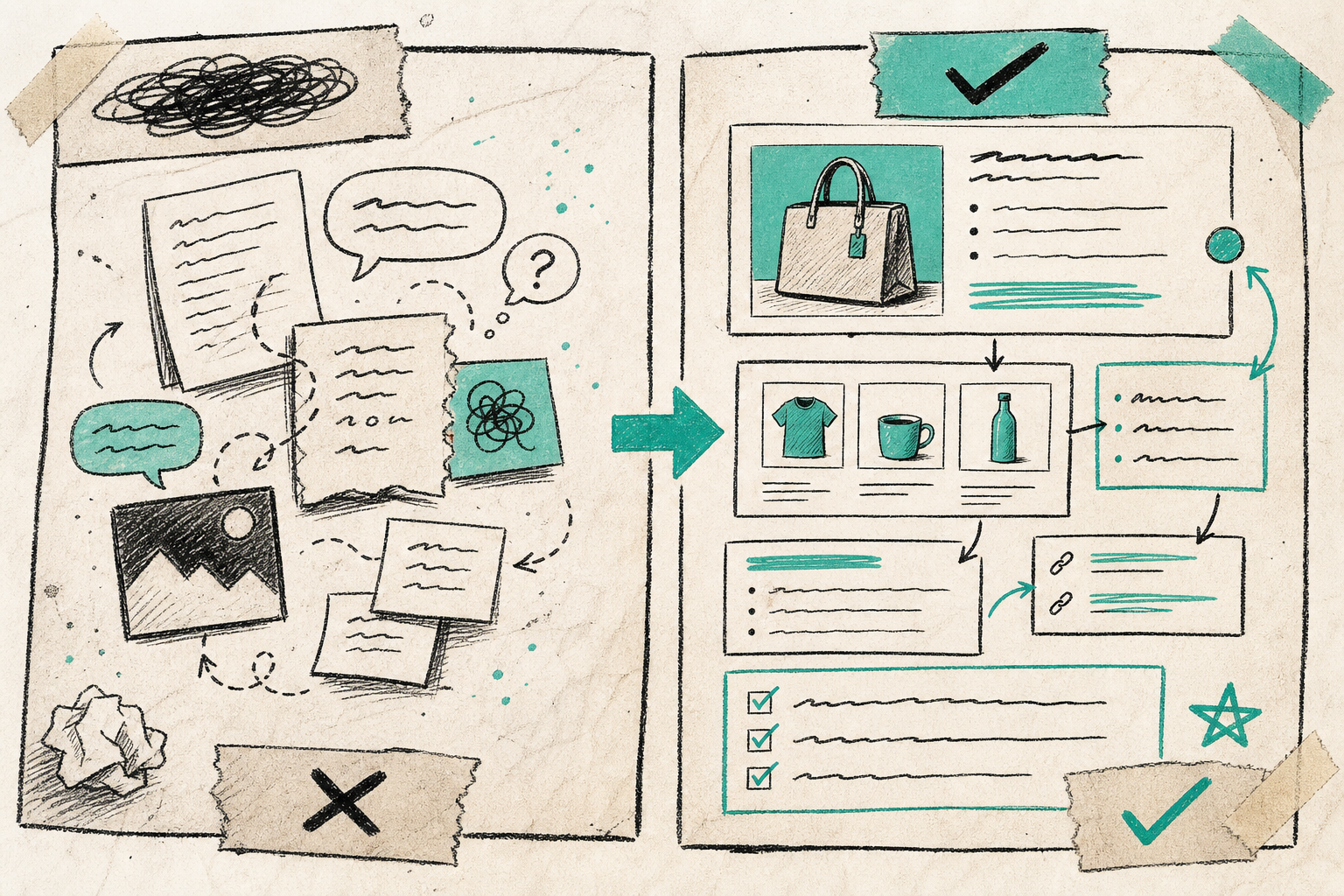
<p>The left side is what I do not want: vague claims and disconnected ideas. The right side is what I want more often: a post that is anchored to the store, the product, and the next action.</p>

<h2 id="start-from-a-product-collection-or-customer-problem">Start from a product, collection, or customer problem</h2>

<p>The best post ideas I have seen in Shopify stores are specific. “How to choose the right size” beats “Why size matters.” “How to style a spring collection” beats “Spring fashion tips.” The more the topic is tied to a real product or collection, the easier it is to write a useful article that can link back to the store.</p>

<p>Supra Blog Automation is built for that kind of workflow. It supports product-aware content, so the draft can reference the items you actually sell instead of drifting into broad advice. That usually makes the article better for SEO and better for conversion.</p>

<p>I would pick one of three starting points:</p>
<ul>
  <li>a product that needs more discovery</li>
  <li>a collection that needs internal links</li>
  <li>a customer question that stops people from buying</li>
</ul>

<h2 id="give-the-generator-the-constraints-that-matter">Give the generator the constraints that matter</h2>

<p>A useful automation needs guardrails. If you only give it a topic, you get a generic post. If you give it a topic plus audience, goal, product context, and tone, you get something you can actually publish.</p>

<p>When I set up a workflow, I try to define:</p>
<ul>
  <li>the reader</li>
  <li>the search intent</li>
  <li>the product or collection to feature</li>
  <li>the CTA</li>
  <li>the visual style</li>
  <li>whether the post should be a draft or a live post</li>
</ul>

<p>This is also where internal links matter. A good Shopify blog post should not just answer the question once. It should point readers toward the relevant collection, product page, or related guide so the article does some store work.</p>

<h2 id="use-visuals-that-explain-the-post">Use visuals that explain the post</h2>

<p>I prefer visuals that earn their place. A product photo shows the item. An AI-generated image can show the concept behind the article. A workflow graphic can show the process. The mistake is using random imagery just to have an image.</p>

<p>Supra Blog Automation can use product images, stock images, or AI-generated visuals, which is helpful because different article types need different media. A seasonal gift guide may need product shots. A process article may need a workflow illustration. A concept piece may need a generated image that sets the mood without pretending to be the product itself.</p>

<p><img src="/assets/img/posts/2026-05-19-how-to-build-a-shopify-blog-automation-workflow-that-still-sounds-huma/image-02-712ee4a42805.png" alt="Recurring content calendar for an ecommerce blog" /></p>

<p>That calendar view is the part a lot of store owners miss. The real SEO win is not one article. It is a repeatable publishing rhythm that does not fall apart when the team gets busy.</p>

<p><img src="/assets/img/posts/2026-05-19-how-to-build-a-shopify-blog-automation-workflow-that-still-sounds-huma/image-03-f12c37051d0a.png" alt="Five-step blog automation workflow from topic to publish" /></p>

<p>The workflow image is how I think about the whole system: topic, product context, image selection, review, publish. If one of those steps is missing, the result usually feels unfinished.</p>

<h2 id="decide-when-to-draft-and-when-to-publish">Decide when to draft and when to publish</h2>

<p>I would not use fully automatic publishing for every post. Draft mode is better when:</p>
<ul>
  <li>the post mentions pricing</li>
  <li>the post includes claims that need review</li>
  <li>the article is tied to a launch or seasonal promotion</li>
  <li>the brand voice still needs tuning</li>
</ul>

<p>Immediate publishing is fine when:</p>
<ul>
  <li>the topic is evergreen</li>
  <li>the article is informational</li>
  <li>the product facts are stable</li>
  <li>the workflow has already been tested</li>
</ul>

<p>That is why recurring automations are useful. If you can schedule the right post types weekly or monthly, the blog stays active without turning into a daily manual chore.</p>

<p>My rough rule is simple: automate the path, not the judgment. If the workflow starts with a real product or question, moves through SEO structure and visuals, and ends in a reviewable draft, it stays human enough to be useful.</p>

<h2 id="my-publishing-checklist">My publishing checklist</h2>

<p>Before I let a Shopify blog post go live, I check seven things:</p>
<ol>
  <li>The title matches the search intent.</li>
  <li>The post solves one clear problem.</li>
  <li>The product or collection mention is natural.</li>
  <li>The internal links point somewhere useful.</li>
  <li>The images explain the topic, not just fill space.</li>
  <li>The CTA matches the reader’s stage.</li>
  <li>I can stand behind every claim in the article.</li>
</ol>

<p>If any of those fail, the post stays in draft. That one rule saves more cleanup time than any other part of the process.</p>

<h2 id="related-reads">Related reads</h2>

<p>If you are building the rest of the workflow, these are the articles I would read next:</p>
<ul>
  <li><a href="https://the-lean-ecommerce.github.io/2026/05/18/how-to-build-a-product-aware-shopify-blog-workflow-that-publishes-on-s/">How to Build a Product-Aware Shopify Blog Workflow That Publishes on Schedule</a></li>
  <li><a href="https://productivity-tech-business.blogspot.com/2026/05/how-to-automate-shopify-blog-without.html">How to Automate a Shopify Blog Without Publishing Generic AI Content</a></li>
  <li><a href="https://how-to-blog.gitlab.io/2026/05/16/how-to-keep-a-shopify-blog-publishing-without-generic-ai-drafts/">How to Keep a Shopify Blog Publishing Without Generic AI Drafts</a></li>
  <li><a href="https://how-to-blog.gitlab.io/2026/05/19/how-to-turn-one-shopify-product-into-five-ugc-video-ads/">How to Turn One Shopify Product Into Five UGC Video Ads</a></li>
  <li><a href="https://how-to.the-lean-ecommerce.com/2026/05/19/how-to-create-studio-quality-shopify-product-photos-from-plain-shots/">How to Create Studio-Quality Shopify Product Photos From Plain Shots</a></li>
</ul>

<h2 id="next-step">Next step</h2>

<p>If you want to try this on your store, start with one product or collection and generate one draft post instead of trying to automate the whole blog at once. <a href="https://supra-blog-automation.sktch.io/">Supra Blog Automation</a> has a free plan, and the <a href="https://apps.shopify.com/supra-blog-automation">Shopify App Store listing</a> is the quickest place to confirm the app details.</p>]]></content><author><name>The Lean Ecommerce</name></author><category term="ecommerce" /><category term="shopify" /><category term="blogging" /><category term="seo" /><category term="automation" /><category term="ai" /><summary type="html"><![CDATA[A practical Shopify blog automation workflow that uses product context, review checkpoints, and visuals without sounding generic.]]></summary><media:thumbnail xmlns:media="http://search.yahoo.com/mrss/" url="https://the-lean-ecommerce.gitlab.io/assets/img/posts/2026-05-19-how-to-build-a-shopify-blog-automation-workflow-that-still-sounds-huma/cover-337079556a7b.png" /><media:content medium="image" url="https://the-lean-ecommerce.gitlab.io/assets/img/posts/2026-05-19-how-to-build-a-shopify-blog-automation-workflow-that-still-sounds-huma/cover-337079556a7b.png" xmlns:media="http://search.yahoo.com/mrss/" /></entry><entry><title type="html">Webflow CMS to HTML: A Practical Export and Self-Hosting Checklist</title><link href="https://the-lean-ecommerce.gitlab.io/2026/05/19/webflow-cms-to-html-a-practical-export-and-self-hosting-checklist/" rel="alternate" type="text/html" title="Webflow CMS to HTML: A Practical Export and Self-Hosting Checklist" /><published>2026-05-19T02:37:43+00:00</published><updated>2026-05-19T02:37:43+00:00</updated><id>https://the-lean-ecommerce.gitlab.io/2026/05/19/webflow-cms-to-html-a-practical-export-and-self-hosting-checklist</id><content type="html" xml:base="https://the-lean-ecommerce.gitlab.io/2026/05/19/webflow-cms-to-html-a-practical-export-and-self-hosting-checklist/"><![CDATA[<p>I keep seeing the same pattern: the design is done in Webflow, the site is working, and then the hosting bill becomes the part nobody wants to defend. When the project is stable and portability matters more than staying inside one platform, I prefer exporting it cleanly and deciding where it should live next. That is where <a href="https://exflow.site">ExFlow</a> is useful. You paste the URL, export the pages and assets you need, and keep the option to host the site yourself or sync it into Git, S3, or FTP.</p>

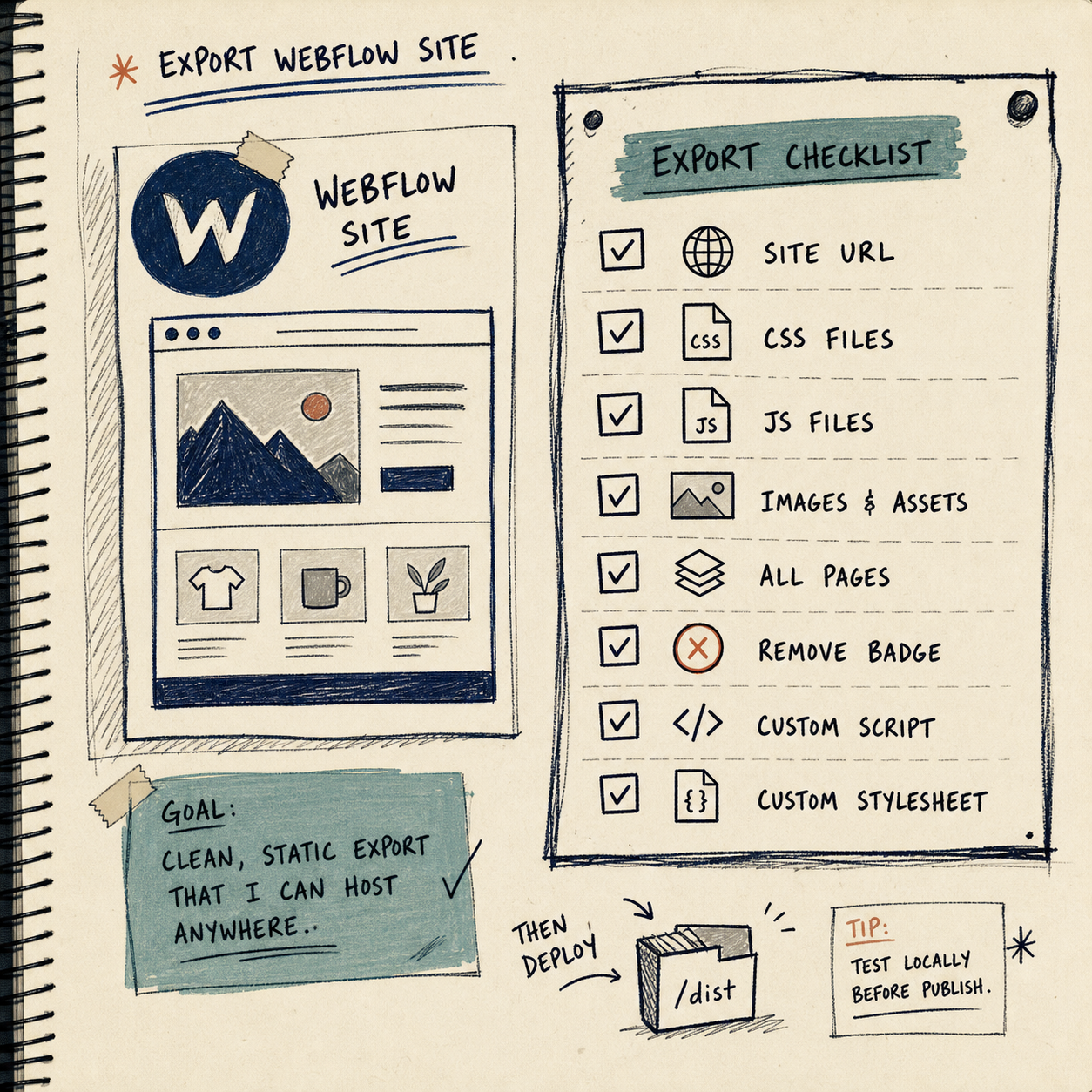
<p>If you want the short version, this is the checklist I use for a Webflow site I want to turn into static HTML without guessing.</p>

<h2 id="1-decide-whether-static-export-is-the-right-move">1. Decide Whether Static Export Is The Right Move</h2>

<p>I would only export a Webflow site when the site has crossed the line from “actively designed in Webflow” to “mostly finished and better off portable.” That usually means one of three things:</p>

<ul>
  <li>The site is a marketing site, landing page, docs hub, or content site that does not need a live editor every day.</li>
  <li>The team wants a lower-friction hosting setup than the one they have now.</li>
  <li>The site needs a fallback copy that can move into another hosting environment without rebuilding everything from scratch.</li>
</ul>

<p>This is where ExFlow matters. It is not trying to replace Webflow as a design tool. It is the escape hatch when you want the Webflow output as downloadable static content instead of being pinned to the hosted setup.</p>

<p><img src="/assets/img/posts/2026-05-19-webflow-cms-to-html-a-practical-export-and-self-hosting-checklist/image-01-805de3db56a3.png" alt="Webflow export checklist" /></p>

<h2 id="2-set-the-export-options-with-intent">2. Set The Export Options With Intent</h2>

<p>The useful part of an export is not the export button itself. It is choosing exactly what should come out of the project.</p>

<p>Here is the combination I would review first:</p>

<ul>
  <li>URL: point ExFlow at the live Webflow site you want to capture.</li>
  <li>Export CSS files: keep the styling intact.</li>
  <li>Export JS files: preserve behavior that depends on scripts.</li>
  <li>Export images and media files: avoid broken asset references after the move.</li>
  <li>Export all pages: do not stop at the homepage if the site has a real content structure.</li>
  <li>Remove the “Made with Webflow” badge: useful when you want the exported site to stand on its own.</li>
  <li>Add custom script.js and style.css files: helpful when you want to layer in small post-export changes.</li>
</ul>

<p>I would keep sync disabled until I knew where the site should land. The reason is simple: export and deployment are separate decisions. If you let those blur together too early, you end up debugging the wrong layer.</p>

<h2 id="3-verify-the-cms-content-before-you-trust-the-bundle">3. Verify The CMS Content Before You Trust The Bundle</h2>

<p>This is the part most people underestimate. A pretty export is not enough if the content structure falls apart.</p>

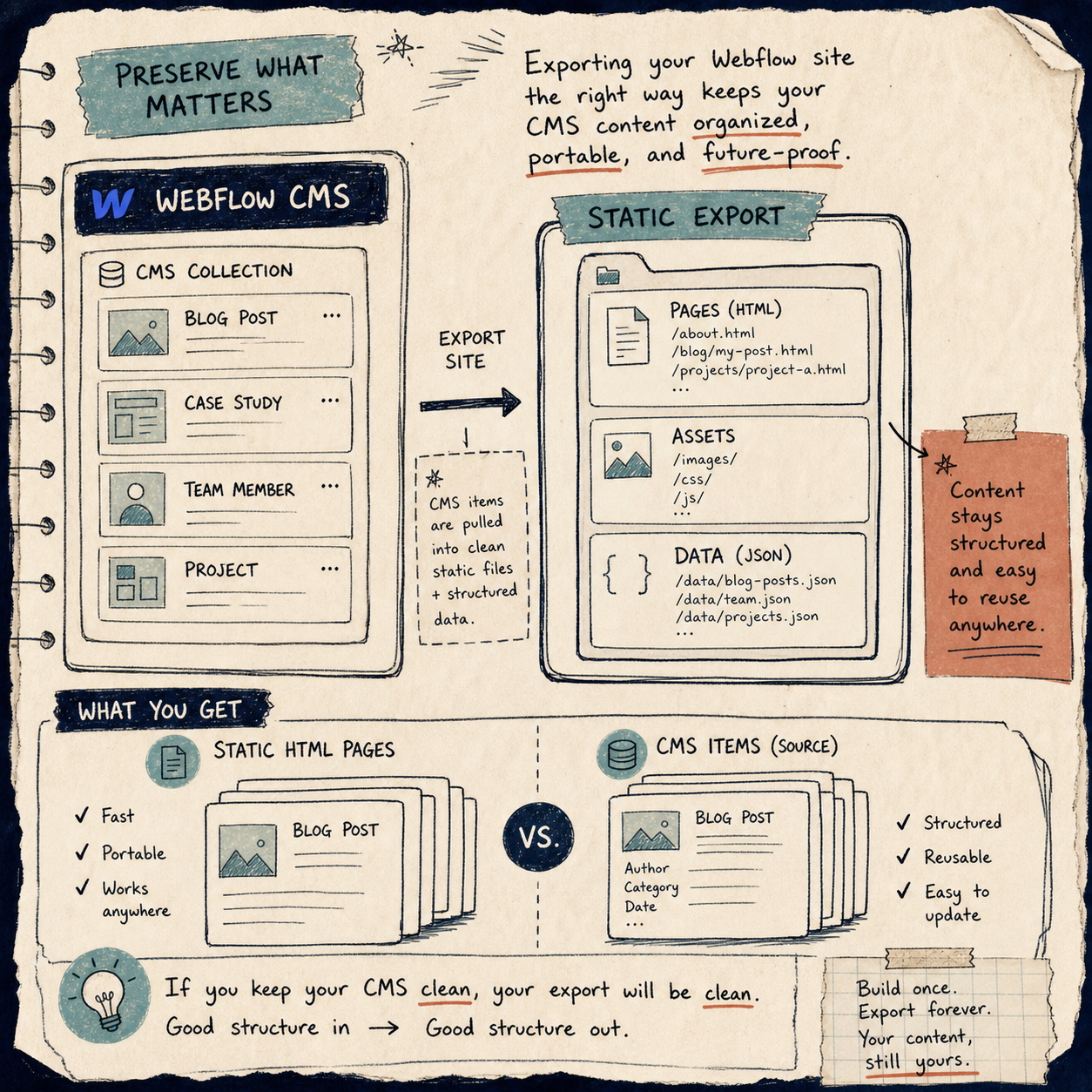
<p>Webflow’s native exporter is useful for simple static output, but CMS content is where people start to feel the gap. ExFlow is the option built to export Webflow sites with CMS content in the package, which is exactly what you want when the site depends on collections, not just fixed pages.</p>

<p>What I check after the export:</p>

<ul>
  <li>The key pages render as .html files, not half-finished placeholders.</li>
  <li>Collection-driven pages still make sense when opened from the exported bundle.</li>
  <li>Images, CSS, and JS load from the exported assets instead of from the live project.</li>
  <li>The content reads correctly offline before I move on to hosting.</li>
</ul>

<p>If I were doing this for a real site, I would open the exported homepage, a few deep pages, and one CMS-driven page before I touched the hosting setup.</p>

<p><img src="/assets/img/posts/2026-05-19-webflow-cms-to-html-a-practical-export-and-self-hosting-checklist/image-02-a71c0e8e2130.png" alt="CMS content preserved in a Webflow export" /></p>

<h2 id="4-pick-the-hosting-path-based-on-who-will-maintain-it">4. Pick The Hosting Path Based On Who Will Maintain It</h2>

<p>Once the export is clean, the next question is not “what is the fanciest place to host this?” It is “who will maintain this when the site changes?”</p>

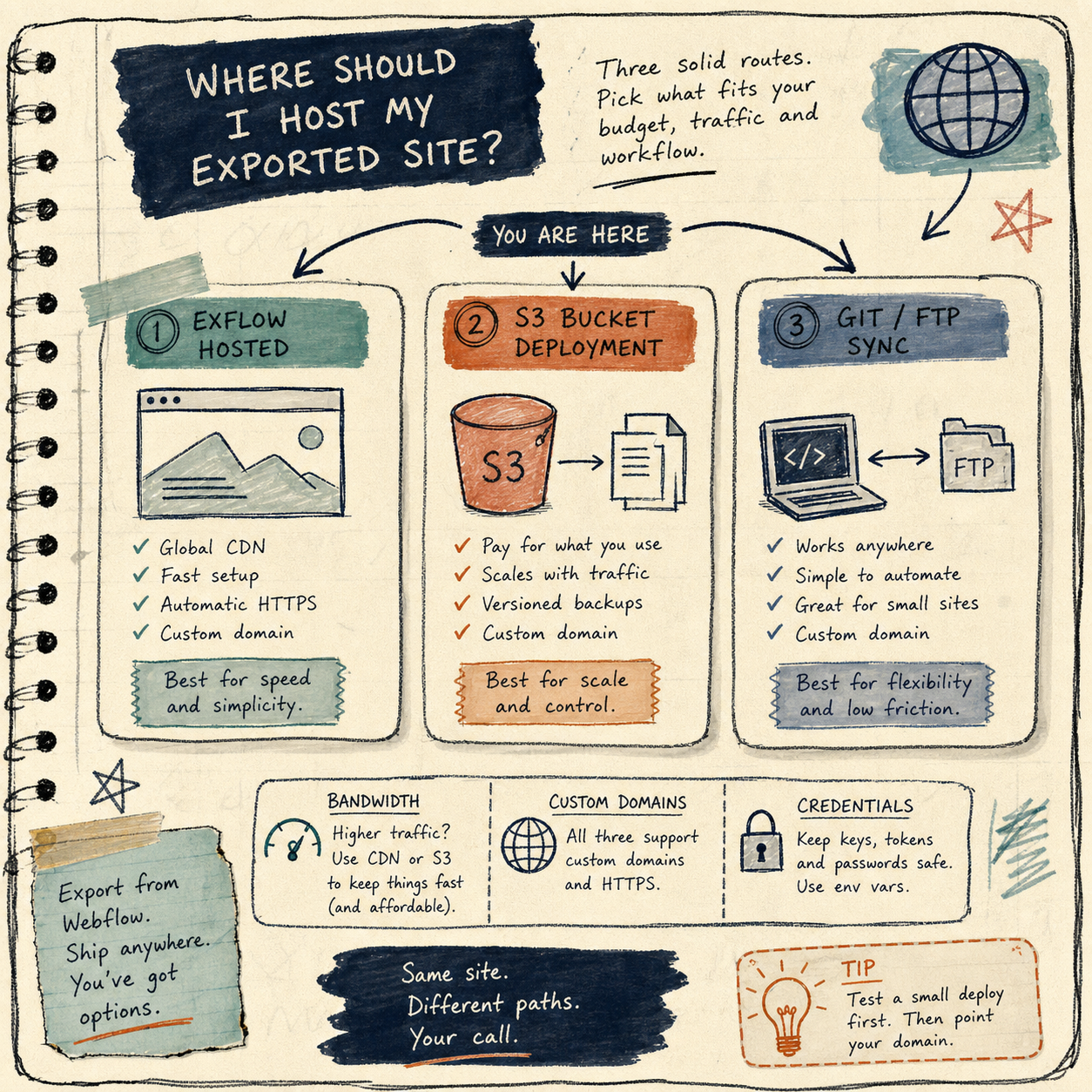
<p>ExFlow gives you a few sensible paths:</p>

<ul>
  <li>Built-in hosting: good when you want the shortest path from export to live site.</li>
  <li>S3 sync: good when your team already thinks in static assets and buckets.</li>
  <li>Git sync: good when deployments should be versioned and reviewable.</li>
  <li>FTP sync: good when you are dealing with a more traditional server setup.</li>
</ul>

<p>I would choose based on operational reality, not taste. If the team already lives in Git, Git sync is the obvious answer. If the site needs a simple static bucket, S3 is enough. If the site just needs to go live fast, built-in hosting is the least fussy route.</p>

<p>One detail I would not gloss over: sync workflows can involve credentials, so I would treat that step as sensitive. Give the export pipeline only the access it actually needs.</p>

<p><img src="/assets/img/posts/2026-05-19-webflow-cms-to-html-a-practical-export-and-self-hosting-checklist/image-03-eef50c8859d9.png" alt="Hosting options for an exported Webflow site" /></p>

<h2 id="5-keep-a-rollback-path">5. Keep A Rollback Path</h2>

<p>The cleanest export workflow is the one you can unwind if something looks wrong.</p>

<p>My rule set is simple:</p>

<ul>
  <li>Keep the original Webflow project intact.</li>
  <li>Keep the exported files or repo copy around after the first successful run.</li>
  <li>Test a few pages on the target host before announcing the move.</li>
  <li>If the site changes often, export on a predictable cadence instead of treating it as a one-time event.</li>
</ul>

<p>That is also why I like ExFlow as a tool rather than a one-off trick. It lets you treat export as a repeatable process, not a rescue mission.</p>

<h2 id="related-notes">Related Notes</h2>

<p>If you want adjacent examples of the same kind of workflow thinking, I would read these next:</p>

<ul>
  <li><a href="https://the-lean-ecommerce.blogspot.com/2026/05/how-to-export-a-webflow-site-to-static.html">How to Export a Webflow Site to Static HTML with ExFlow</a></li>
  <li><a href="https://the-lean-ecommerce.blogspot.com/2026/05/how-to-download-webflow-site-and-host.html">How to Download a Webflow Site and Host It Yourself with ExFlow</a></li>
  <li><a href="https://productivity-tech-business.blogspot.com/2026/05/how-to-export-framer-site-to-static.html">How to Export a Framer Site to Static HTML and Self-Host It</a></li>
  <li><a href="https://how-to-blog.gitlab.io/2026/05/17/how-to-sync-notion-pages-to-webflow-cms-step-by-step/">How to Sync Notion Pages to Webflow CMS Step by Step</a></li>
</ul>

<h2 id="wrap-up">Wrap-Up</h2>

<p>If your next move is to see whether a Webflow site can live outside the hosted stack, start with one real export at <a href="https://exflow.site">ExFlow</a>. Check the HTML, asset paths, and CMS pages before you commit to a new host. That gives you a clean answer fast: either the export is ready to move, or you know exactly what still needs work.</p>

<p>The next step is straightforward: export one site, verify the static output, and only then switch hosting.</p>]]></content><author><name>The Lean Ecommerce</name></author><category term="ecommerce" /><category term="webflow" /><category term="cms" /><category term="hosting" /><category term="export" /><category term="static-site" /><summary type="html"><![CDATA[A field-tested checklist for exporting Webflow sites to static HTML, preserving CMS content, and choosing a self-hosting path with ExFlow.]]></summary><media:thumbnail xmlns:media="http://search.yahoo.com/mrss/" url="https://the-lean-ecommerce.gitlab.io/assets/img/posts/2026-05-19-webflow-cms-to-html-a-practical-export-and-self-hosting-checklist/cover-cb0f4f42fdda.png" /><media:content medium="image" url="https://the-lean-ecommerce.gitlab.io/assets/img/posts/2026-05-19-webflow-cms-to-html-a-practical-export-and-self-hosting-checklist/cover-cb0f4f42fdda.png" xmlns:media="http://search.yahoo.com/mrss/" /></entry><entry><title type="html">How I Set Up Color Swatches for Shopify Collection Pages Without Theme Code</title><link href="https://the-lean-ecommerce.gitlab.io/2026/05/16/how-i-set-up-color-swatches-for-shopify-collection-pages-without-theme/" rel="alternate" type="text/html" title="How I Set Up Color Swatches for Shopify Collection Pages Without Theme Code" /><published>2026-05-16T18:35:31+00:00</published><updated>2026-05-16T18:35:31+00:00</updated><id>https://the-lean-ecommerce.gitlab.io/2026/05/16/how-i-set-up-color-swatches-for-shopify-collection-pages-without-theme</id><content type="html" xml:base="https://the-lean-ecommerce.gitlab.io/2026/05/16/how-i-set-up-color-swatches-for-shopify-collection-pages-without-theme/"><![CDATA[<p>I have a simple rule for Shopify merchandising work: if shoppers need to think too hard about variants, I usually made the store harder to buy from than it needed to be.</p>

<p>Color swatches are one of those small changes that look cosmetic until you watch a product grid. The difference shows up fast: fewer misclicks, cleaner collection pages, better variant discovery, and less friction on product pages. In my tests, the stores that did this well were not the ones with the fanciest theme. They were the ones that made the choice obvious.</p>

<p>For that reason, I like <strong><a href="https://apps.shopify.com/swatch-colors-ultimator">Supra Swatch Colors</a></strong> for the boring-but-important version of the job: add swatches, link products, support collection pages, and keep it out of the theme code where possible.</p>

<h2 id="what-i-look-for-before-i-add-swatches">What I look for before I add swatches</h2>

<p>I do not start with design settings. I start with the catalog structure.</p>

<ol>
  <li>Do variants already exist inside one product, or are they split across separate product pages?</li>
  <li>Do I need swatches on product pages only, or on collection pages too?</li>
  <li>Do I need image swatches, color swatches, or both?</li>
  <li>Does the store serve more than one language?</li>
  <li>Do I want the result to work across themes without a developer cleanup pass?</li>
</ol>

<p>That checklist matters because not every swatch tool solves the same problem. Some tools only dress up variants. Others help connect related products. A few can do both, which is usually the better choice when a store has real merchandising complexity.</p>

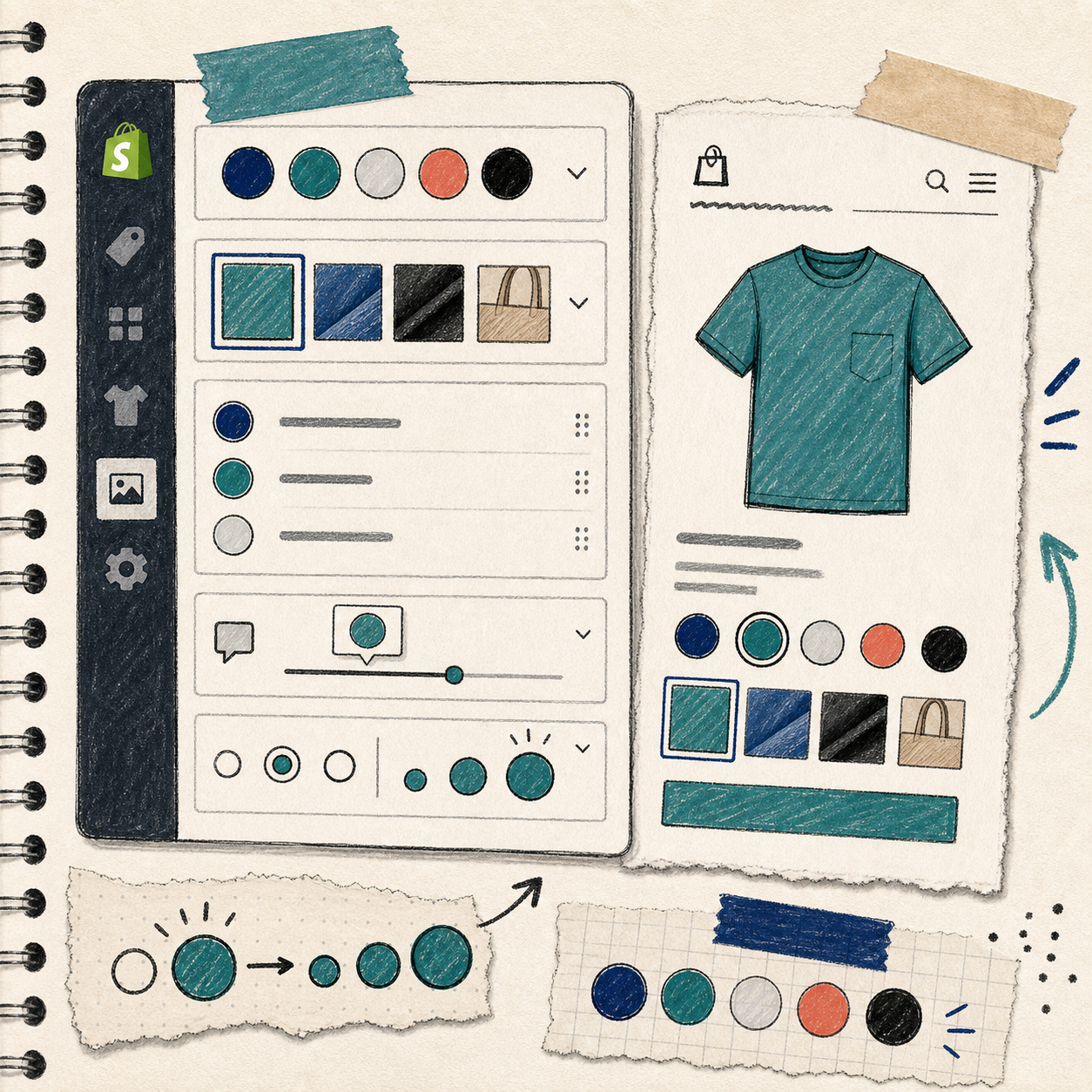
<p>Supra Swatch Colors is built for that middle ground. It supports linked products and built-in variants, and it works on both product pages and collection pages. That means you can make the browsing experience cleaner without forcing the same setup everywhere.</p>

<p><img src="/assets/img/posts/2026-05-16-how-i-set-up-color-swatches-for-shopify-collection-pages-without-theme/image-01-9647b9077f49.png" alt="Hand-drawn hero illustration of Shopify swatches connecting store admin and storefront cards" /></p>

<h2 id="the-setup-path-i-would-use-again">The setup path I would use again</h2>

<p>The setup is not interesting because it is clever. It is useful because it is direct.</p>

<h3 id="1-decide-what-should-become-a-swatch">1. Decide what should become a swatch</h3>

<p>Start with the items shoppers actually compare.</p>

<p>If the store sells T-shirts in Black, Navy, and Olive, the swatch is obvious. If the store sells a product line where finishes matter, image swatches may be better than color dots. If the variants are really separate products in disguise, link them instead of forcing everything into one product.</p>

<p>That distinction keeps the catalog easier to manage later.</p>

<h3 id="2-choose-where-the-swatches-should-appear">2. Choose where the swatches should appear</h3>

<p>Product pages are the obvious place. Collection pages are where the merchandising payoff gets better.</p>

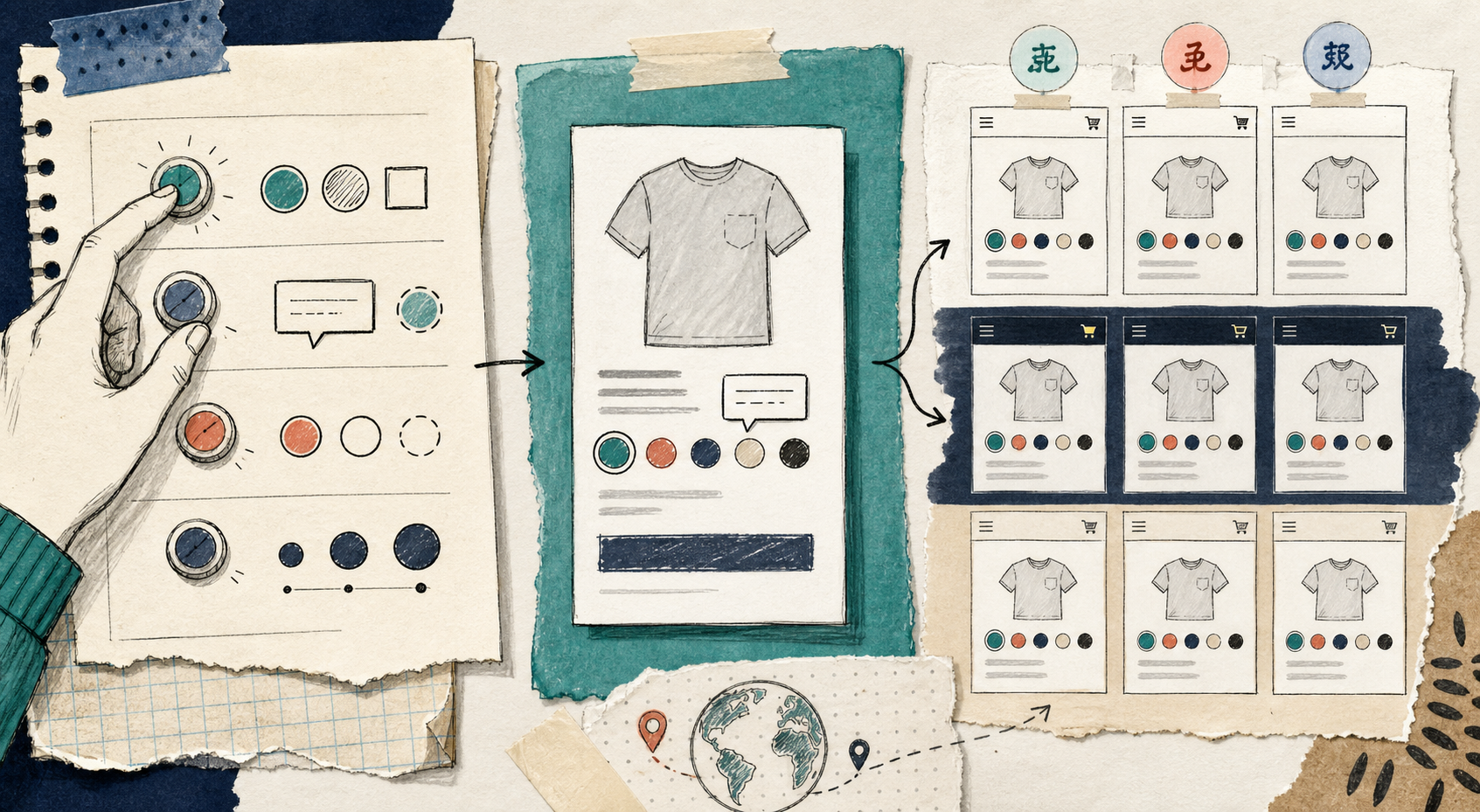
<p>A collection grid with clear swatches helps a shopper understand the range without opening every product in a new tab. That is especially useful when the visual difference between options is the main reason to buy.</p>

<p><img src="/assets/img/posts/2026-05-16-how-i-set-up-color-swatches-for-shopify-collection-pages-without-theme/image-02-dda42265f1ea.png" alt="Sketchbook diagram of Shopify swatches improving product comparison" /></p>

<h3 id="3-match-the-stores-visual-language">3. Match the store’s visual language</h3>

<p>This is where a lot of teams overdo it.</p>

<p>A swatch style should disappear into the site when it needs to, not dominate it. Size, shape, tooltip style, and label treatment should support the theme rather than compete with it. That is also why I care about apps that offer more than one default style. If I can tune the presentation, I can keep the catalog readable without making it loud.</p>

<p>Supra Swatch Colors advertises 20+ customizable styles, which is useful because different stores need different levels of visual emphasis.</p>

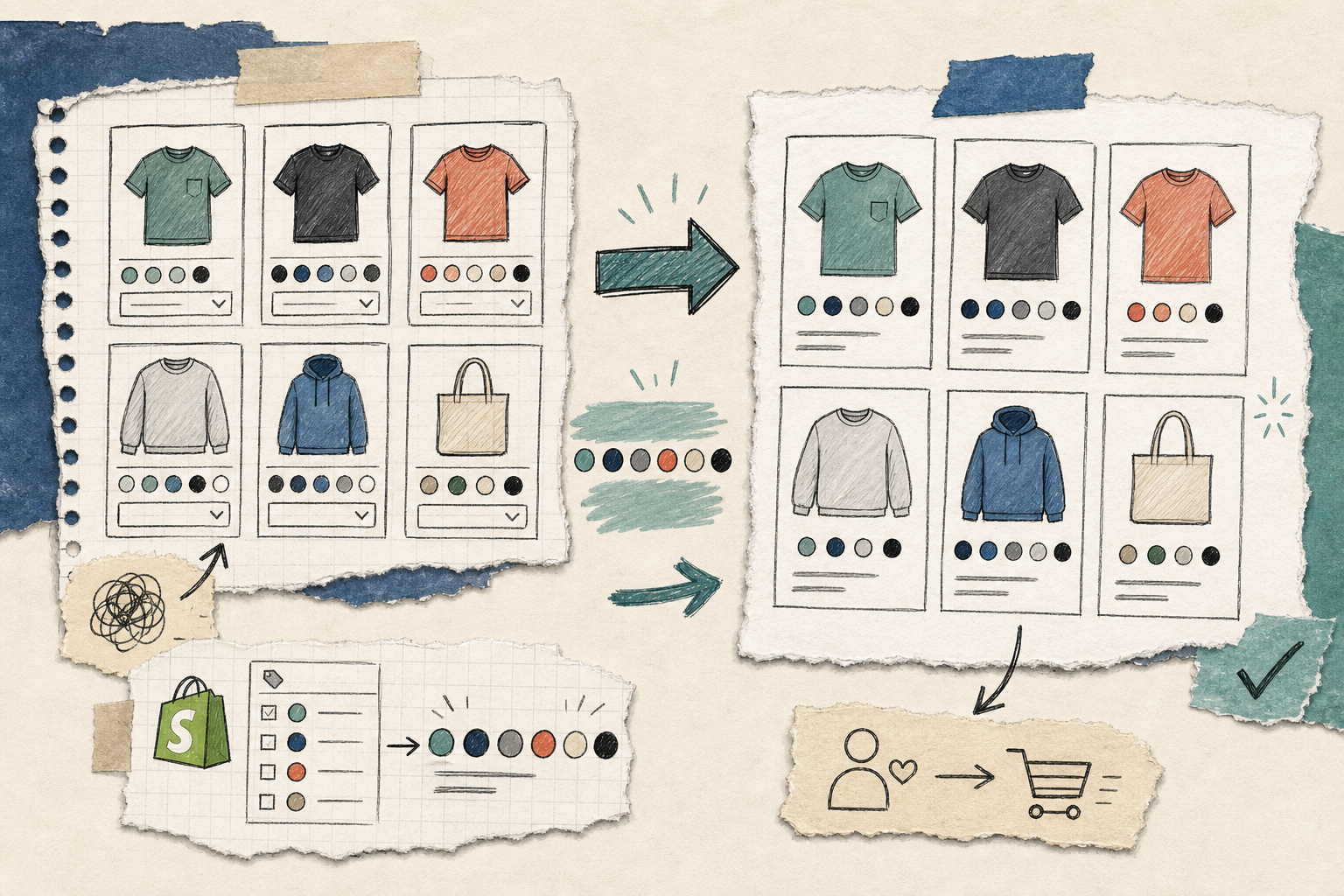
<h3 id="4-keep-multilingual-stores-from-turning-into-a-maintenance-problem">4. Keep multilingual stores from turning into a maintenance problem</h3>

<p>Swatches are not just a visual concern in multilingual shops. They are a consistency concern.</p>

<p>If a merchant has to rebuild the same variant logic for every language, the setup becomes a maintenance tax. That is why multilingual support matters. It does not make the storefront prettier, but it keeps the setup from becoming a chore later.</p>

<h3 id="5-test-the-collection-page-first">5. Test the collection page first</h3>

<p>I would rather catch a swatch issue in a collection grid than after launch.</p>

<p>Look for three things:</p>

<ul>
  <li>Does the swatch render quickly?</li>
  <li>Does it fit naturally with the card layout?</li>
  <li>Does it still make sense on mobile?</li>
</ul>

<p>If the answer is yes, the rest is usually just refinement.</p>

<p><img src="/assets/img/posts/2026-05-16-how-i-set-up-color-swatches-for-shopify-collection-pages-without-theme/image-03-701a3995f870.png" alt="Notebook-style illustration of multilingual swatch customization" /></p>

<h2 id="where-this-app-fits-best">Where this app fits best</h2>

<p>I would recommend this kind of setup when a store has one or more of these needs:</p>

<ul>
  <li>A large catalog with visual variants that shoppers compare quickly</li>
  <li>Separate product pages that should behave like a family of options</li>
  <li>Collection pages that need a cleaner browsing path</li>
  <li>A theme team that does not want to maintain code tweaks for every merchandising change</li>
  <li>A multilingual store that needs the same configuration to stay sane</li>
</ul>

<p>It is less about fashion and more about reducing friction. The store is easier to scan, and the shopper gets to the right item faster.</p>

<p>That is also why I would not treat swatches as an isolated feature. They sit inside the broader merchandising system. If the category structure is messy, swatches will only make the mess prettier. If the catalog is coherent, they help the store feel sharper immediately.</p>

<h2 id="a-few-related-reads-from-the-same-workflow">A few related reads from the same workflow</h2>

<p>If you are building a broader store ops stack, these earlier posts are useful context:</p>

<ul>
  <li><a href="https://the-lean-ecommerce.blogspot.com/2026/05/how-to-add-color-swatches-to-shopify.html">How to Add Color Swatches to Shopify Collection Pages Without Code</a></li>
  <li><a href="https://productivity-tech-business.blogspot.com/2026/05/how-to-add-color-swatches-to-shopify.html">How To Add Color Swatches To Shopify Collection Pages</a></li>
  <li><a href="https://productivity-tech-business.blogspot.com/2026/05/how-to-automate-shopify-blog-without_02007664134.html">How to Automate a Shopify Blog Without Generic AI Drafts</a></li>
  <li><a href="https://how-to-blog.gitlab.io/2026/05/16/how-to-keep-a-shopify-blog-publishing-without-generic-ai-drafts/">How to Keep a Shopify Blog Publishing Without Generic AI Drafts</a></li>
</ul>

<h2 id="the-practical-takeaway">The practical takeaway</h2>

<p>If your store needs color swatches, start with the merchant problem, not the visual effect. Decide whether you are solving variant clarity, product linking, or collection-page browsing. Then configure the swatches so they support that one job cleanly.</p>

<p>If you want a no-code path for that setup, <strong><a href="https://apps.shopify.com/swatch-colors-ultimator">Supra Swatch Colors</a></strong> is the app I would use first.</p>

<p>For a quick start, open the app, map the products or variants you want to present as swatches, and test the collection page before you move on to styling.</p>

<h2 id="one-next-step">One next step</h2>

<p>Pick one high-traffic collection and make the variant choice visually obvious there first. If that page gets easier to shop, the rest of the catalog usually follows.</p>]]></content><author><name>The Lean Ecommerce</name></author><category term="ecommerce" /><category term="shopify" /><category term="swatches" /><category term="ecommerce" /><category term="product-variants" /><category term="shopify-apps" /><summary type="html"><![CDATA[A practical guide to adding product and collection-page swatches in Shopify without touching theme code.]]></summary><media:thumbnail xmlns:media="http://search.yahoo.com/mrss/" url="https://the-lean-ecommerce.gitlab.io/assets/img/posts/2026-05-16-how-i-set-up-color-swatches-for-shopify-collection-pages-without-theme/cover-9647b9077f49.png" /><media:content medium="image" url="https://the-lean-ecommerce.gitlab.io/assets/img/posts/2026-05-16-how-i-set-up-color-swatches-for-shopify-collection-pages-without-theme/cover-9647b9077f49.png" xmlns:media="http://search.yahoo.com/mrss/" /></entry></feed>