
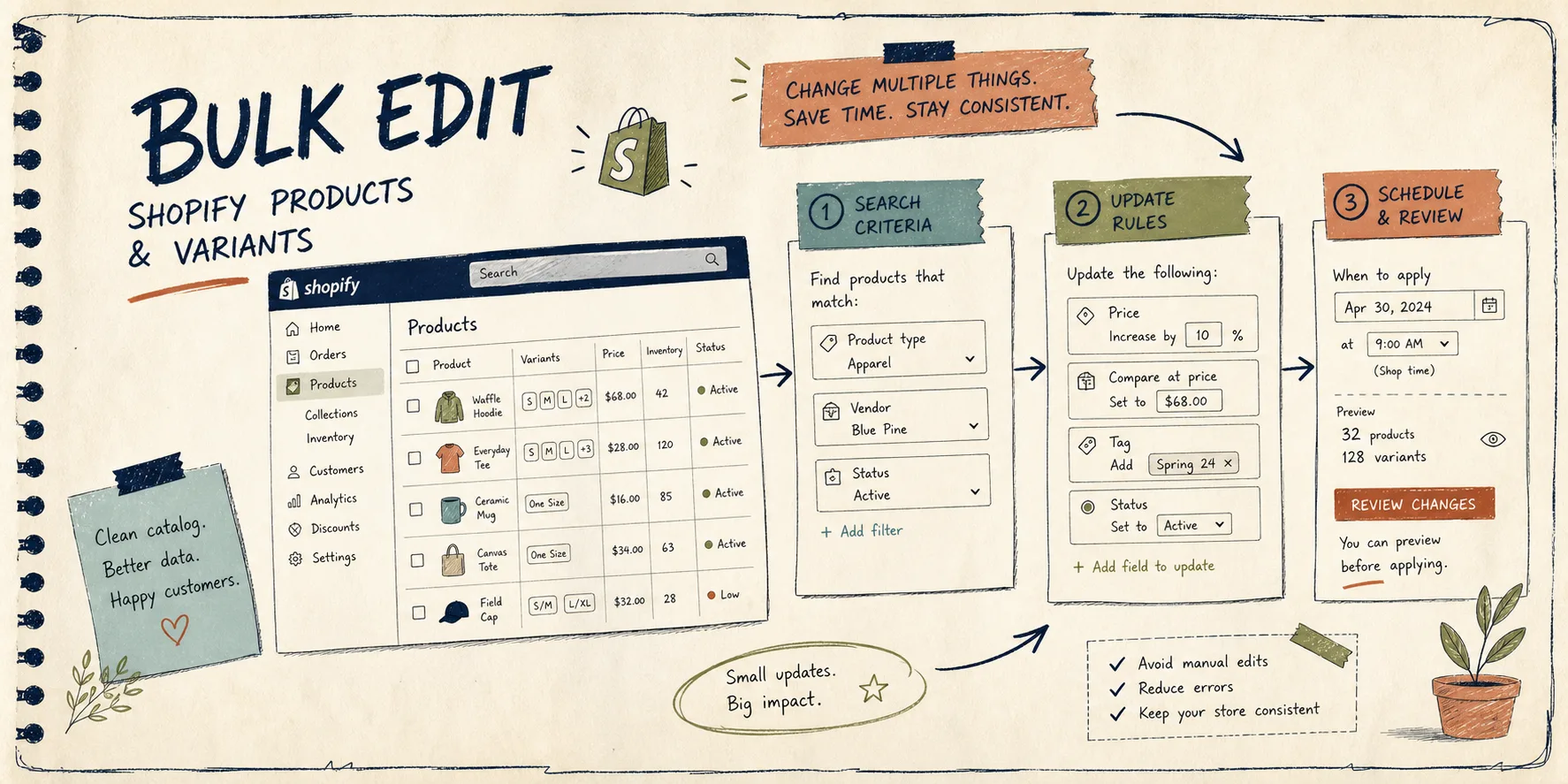
When I bulk edit a Shopify catalog, I do not start with the edit. I start with the filter.
If you jump straight to changing prices, rewriting titles, or replacing tags, the mistake usually comes from scope, not from the tool. Ultimator Bulk Editor is useful because it makes the safe order obvious: narrow the products first, define one change, then run it instantly or schedule it for later. For a store that needs to touch a lot of listings without turning catalog cleanup into spreadsheet chaos, that workflow matters.
If you want to look at the app first, start here: Ultimator Bulk Editor. The product site is https://ultimate-bulk-editor.sktch.io/.
The safe order for a bulk edit

I use a simple sequence every time:
- Define the target set.
- Choose a single kind of change.
- Check the result on a small batch.
- Run it instantly or schedule it.
- Verify the outcome before moving on.
That sounds basic, but it is the difference between a controlled catalog update and a week of cleanup.
The first step is always to make the batch smaller than you think it should be. Filter by collection, vendor, status, tags, or inventory band. If you cannot explain why a product is in the batch, it probably does not belong there.
What Ultimator Bulk Editor is good at
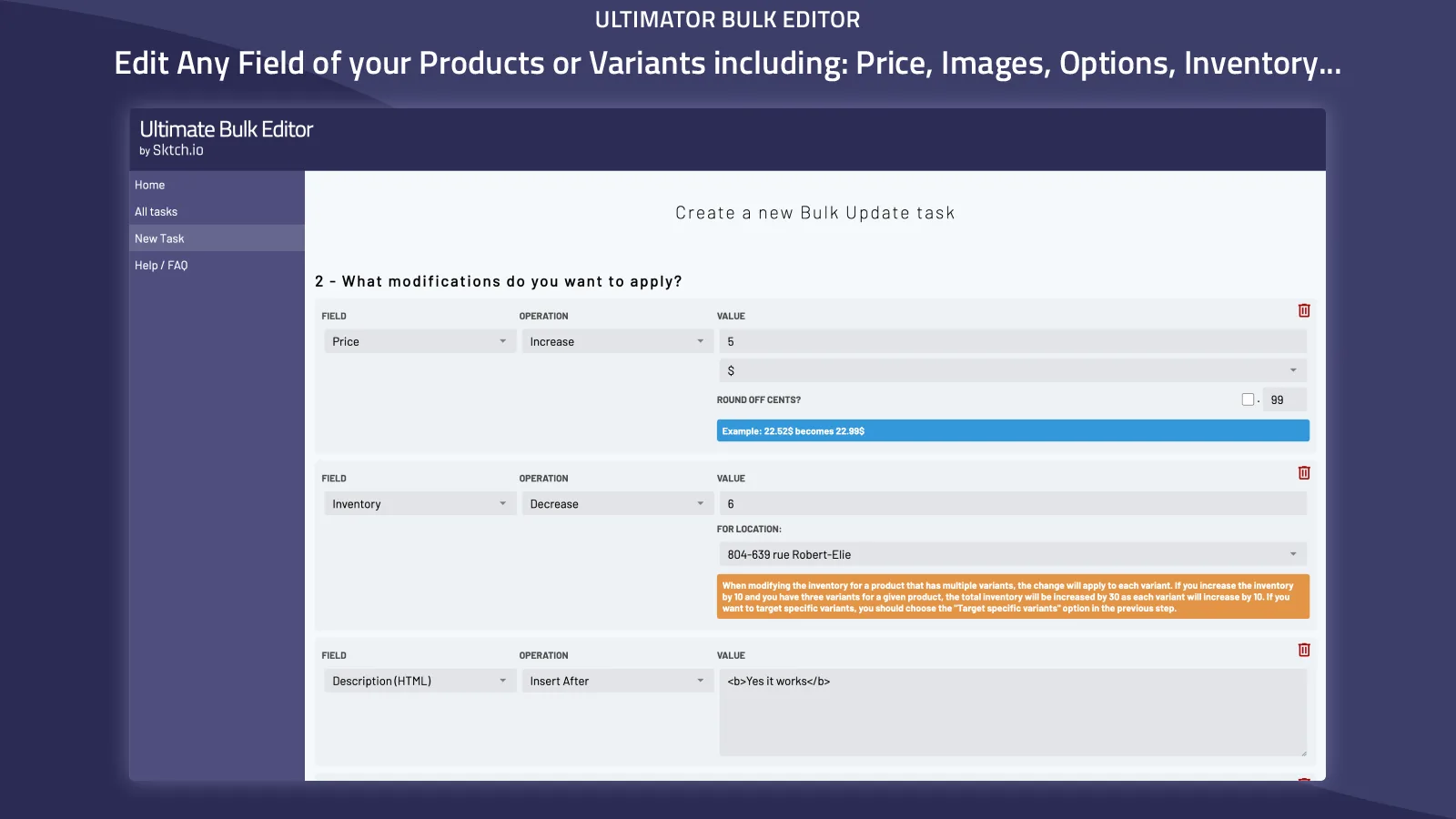
This app is built for broad product and variant work, not just one narrow use case. The product file says it can handle unlimited products and no quotas, which is exactly what you want when the bottleneck is operational discipline instead of tool limits.
The kinds of fields it covers are the ones that normally create tedious manual work:
- Product titles, handles, descriptions, tags, price, compare-at price, inventory, product type, SKU, vendor, status, theme template, collections, images, options, metafields, SEO title, and SEO description.
- Variant fields like price, compare-at price, inventory, track inventory, SKU, weight, barcode, tax code, taxable, requires shipping, option values, metafields, and variant deletion.
That range is useful because catalog cleanup is rarely only about price. Sometimes the real job is fixing naming consistency, cleaning up SEO metadata, adjusting variant settings, or making sure the same rule reaches every product in a collection.
Pick the right update operation
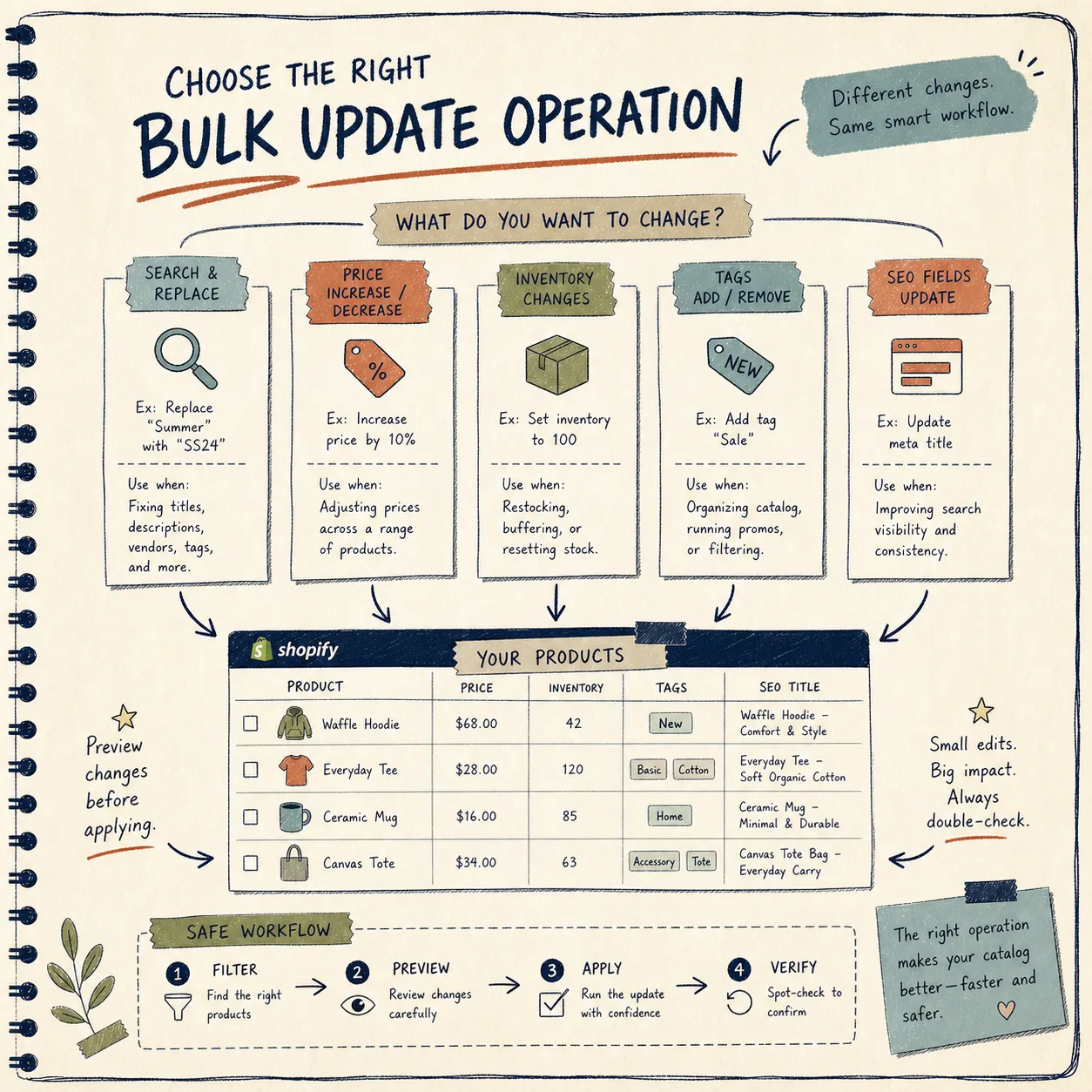
The app supports different operations for different kinds of changes, and that is where a lot of the value sits.
For example:
- Use search and replace when you need to standardize titles, descriptions, vendors, or tags.
- Use price increase or decrease when you are running a sale or correcting a pricing band.
- Use percentage changes when the whole catalog needs to move together.
- Use rounding when you want the new price to land cleanly.
- Use inventory updates when you are restocking, clearing out, or normalizing stock data.
- Use SEO title and SEO description updates when the content needs to support search visibility.
I like this structure because it forces a decision. Instead of asking, “What do I want to fix in this batch?” you ask, “What is the one operation that matches the problem?” That is a better question.
Run a small batch before you touch everything
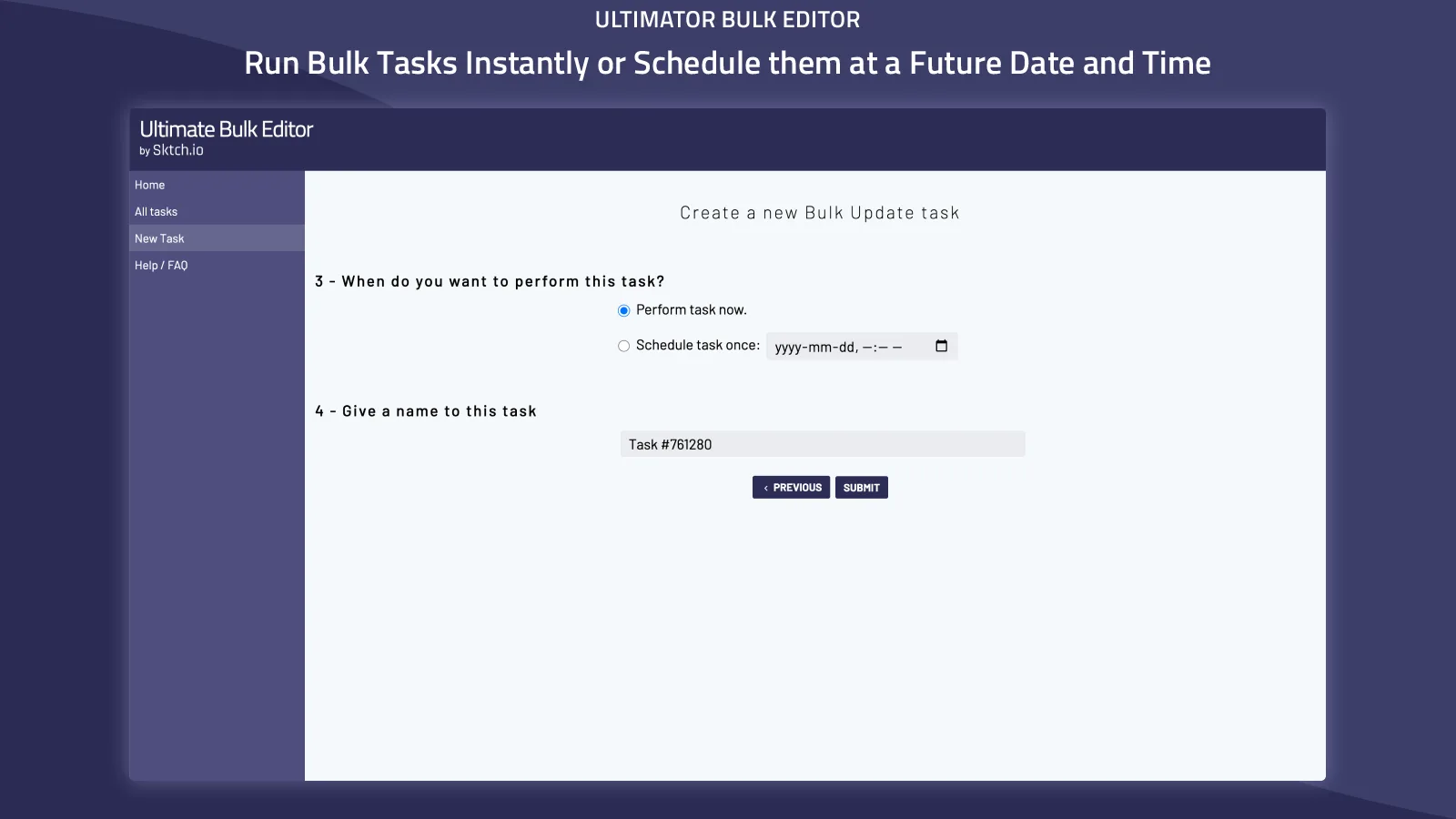
I would treat scheduling as a feature, not an excuse to skip review.
If the change is time-sensitive, run it instantly after you have checked the target set. If it is tied to a sale, campaign, or launch window, schedule it for the right time. Either way, I would still start with a smaller sample first. One test batch is usually enough to catch a bad filter, an over-broad search and replace, or a pricing rule that is more aggressive than you meant.
My quick checklist looks like this:
- Confirm the filter returns only the products or variants you meant to touch.
- Check whether the task changes product fields or variant fields.
- Make sure high-risk fields such as handles, images, options, and SEO text are intentionally included.
- Decide whether the change should run now or later.
- Spot-check the result after the first run.
That last step matters more than people think. Bulk editing is fast enough that mistakes can spread quickly, which means verification needs to be part of the workflow, not an afterthought.
When I would use this app
I would reach for Ultimator Bulk Editor when I need to:
- Clean up a large catalog after a vendor update.
- Push the same price rule across many products.
- Normalize tags, descriptions, or SEO fields.
- Update variant data without opening each listing one by one.
- Schedule a sale or catalog refresh for a later time.
The app fits especially well when the store has enough products that manual editing is the expensive option. At that point, the real value is not just speed. It is fewer errors, more consistent rules, and a workflow you can repeat without rebuilding it each time.
Related reading
If you are building out more of the same catalog workflow, these posts pair well with bulk editing:
- How to Bulk Edit Shopify Products and Variants Safely
- How to Turn Shopify Variants Into Brand-Matched Swatches
- How to Build a Shopify Swatch System for Variants and Linked Products
- How to Create Studio-Quality Shopify Product Photos From Plain Shots
Bottom line
If you need to make repeated catalog changes without opening every product by hand, Ultimator Bulk Editor gives you a practical workflow: filter tightly, choose one operation, run it on the right batch, and verify the result. That is the part most stores need.
Start with the Shopify App Store listing, test one narrow task, and only then move to the bigger batch: Ultimator Bulk Editor.