

I keep coming back to the same mismatch: I want to write in Notion, but I want Webflow to stay the public face of the site. If I copy the content by hand, the page drifts. If I automate too early, I usually break the CMS schema.
Syncflow is the bridge I reach for when I want those two jobs separated cleanly. The setup is simple enough to stay boring, which is the point. I connect the accounts, map the fields once, and let the content move from Notion into Webflow instead of rebuilding the page every time the draft changes.
If you want the shorter version of the problem I was solving, I wrote two earlier notes that help frame the workflow: How to Sync Notion Articles to Webflow CMS Automatically and How I Keep Notion and Webflow in Sync Without Copy-Pasting.
Start With The Schema, Not The Copy
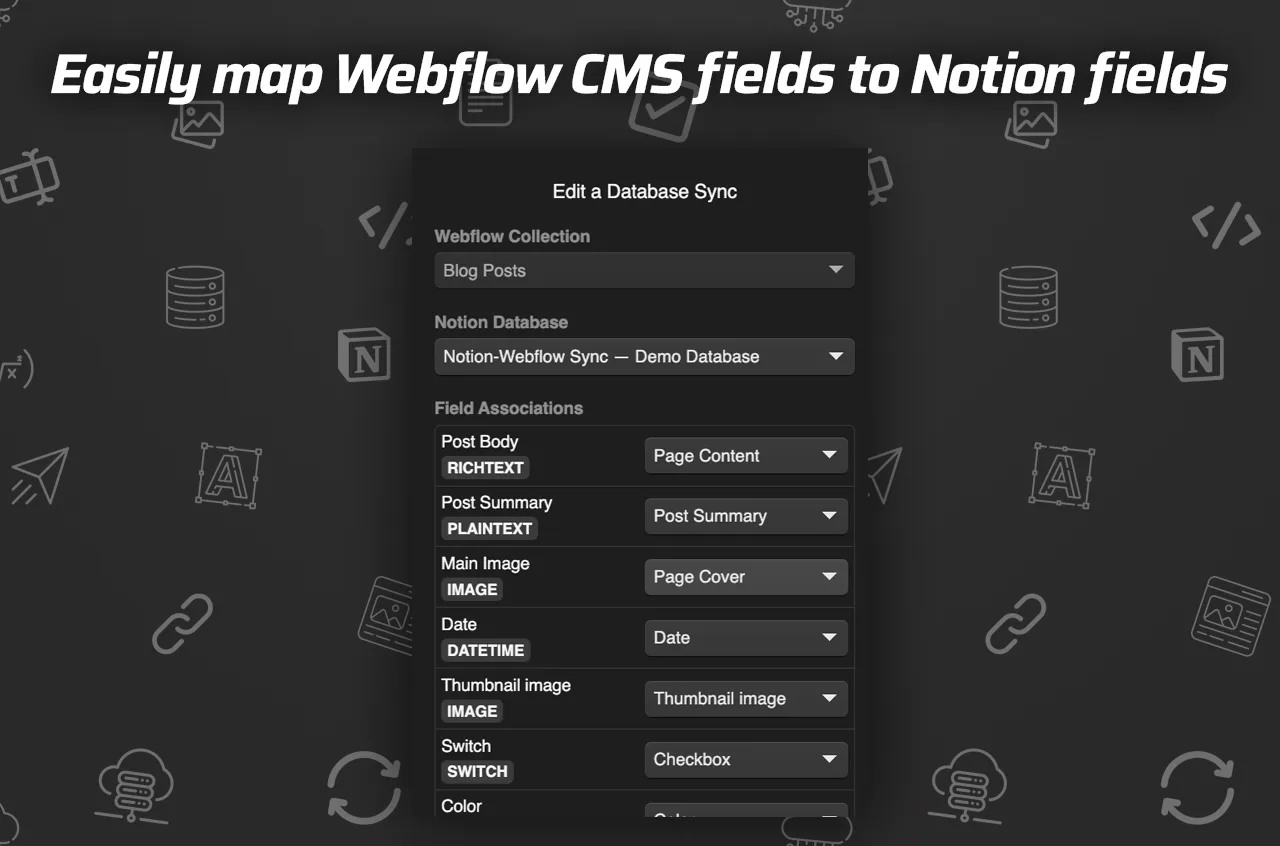
I do not start with the article body. I start with the collection structure in Webflow. That means deciding which Notion properties are real CMS fields and which ones are just editorial clutter.
The cleanest mapping is usually:
- title -> title
- slug -> URL field
- summary -> excerpt or meta description
- cover image -> image field
- published date -> date
- tags -> reference or multi-select field
- body -> rich text
When the mapping is clear, the sync stops feeling fragile. Syncflow is built for that exact handoff, because it can connect a Notion database to a Webflow collection and keep the field pairing explicit.
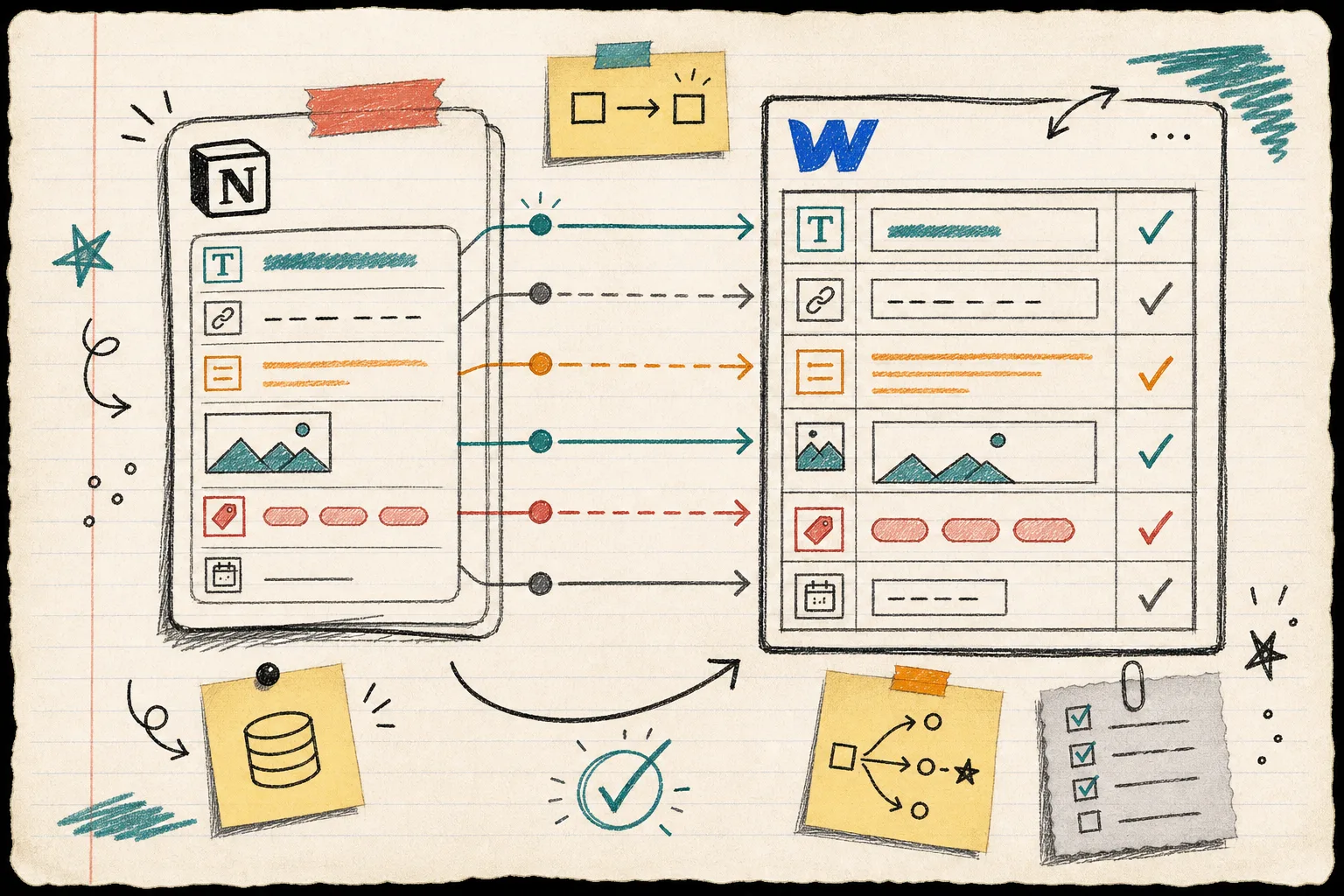
The generated sketch below is the mental model I keep in my notebook. Notion on the left, Webflow on the right, and one boring translation layer in the middle.
Make The Sync Boring On Purpose
The second decision is how live you want the sync to be.
If you are actively editing the content and trust the schema, auto-sync is the obvious move. If the page needs one more human review before it reaches the site, I keep it manual until the structure settles. That is the safest way to use a tool like this, especially when the content includes images, links, or long technical blocks.
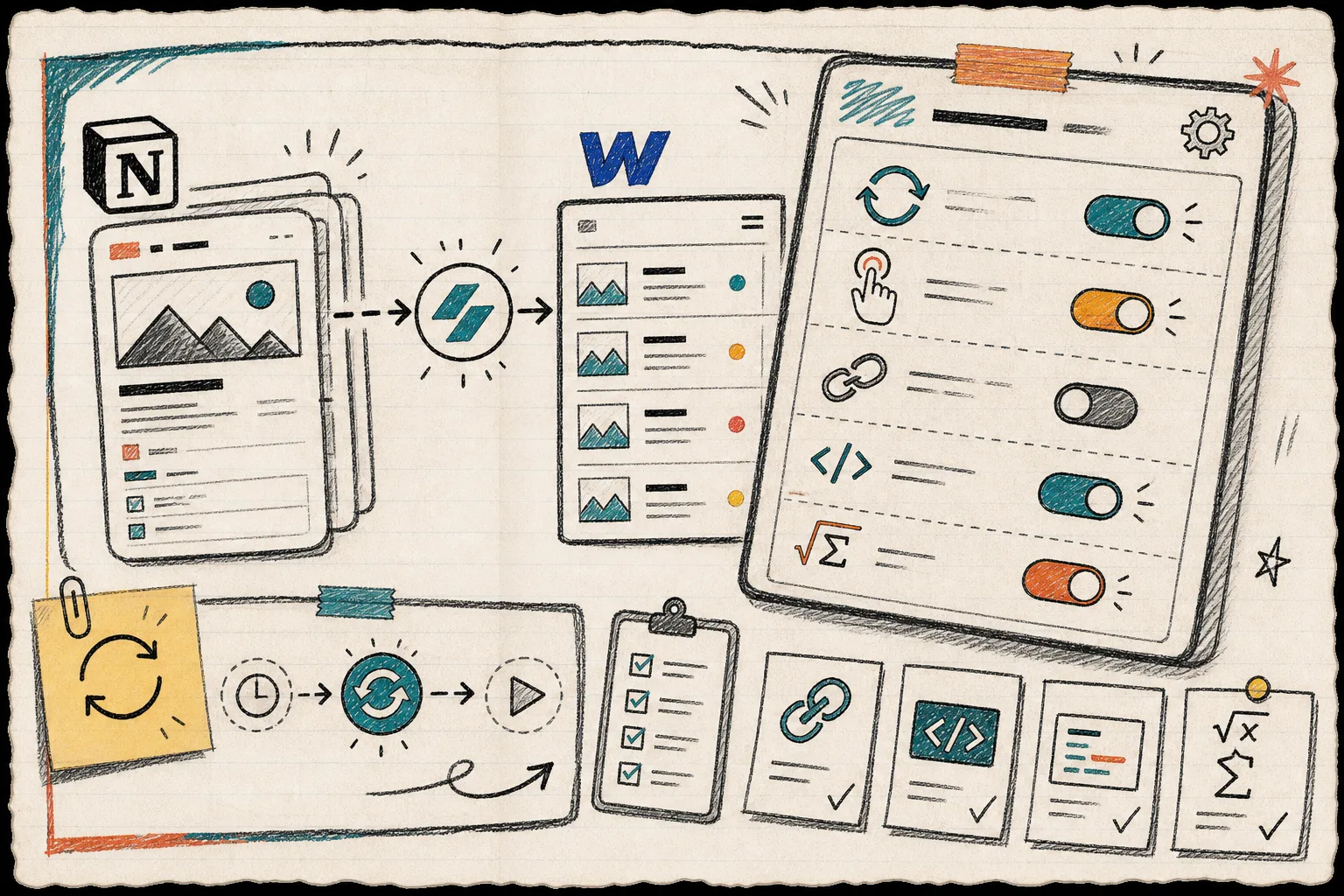
The product supports a few pieces that matter more than they sound:
- auto-sync when Notion changes
- manual sync when I want a review gate
- page linking so connected Notion pages stay connected in Webflow
- inline styling or classes, depending on how much control I want
- code highlighting and TeX support for technical articles
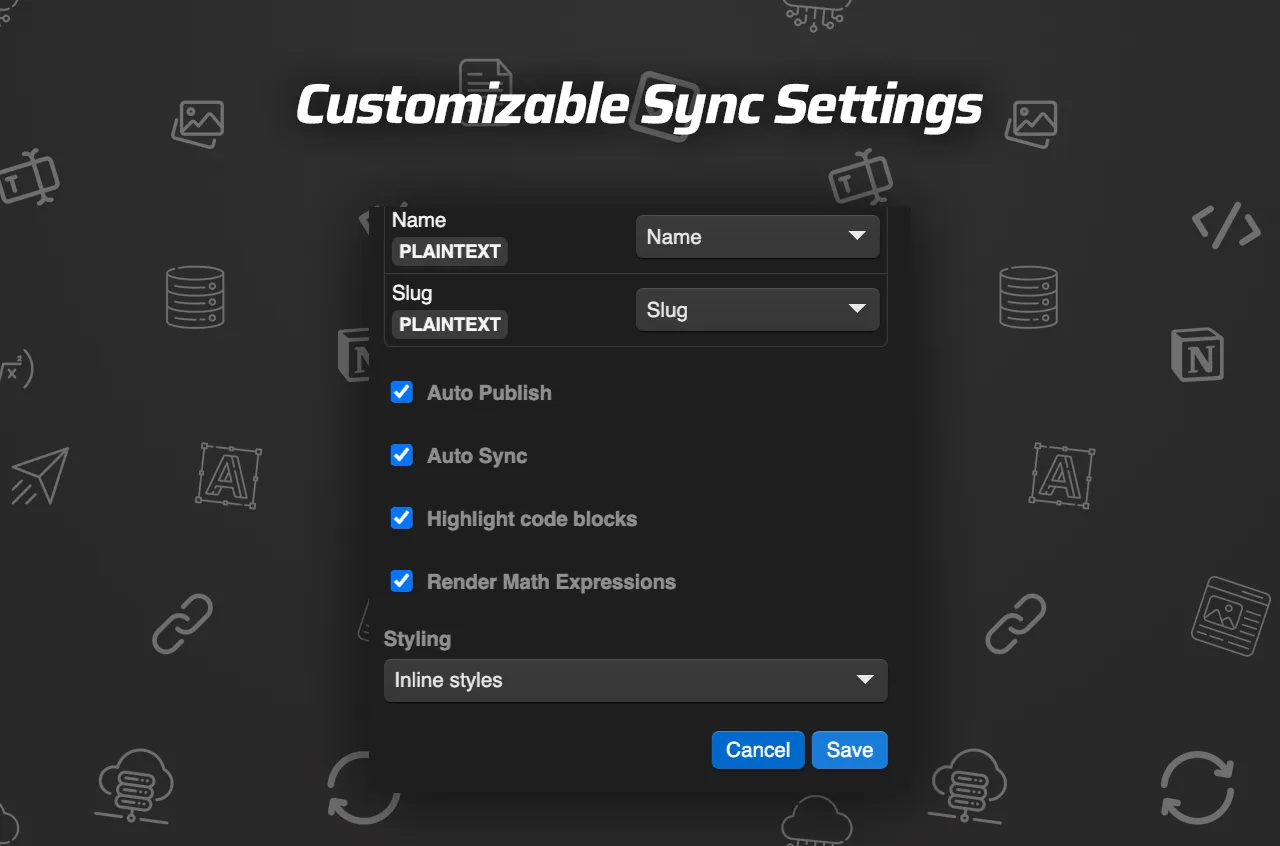
This is the part where the workflow usually gets slippery. My shortcut is to keep the settings panel almost annoyingly simple: one collection, one database, one clear sync mode. When that stays true, the rest is easier to debug.
What I Check Before I Turn It Loose
Before I trust the automation, I run a short checklist:
- one test article first
- one image field that I know will render
- one linked page so I can verify page linking
- one technical block, if the article needs code
- one resync after any schema change
That last step matters. If the Webflow collection changes after you have already mapped fields, the sync can still work, but only if you treat the schema as the source of truth and update the mapping deliberately.
This is also where Syncflow saves time for the kind of content I actually publish. Notion stays the writing surface. Webflow stays the presentation layer. I do not want to maintain two copies of the same article, because duplicate content is just future cleanup with better branding.
If your problem is broader than sync, two related posts are worth reading next: How to Export a Webflow CMS Site Without Losing Dynamic Content and How to Move a Webflow Site to GitHub Pages with ExFlow.
The Part That Survives Real Use
The reason I like this setup is not that it is fancy. It is that it keeps the work divided in the right place. I can draft in Notion, shape the content there, and still publish into a Webflow CMS that behaves like a real system instead of a pile of pasted text.
If you already have a Notion database, the next move is small: wire one collection, sync one draft, and do not touch the rest of the site yet. Once that round-trip works, the rest of the workflow gets a lot less interesting, which is exactly what I want.