
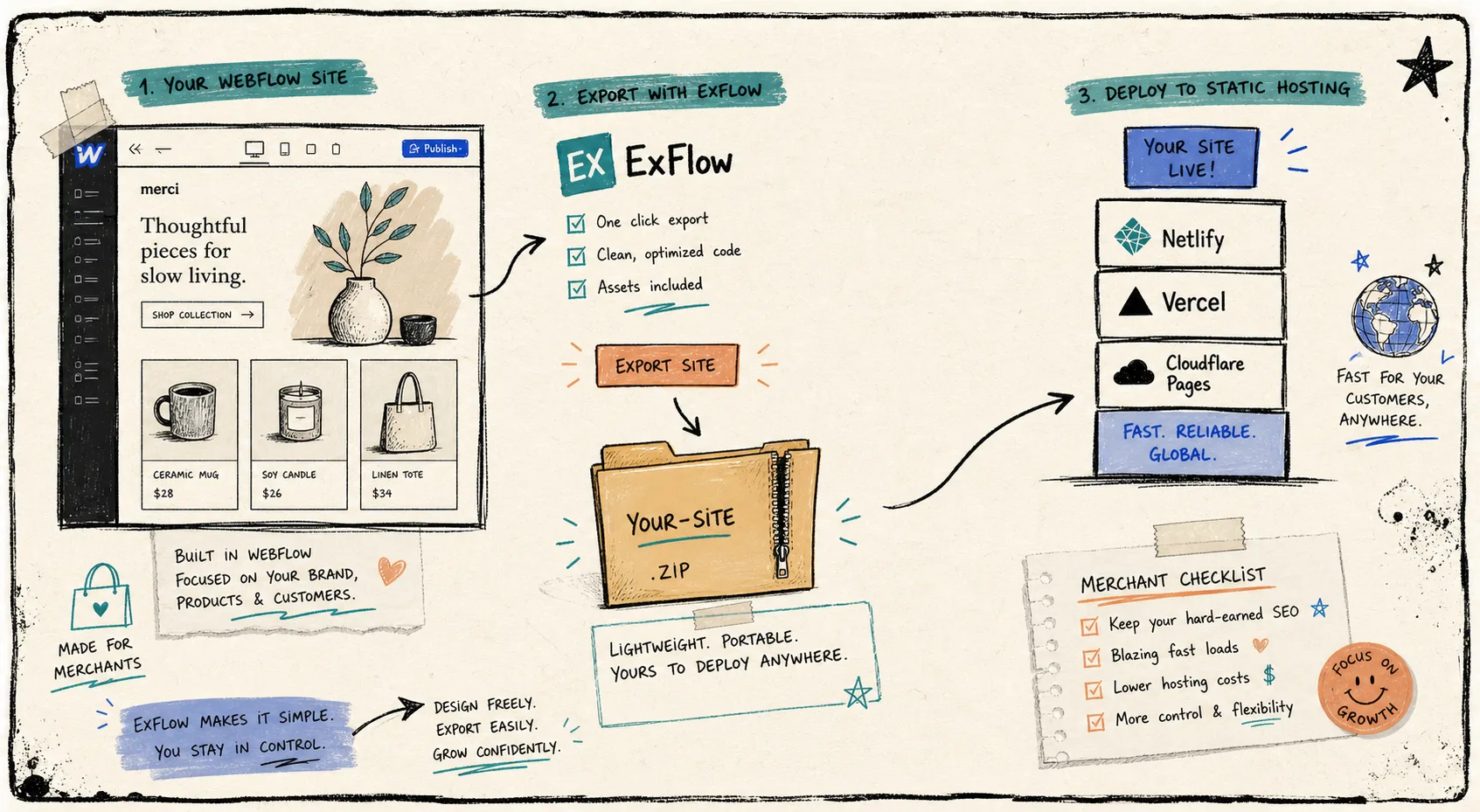
I keep coming back to the same split: if a Webflow site is mostly layout, reusable sections, and a little custom code, I want a static copy I can host somewhere quieter. On this run I used ExFlow for that move. It takes a Webflow URL, exports the site into downloadable static files, and gives me a clean path into Git, S3, FTP, or ExFlow-hosted deployment depending on the plan and the target I want.
The thing I do not treat as optional is the boundary. Webflow’s export docs are clear about it: exported code gives you HTML, CSS, JavaScript, and assets, but CMS data and some site functionality do not come along for the ride. If a site is CMS-heavy, I treat export like a migration path, not a magic clone button.

That is the practical frame I use: export the parts that are truly presentation and deployment, then decide what to do with the dynamic pieces before I push anything live.
What I actually want from a Webflow exporter
The part I care about is not just “can I download a ZIP.” It is whether the exporter makes the whole handoff less brittle.
With ExFlow, the useful settings line up with how I think about a site in production:
- Export the URL I already have instead of rebuilding the project elsewhere.
- Pull CSS, JavaScript, images, media files, and all pages in one pass.
- Remove the “Made with Webflow” badge when I need a cleaner hosted output.
- Add
script.jsandstyle.cssif the exported site needs local overrides. - Sync the result to Git, S3, or FTP when I do not want to manage the files by hand.
- Host the exported site on ExFlow when I want the simplest possible handoff.

That screenshot is the kind of interface I like here: short, specific, and close to the actual operational decision. I do not want a “platform narrative.” I want export switches that map to the real job.
My export checklist
Before I export anything, I run the same checklist. It is boring, but boring is what keeps the move from turning into a rebuild project.
- Decide whether the site is static enough.
- Decide what cannot become static without losing something important.
- Turn on the asset export options I need.
- Decide whether I want the badge removed and whether I need custom CSS or JS.
- Pick the landing zone before I export: Git, S3, FTP, or hosted output.
- Open the result and check the pages, assets, and links before I call it done.

If that sounds simple, that is the point. ExFlow is useful to me because it makes the export path feel like a sequence of decisions instead of a pile of hidden surprises.
How I choose the landing zone
I do not think of “hosting” as one choice anymore. I think of it as a set of tradeoffs.
- Git is the default when I want history, code review, and a place for future diffs.
- S3 is the right answer when I want static hosting that stays close to the file layer.
- FTP still matters when I am dealing with older infrastructure and a server that already exists.
- ExFlow hosting is the move when I want the least operational work after export.
That is also why the GitHub Pages route keeps showing up in my notes. If you want the narrower version of this workflow, I already wrote How to Replace Webflow Hosting With GitHub Pages Using ExFlow, How to Export a Webflow CMS Site to GitHub Pages Without Rebuilding It, and How I Exported My Webflow CMS Site to Static Hosting Without Rebuilding It. They are the same move with slightly different constraints.
The part that still needs judgment
I do not export every Webflow site. If the CMS is the point of the site, I slow down and ask whether I am moving a page layout or a content system.
Webflow does have a CSV path for CMS collections, which is useful when I am backing up or moving collection items. But that is not the same thing as preserving live CMS behavior in exported code. Collection-driven sites need a separate plan for content, and I would rather say that plainly than pretend the exporter will solve it for me.
That is also why articles like How to Export a Webflow CMS Site for Self-Hosting with ExFlow are still relevant. The best version of the workflow is not “export everything.” It is “export what should be static, and leave the rest on purpose.”

The exported file list is where the decision becomes real. If the output looks tidy, the assets are in place, and the page structure survives the move, then I know I am dealing with an export. If the output already looks like a workaround, I stop and redesign the migration instead of pretending the ZIP will save me.
The short version
If the site is presentation-first, ExFlow gives me a practical way to get Webflow into static hosting without turning the job into a rebuild. If the site is CMS-first, I still start with ExFlow, but I treat the export as the beginning of a migration plan, not the end of one.
For me, that is the useful line: design in Webflow, export cleanly, then choose the smallest hosting setup that actually fits the site.
If you are sitting on a Webflow build that does not need premium hosting forever, start with ExFlow, export one site, and see how much of the stack you can simplify without losing the parts that matter.