
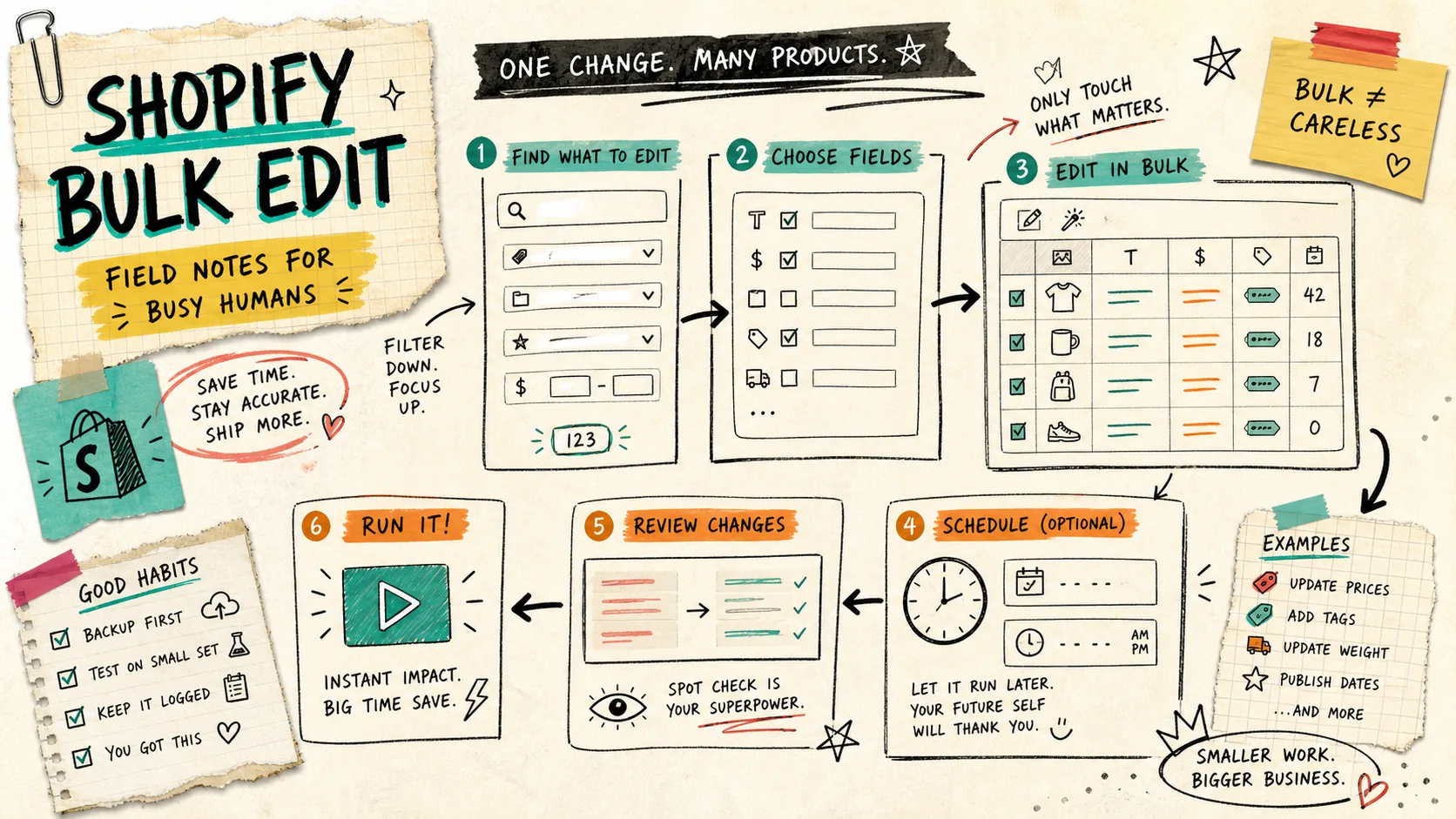
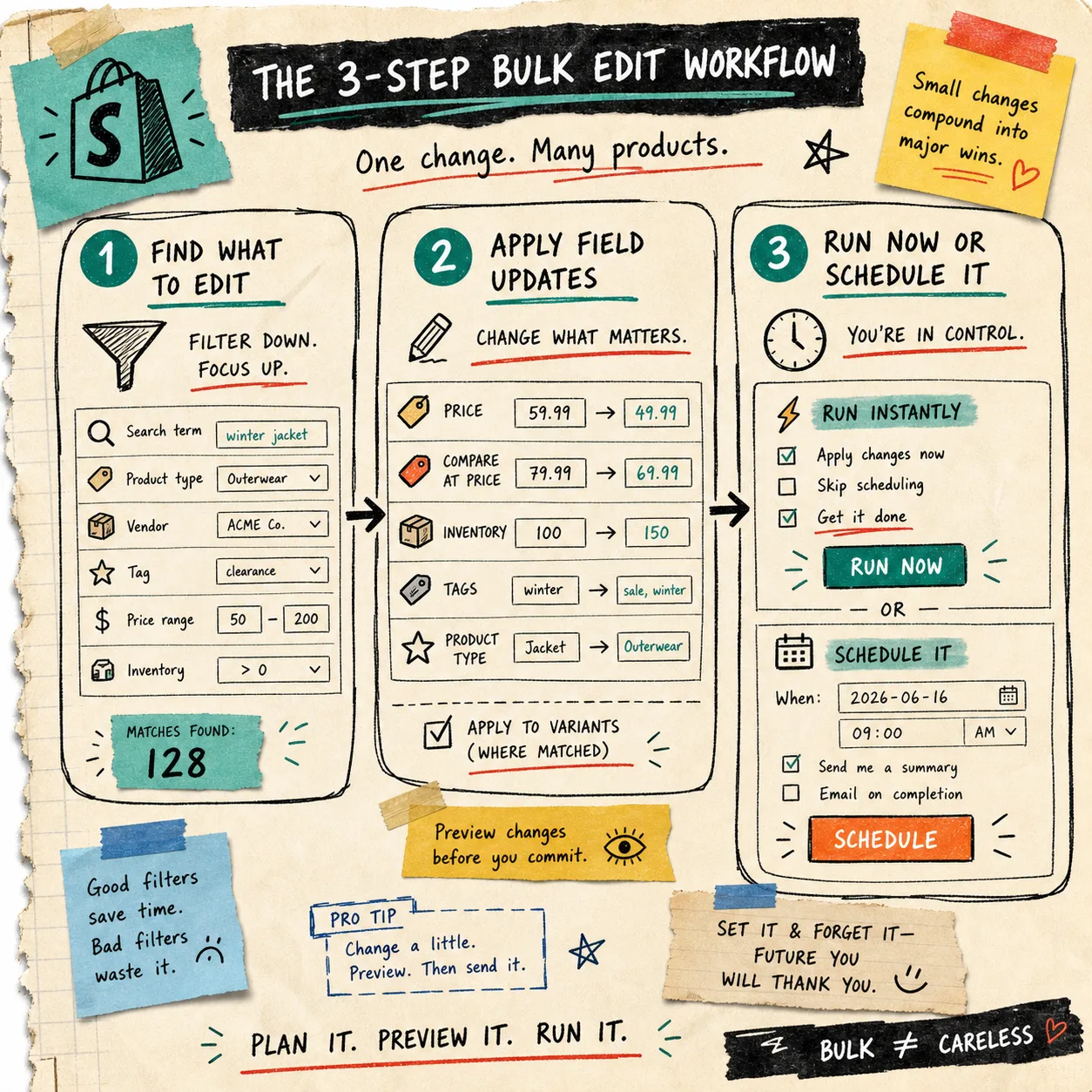
I keep one rule for catalog work: if a change needs to hit more than a few Shopify products or variants, I stop editing by hand. That’s where Ultimator Bulk Editor earns its keep. It gives you a three-step path: set search criteria, define the updates, then run the job now or schedule it.
The part I like most is that it does not hide the sequence. Scope first, field changes second, timing last. That is a calmer way to do catalog work than bouncing between tabs and hoping the spreadsheet stays in sync.
Scope First, Always
When a catalog gets messy, I am not looking for a flashy interface. I want a controlled edit surface. Ultimator Bulk Editor lets you set search criteria before anything happens, which is the part that keeps a batch job from becoming a catalog-wide surprise. The app also says it supports unlimited products with no quotas, which matters when the cleanup is bigger than one sale tag or one price change.
That scope-first shape is also why I treat it as a product operations tool, not just a time saver. If you know exactly which products or variants should move, the rest of the workflow becomes manageable.
What I Actually Change in Bulk
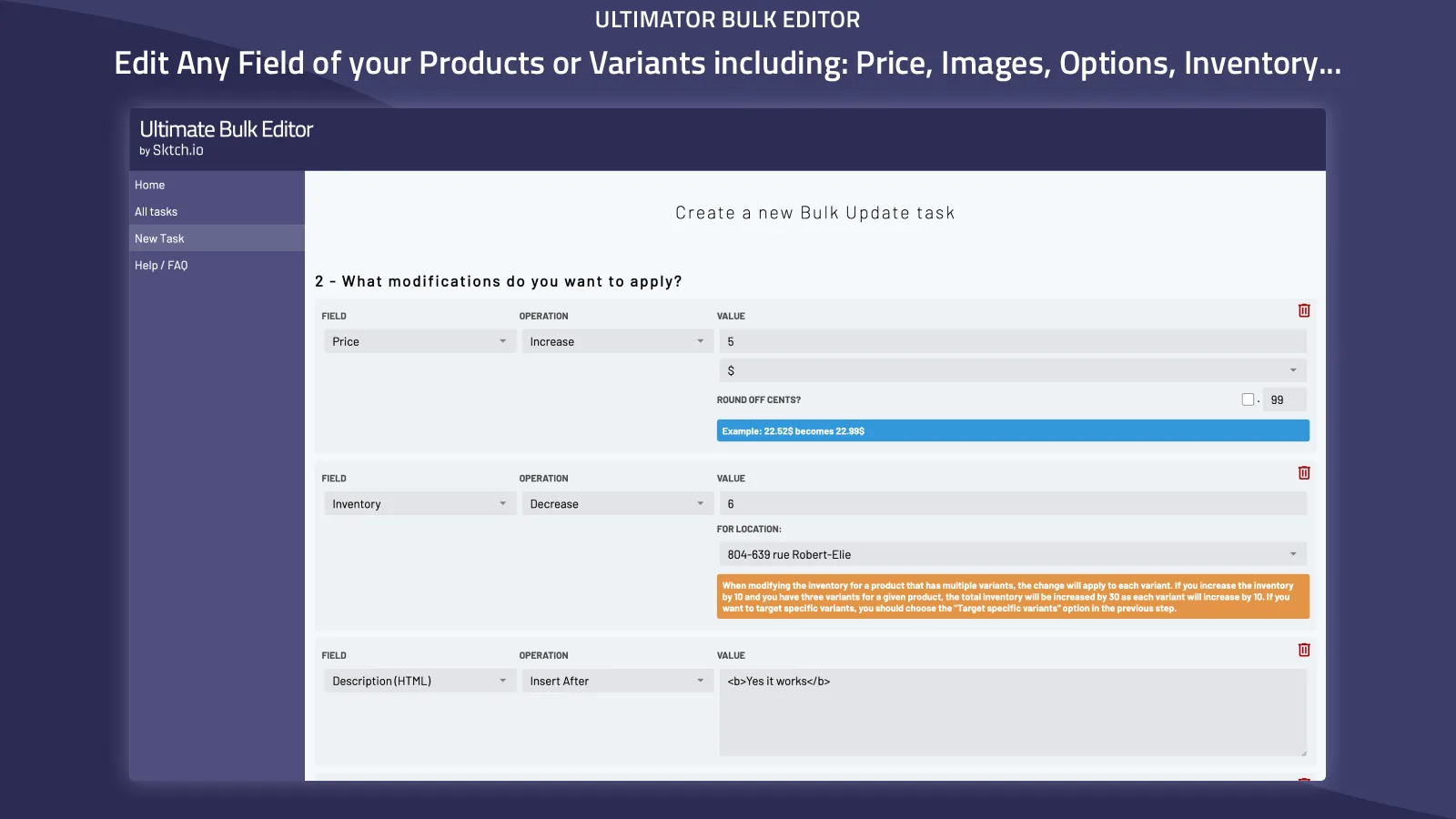
For product data, the app covers the fields I usually need most: title, handle, description HTML, tags, price, compare-at price, inventory, product type, SKU, vendor, status, theme template, collections, images, options, metafields, SEO title, and SEO description.
For variants, it reaches the stuff teams forget until the last minute: price, compare-at price, inventory, track inventory, SKU, weight, barcode, tax code, taxable, requires shipping, option values, metafields, and even delete variant.
That is the difference between “bulk editor” as a label and bulk editing as actual operations work.
If you want the slower, more step-by-step version of the same idea, I wrote a separate walk-through here: How to Bulk Edit Shopify Products Safely With Search, Scheduling, and Field-Level Changes. The practical lesson is the same: narrow the target before you touch the data.
The Safety Pass
Ultimator Bulk Editor supports different operations per field. Titles can be set, appended, prepended, or search/replaced. Prices can be set directly, raised or lowered by amount or percentage, and rounded at the end. That flexibility is useful, but it also means I treat the preview like a checkpoint, not a suggestion.

My default safety pass looks like this:
- Filter to a small, known subset first.
- Preview the result before you commit.
- Test on one product or a tiny group.
- Keep a record of what changed.
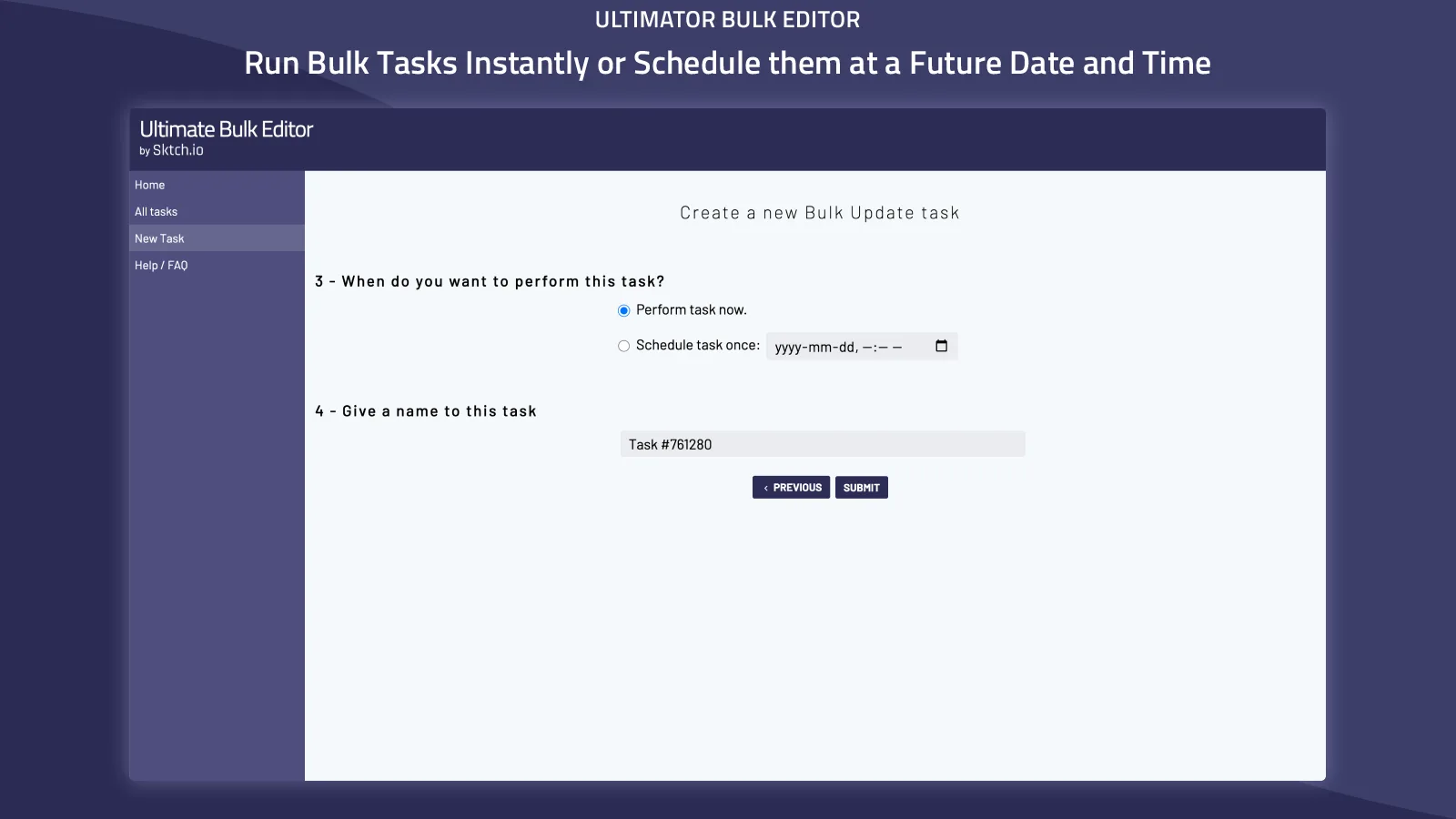
- Schedule the job if the timing matters more than the speed.
I also like the scheduling option because not every batch belongs in the middle of the workday. Price updates, sale copy, vendor changes, and inventory cleanup can all be timed for low-traffic hours instead of run the moment you click.
Why This Workflow Holds Up
The product page says the bulk update flow was tested on thousands of products and variant updates. I cannot verify their internal test harness from the outside, but the design matches the kind of work that actually happens in a real store: repetitive updates, clear scope, and a need to avoid accidental drift.
If the job is more about presentation than catalog data, I use a lighter toolchain. How I Added Shopify Color Swatches Without Touching Theme Code is the cleaner answer when the theme needs a visual fix instead of a data fix. When I am deciding which products deserve heavier work first, How to Decide Which Shopify Products Deserve 3D Models First helps me sort the queue. And if you work across marketplaces, How to Bulk Edit Etsy Listings and Variations Safely uses the same caution on another admin surface.
Takeaway
I like tools that reduce uncertainty more than they reduce clicks. Ultimator Bulk Editor does that by making scope, field choice, and timing explicit before the change lands.
If you need to clean up prices, tags, inventory, or variant fields on Shopify, start with a tight search, test a small batch, and then schedule the bigger pass once the preview looks right. Install Ultimator Bulk Editor on the Shopify App Store, or check the app site at ultimate-bulk-editor.sktch.io.