
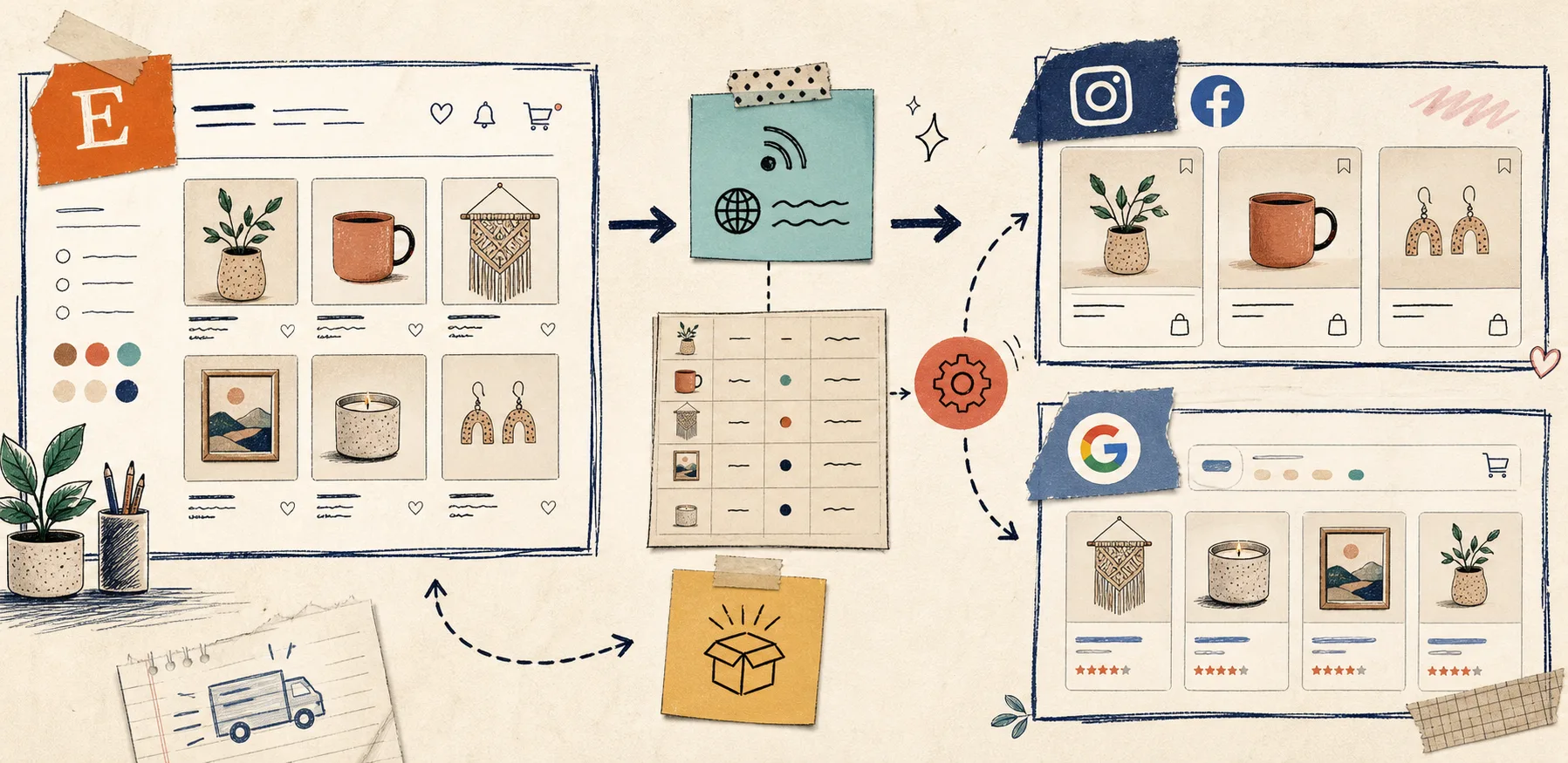
If you want your Etsy shop to show up in Instagram and Google Shopping without rebuilding product data every time, the cleanest path is a feed URL. That is exactly what Catalog Generator for Etsy gives you: a catalog feed you can connect once, then keep synced instead of hand-uploading listings over and over.
I have seen this setup go wrong when people start in Commerce Manager before their Etsy domain and Meta business accounts are actually ready. The fix is not complicated, but the order matters.
What this setup solves
Catalog Generator is built for one job: turn your Etsy listings into a data feed you can use in Meta Business Manager and Google Shopping. The app provides the URL, you paste it into your catalog, and Facebook or Instagram can keep pulling fresh product data on a schedule.
That matters if you want:
- Etsy listings to appear in Instagram Shop or Facebook Shop surfaces.
- A cleaner way to keep product data in sync as titles, prices, or availability change.
- One less manual export step every time you update your shop.
- A setup that still makes sense if you are running a small store and do not want to babysit uploads.
The app is priced at $5 per month and includes a 7-day free trial, so it is easy to test before you commit.
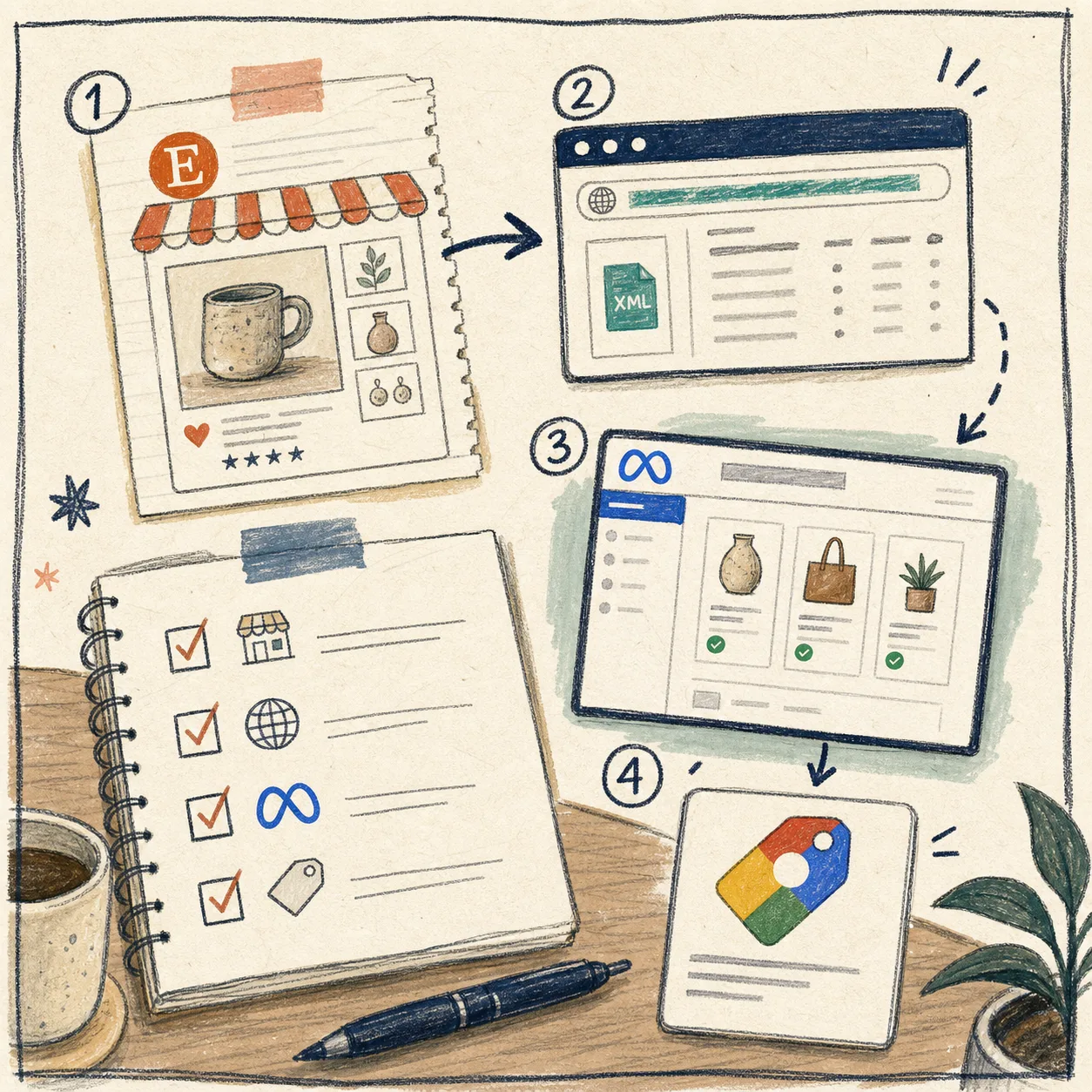
Before you connect anything
Start with the boring pieces first. They save time later.
- Make sure your Instagram account is a business account.
- Link your Instagram account and Facebook page to the same business account.
- Verify the Etsy domain inside Meta Business Manager.
- Clean up the product data in Etsy before you sync it.
That last step is the one people skip. If your titles are vague, your photos are inconsistent, or your variants are messy, the catalog will faithfully mirror that mess. If you want help with the cleanup side, these two posts are the right companion reads:
- How to Bulk Edit Etsy Listings and Variations Safely
- How to Update Etsy Listings in Bulk Without Breaking Variations
If your source images also need work before they feed a catalog, use:
- How I Turn One Product Photo Into Better Assets
- How I Turn One Product Photo Into Store Photos, Try-Ons, and Ad Clips
Step 1: Verify your Etsy domain in Meta
The product instructions point you to business.facebook.com and the Domains area under Business Settings. The goal is to prove that you control the Etsy shop domain you want to connect.
The flow is simple:
- Open Business Settings.
- Go to the Domains tab.
- Add your Etsy shop domain.
- Copy the meta tag Meta gives you.
- Paste that tag into your Etsy shop settings.
- Return to Meta and verify the domain.
Once that is approved, the rest of the catalog setup has a much better chance of working on the first pass.
Step 2: Create the catalog and choose a data feed
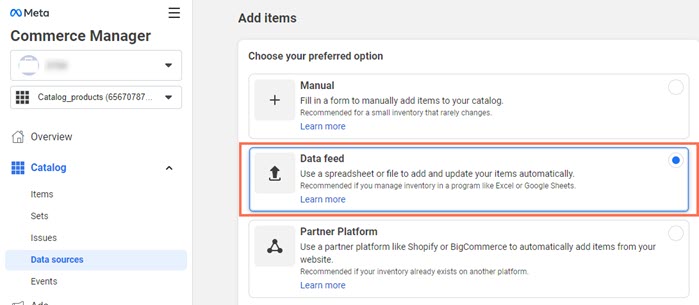
In Commerce Manager, create or open your catalog, then choose the data feed option rather than a manual upload. That is the key decision. A feed keeps the catalog connected to your Etsy listings instead of freezing them in time.
At this point, Catalog Generator becomes useful. Instead of building your own feed, you connect the Etsy shop to the app and use the URL it provides.
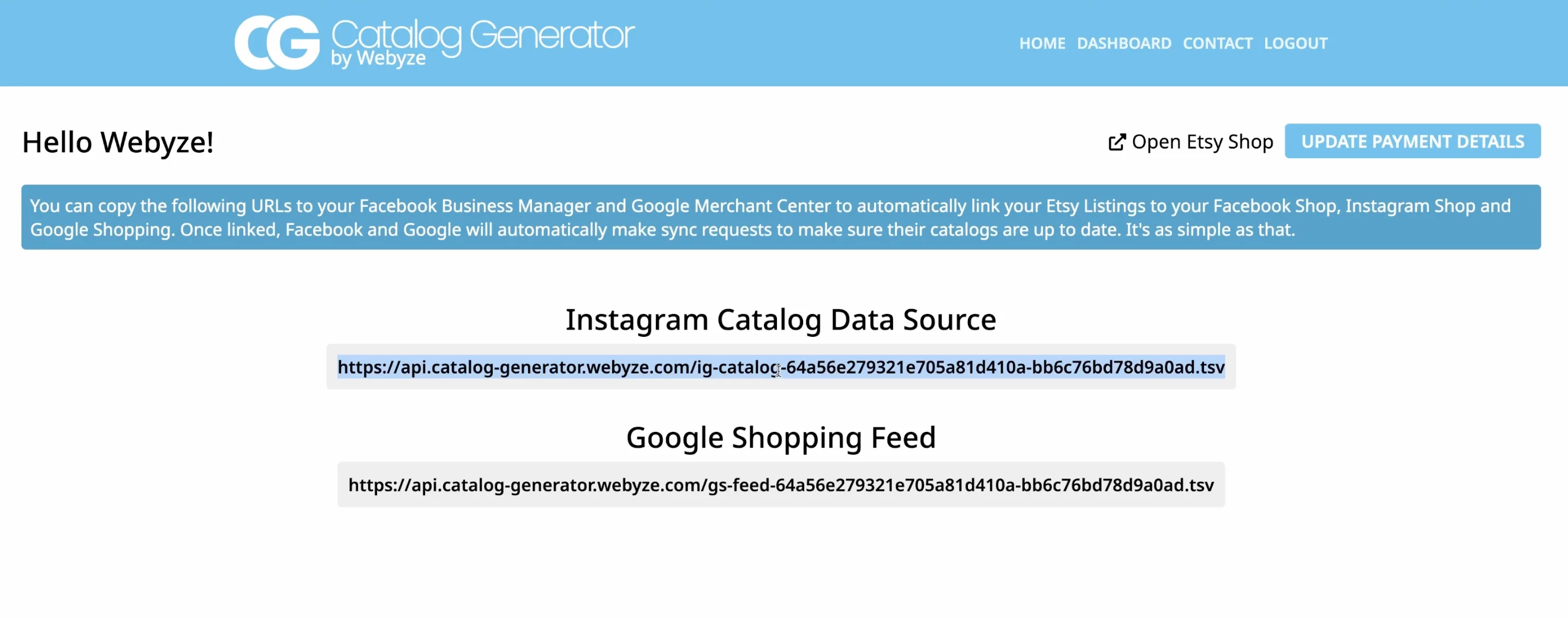
Step 3: Paste the feed URL and set the sync schedule
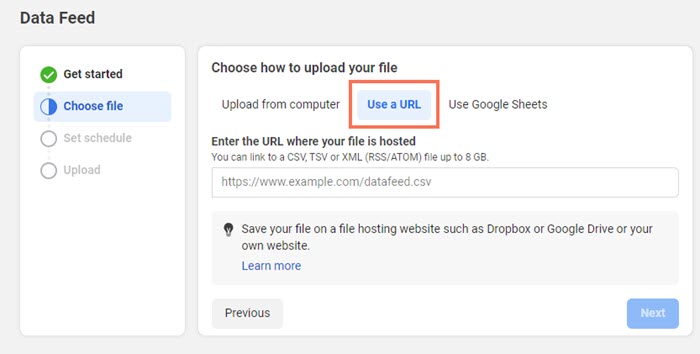
Once you have the feed URL from Catalog Generator, paste it into the feed URL field in Commerce Manager. Leave the extra fields empty if the setup does not ask for them. Then choose a refresh schedule that matches how often your shop changes.
If you update listings often, daily sync is the safe default. If your catalog changes less frequently, a slower schedule may be fine. The point is to let Meta re-fetch the feed automatically so you are not re-uploading product files by hand.
Step 4: Submit the domain and test the catalog
After the feed is in place, finish the approval steps in the catalog settings and check that your items appear correctly. I would test three things before calling it done:
- A product title looks normal in the catalog.
- The main image matches the Etsy listing.
- The item status updates when the source listing changes.
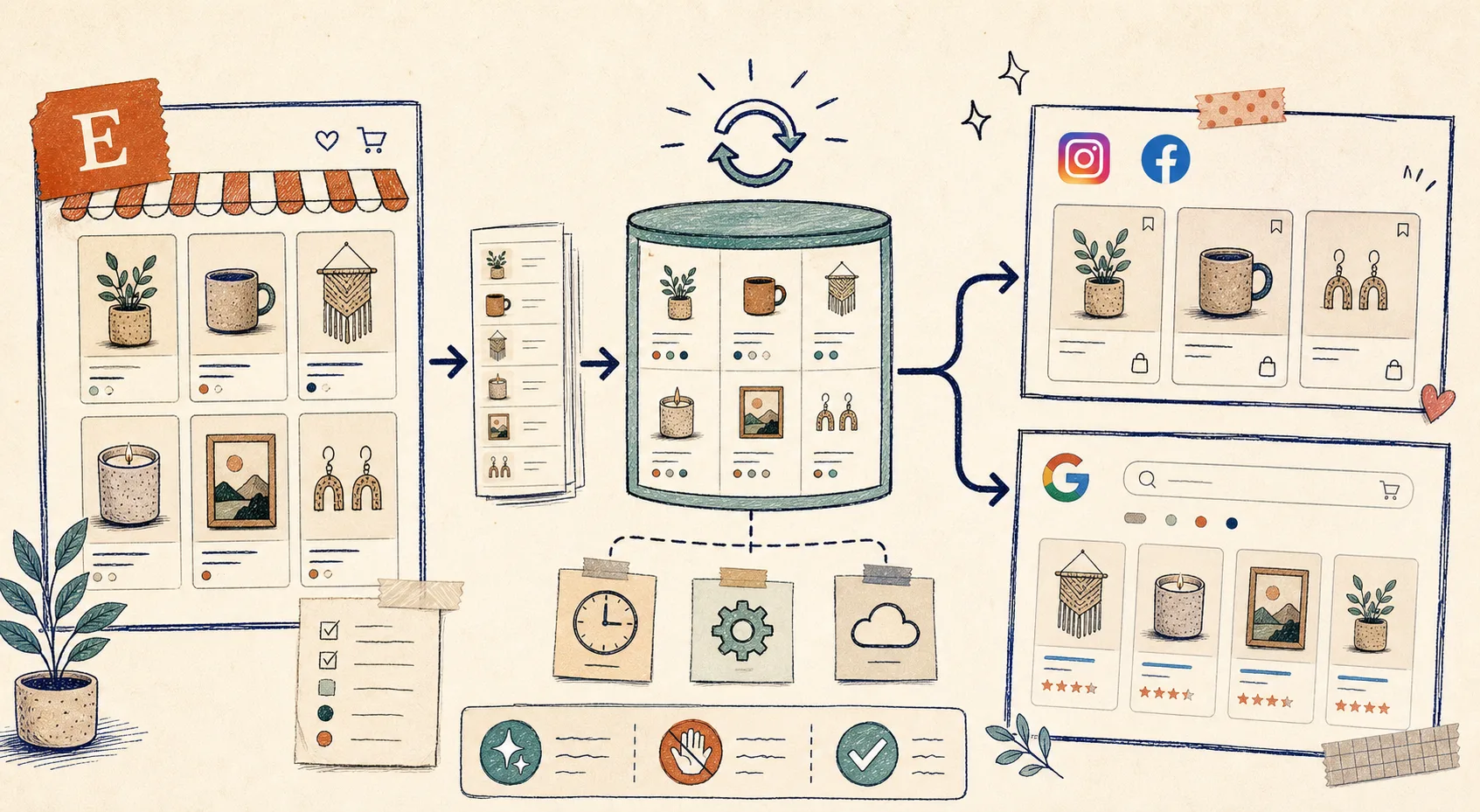
This is also where a more visual workflow helps. If the catalog is healthy, the whole setup behaves like a loop: Etsy updates flow into the feed, the feed updates the catalog, and the catalog stays current without manual relinking.
Common mistakes that slow this down
The most common problems are not technical. They are sequencing problems.
- Verifying the wrong domain or skipping the domain step entirely.
- Connecting a catalog before the Facebook page and Instagram account are linked properly.
- Feeding messy listing data into a system that will faithfully preserve the mess.
- Treating the catalog as a one-time upload instead of a synced source.
If you avoid those four mistakes, the setup is usually straightforward.
When Catalog Generator is the right fit
This app makes sense if you want a lightweight way to keep Etsy listings in sync with Meta and Google Shopping without building a custom feed. It is especially useful if you want to test the workflow first, because the free trial lowers the risk of experimenting.
It is not trying to replace good merchandising work. You still need decent titles, clean variants, and usable product photos. What it does is remove the repetitive feed management that gets in the way once the listings are already in good shape.
A simple next step
If you are ready to wire Etsy into a catalog instead of exporting listings by hand, start with Catalog Generator for Etsy, connect one clean set of listings, and test the sync before you roll it out to the whole shop.
That is the leanest way to get Etsy listings into Instagram and Google Shopping without turning catalog maintenance into a second job.