

I learned this the mildly embarrassing way: the content sync was not the risky part. The risky part was treating a Notion database and a Webflow Collection as if they already agreed on what a post was.
One missing slug, one image field with the wrong shape, and one automatic publishing switch later, I had a beautiful little reminder that automation multiplies assumptions. Now I put a short schema checkpoint in front of every Notion-to-Webflow workflow. It takes about fifteen minutes, and it makes the actual sync feel boring—the good kind of boring.
Syncflow is the connector I use for this: it maps a Notion database to a Webflow CMS Collection, can sync changes automatically or manually, converts links between Notion pages into Webflow post links, and supports things like code highlighting and TeX. The trick is to make the two sides intentionally compatible before asking them to stay in step.
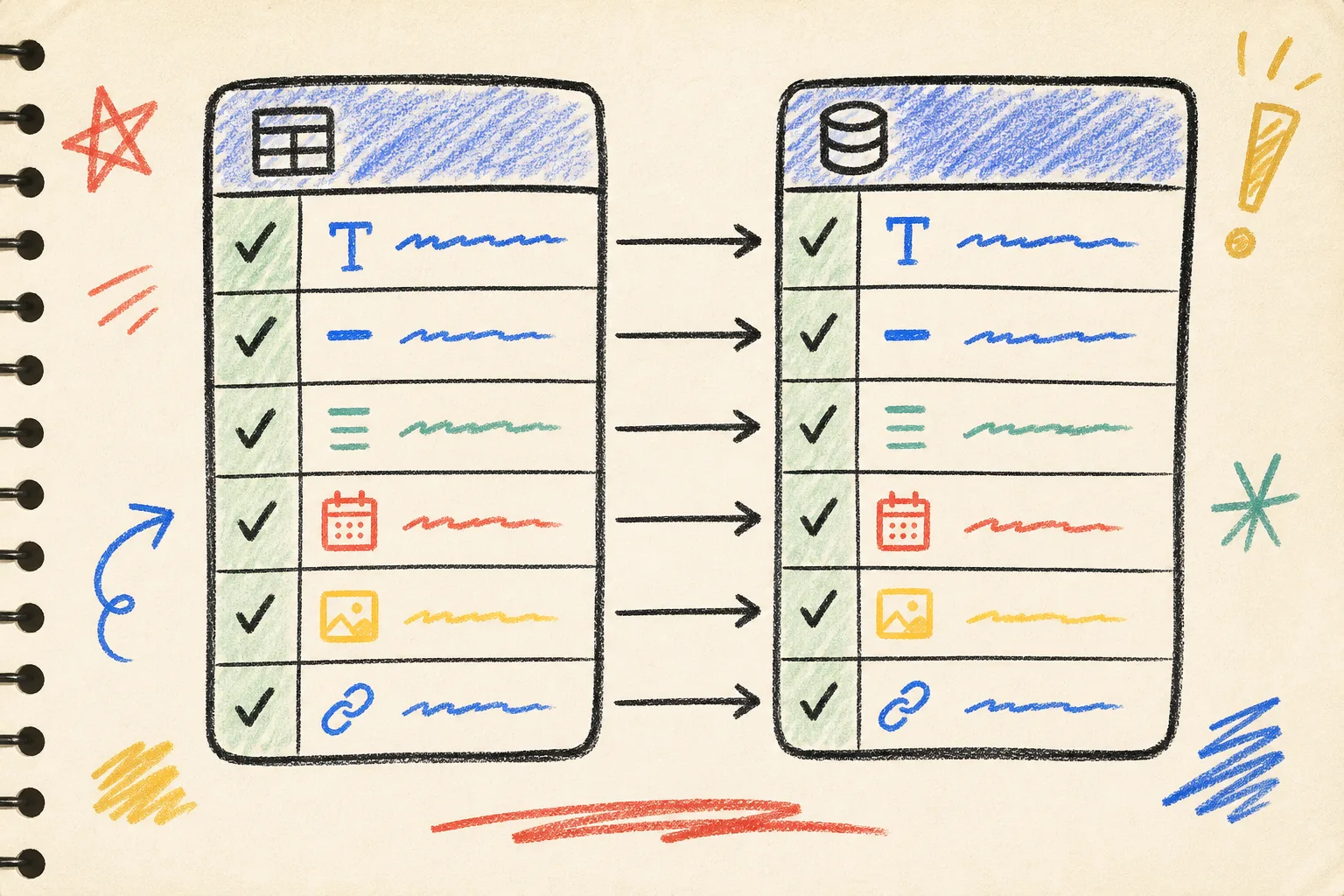
My five-field starting point
I start with the smallest publishable post model, not every possible field. For a normal content collection, that means:
- Title — plain text in Notion, Name in Webflow.
- Slug — a predictable, human-readable URL value. Decide which tool owns it and keep the rule consistent.
- Summary — short plain text for cards, previews, and search snippets.
- Publish date — one date field, with a deliberate convention for drafts and future posts.
- Hero image — a proper image/file field, not a pasted image hidden inside the article body.
Then I add categories, author, canonical URL, or featured flags only when the collection genuinely needs them. The reason is boring but important: each extra field is another place where an empty value, changed property type, or accidental default can become a site-level surprise.
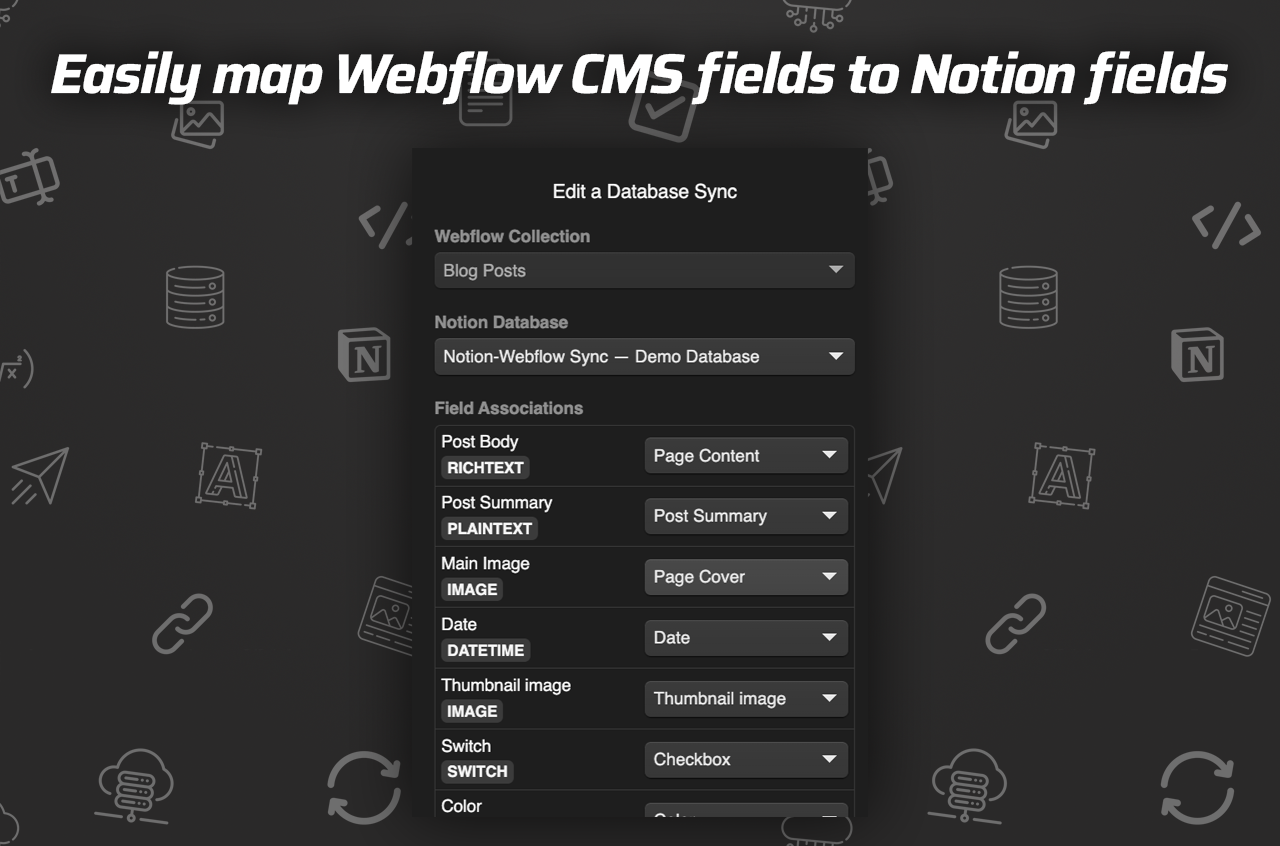
Syncflow supports text, images, checkboxes, dates, URLs, and more, so this is not a limitation of the tool. It is a choice to prove the core mapping first. Its field-mapping walkthrough is useful when you are laying that first version out.
Draw the direction of truth
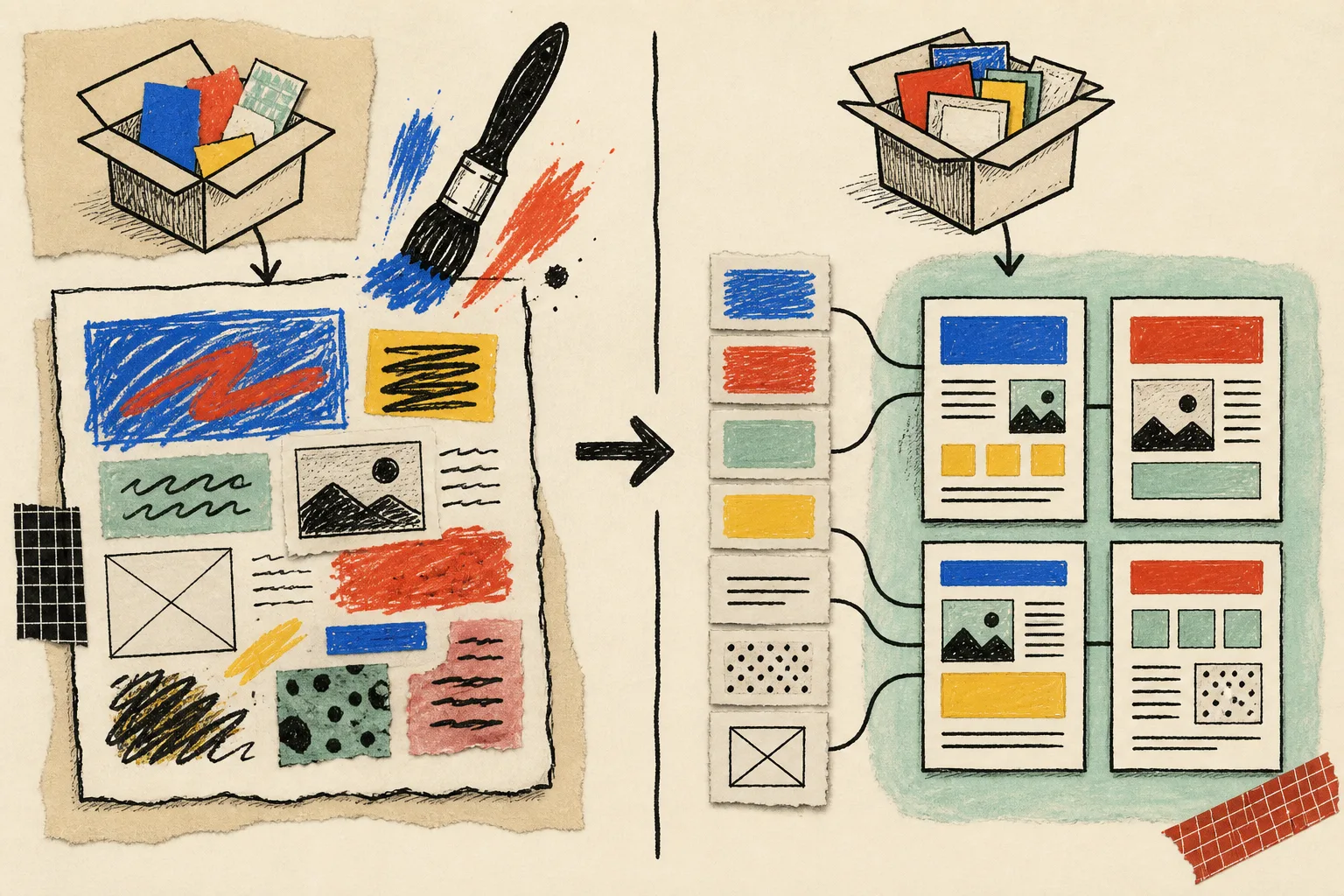
Before I touch auto-sync, I write one unglamorous sentence in the project notes: Notion is the editorial source; Webflow is the presentation layer.
That sentence resolves a lot. Editors change titles and body copy in Notion. The Webflow team owns Collection templates, classes, navigation, and page-level design. Nobody casually edits the same content field on both sides and hopes the latest save wins.
If your reality is more complicated, name it. Maybe Webflow owns an SEO override or a merch block while Notion owns the article. Fine. Mark those exceptions and leave them out of the first mapping if possible. This is the same small-team discipline I use in a Webflow CMS static-export checklist: make the ownership and failure modes visible before launch day.

Run one ugly test entry
A blank test entry proves almost nothing. I use one intentionally awkward post with a long title, a short summary, a cover image, a date, an external link, a Notion-to-Notion page link, a code block, and a callout. It is a polite way to ask the integration where it is fragile.
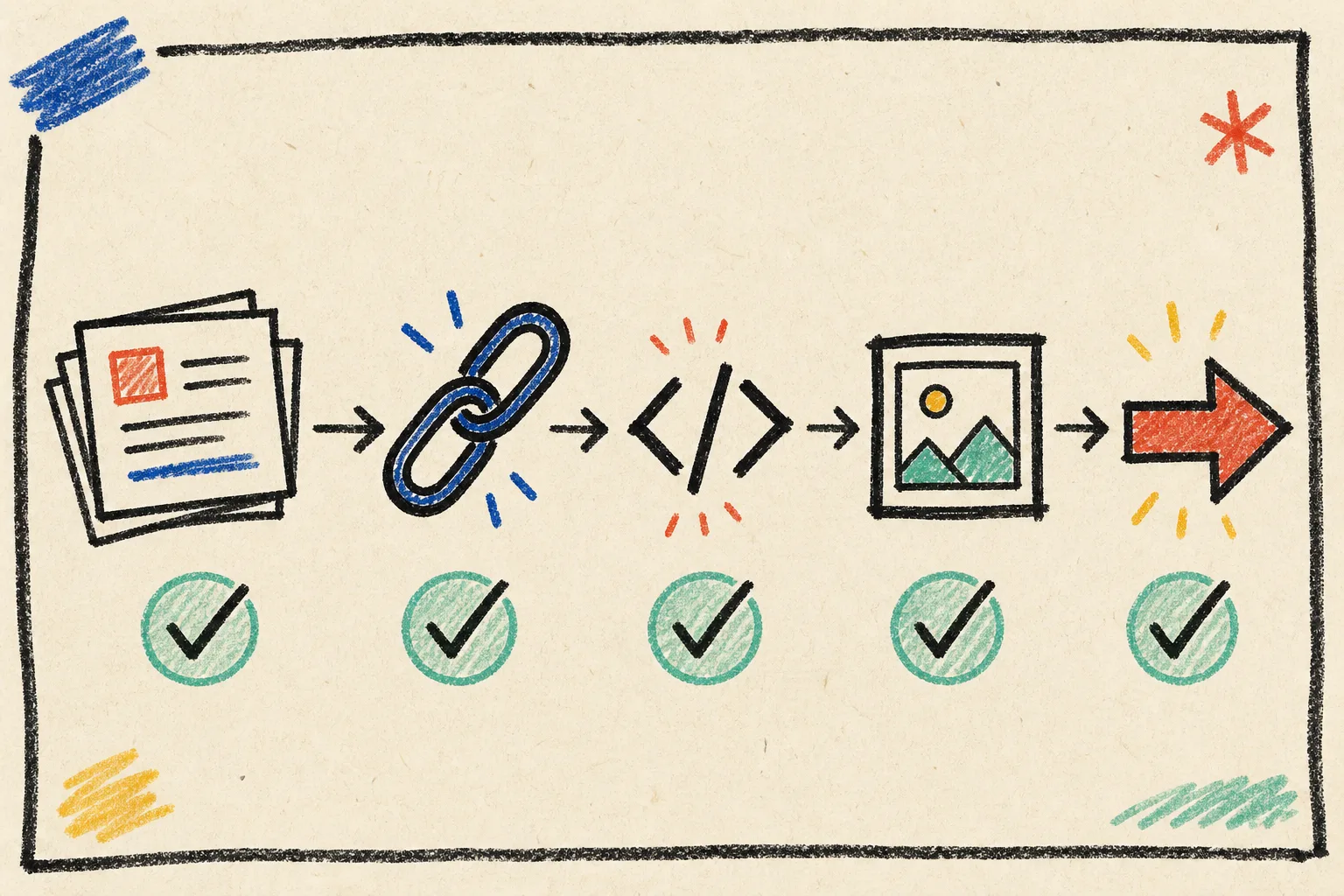
After the first Syncflow run, I check four places:
- The Webflow Collection item. Are every mapped field and asset where they belong?
- The rendered page. Does the Collection template handle a long heading, an empty optional field, and the selected image crop?
- Links and rich content. Syncflow can translate Notion page links into Webflow post links and render code blocks; verify the actual output rather than trusting the configuration screen.
- The rollback path. Can I unpublish, restore a previous value, or safely re-run the sync if the result is wrong?
That test is deliberately close to the safe, review-first approach I used when testing a Notion-to-Webflow CMS sync before auto-publish. Automatic is a setting, not a quality guarantee.
Pick styling with your editor in mind
Syncflow offers two useful paths for imported content: inline styling or Webflow classes. I choose inline styles when a small, stable format needs to arrive looking nearly identical from day one. I choose classes when the site is going to evolve and the Webflow team needs control over typography, spacing, embeds, and responsive behavior.
For most stores and content sites, I lean toward classes. It asks for a bit more initial care, but it keeps design decisions in Webflow where the design system lives. It also makes a later site handoff less painful—something I learned while writing a Webflow static site cutover runbook.
Turn on automation in two passes
Once the awkward test entry looks right, I enable the workflow in stages:
- Manual sync: use it to confirm a few ordinary editorial changes.
- Auto-sync without auto-publish: edits should arrive in the Collection, where someone can still review the page.
- Auto-publish for low-risk content: only after the collection template, SEO fields, image behavior, and rollback process have survived normal use.
This keeps an editor’s fast Notion workflow while preserving a real website QA point. If the project needs the precise clicks, Syncflow’s full Notion-to-Webflow tutorial covers connecting accounts, choosing the database and Collection, mapping fields, and adjusting sync settings.
The handoff checklist I keep beside the database
Before I call the system finished, I check:
- A new Notion page creates the intended Webflow item.
- A revised title, date, image, and summary update cleanly.
- Optional blank fields do not print ugly placeholders.
- A page link, external link, and code block render as expected.
- Editors know which fields they own—and which fields remain Webflow-only.
- Publishing has an explicit reviewer or an explicit low-risk rule.
Make the sync boring on purpose
The practical win of Notion plus Webflow is not just fewer copy-paste sessions. It is giving writers a calm place to work while preserving the Collection structure and design system that make the public site coherent. Syncflow makes that connection approachable, but a little schema discipline is what keeps it useful after the first successful demo.
Start with one Collection and one deliberately messy test post. Map the five core fields, inspect the rendered page, and only then enable the level of automation your team can actually support. Open Syncflow and build that first reviewable sync before you make it automatic.