
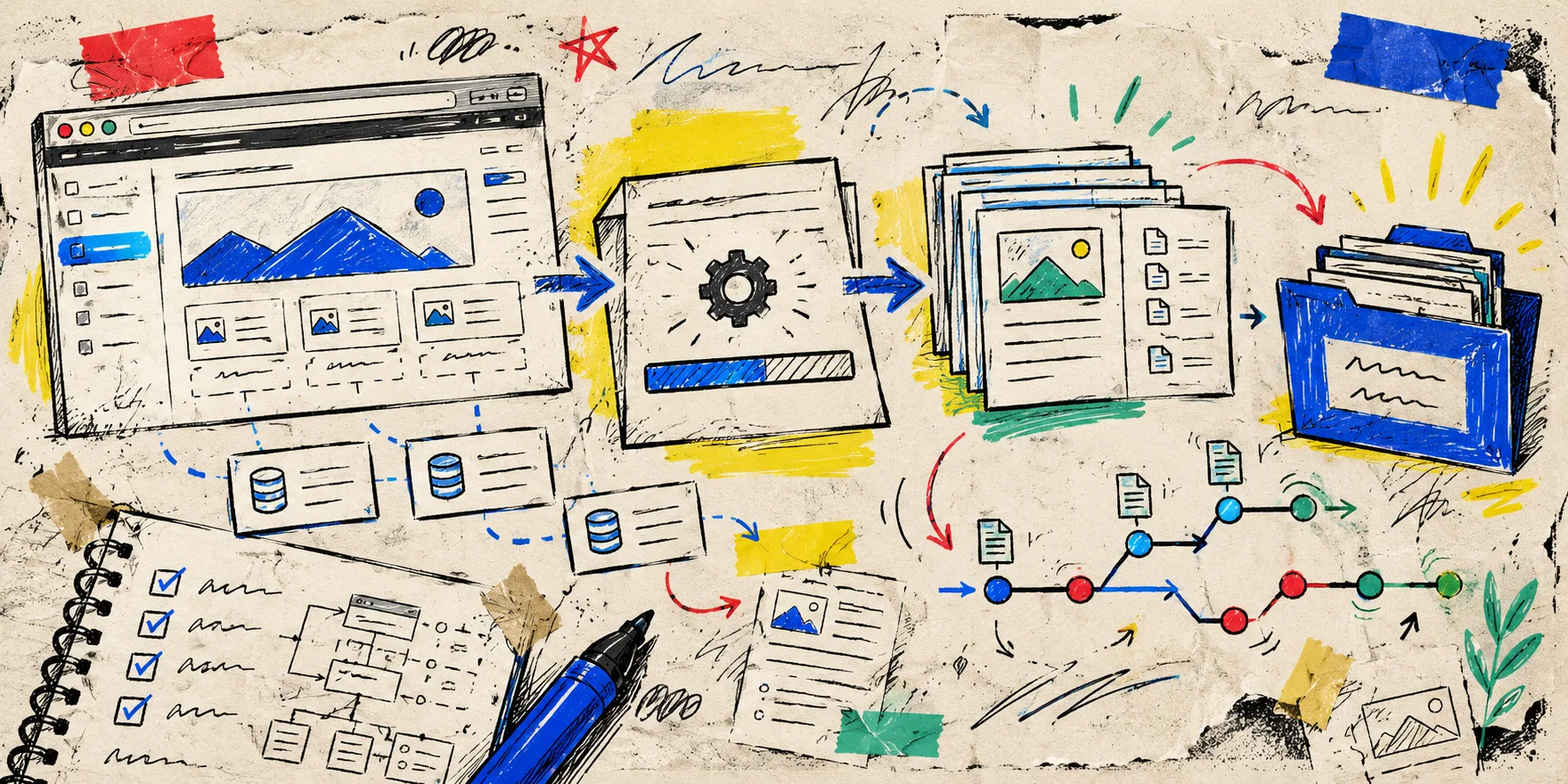
I had a Webflow navigation cleanup waiting on my list: combine a few old collection entry points, tighten the footer, and point the buying guides somewhere more useful. It was a small change on paper. The uncomfortable bit was that those links were threaded through CMS pages, old campaign pages, and a couple of hand-built components.
My rule now is simple: before touching a navigation that leads into a Webflow CMS, make a static rollback copy that can actually be opened and tested. A content export is useful; it is not the same thing as a running site with its routes, images, scripts, and layout intact.
The rollback copy I wanted
This was not a grand migration. I wanted three practical things:
- a snapshot of the public site before the navigation change;
- versioned files I could compare after the change; and
- a static preview I could hand to someone else without asking them to log into Webflow.
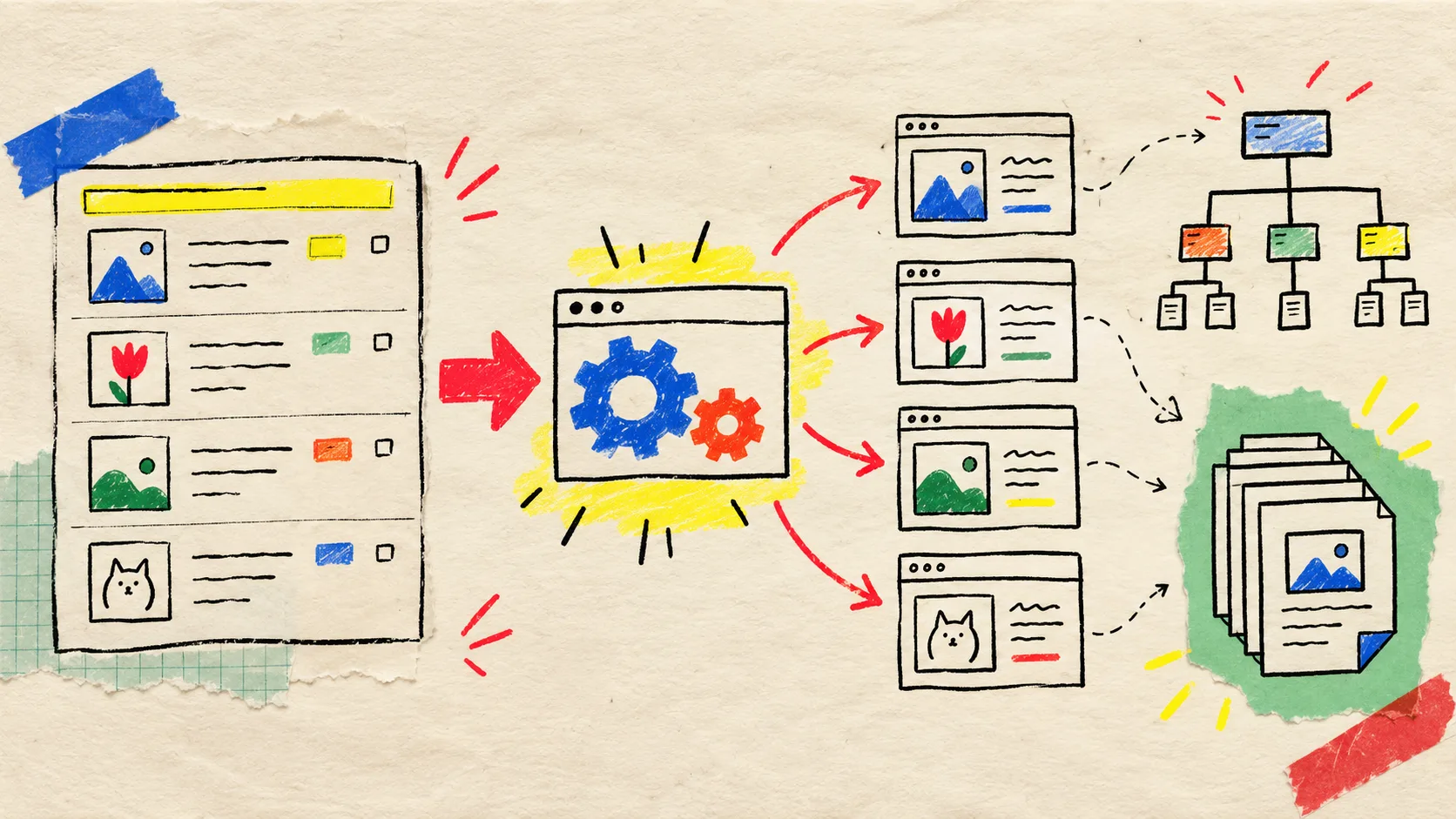
For a published Webflow site, ExFlow’s Webflow exporter is the useful bridge. It is built to collect the published pages, CSS, JavaScript, images, media, and CMS-style pages into static output, then let me download a ZIP or send that output to Git, S3, FTP, or managed hosting. That platform-specific focus matters here: a generic downloader might catch the homepage while leaving the collection routes or lazy-loaded assets in a strange state.
My small CMS map before exporting
I started with a notebook list, not the exporter. For every collection that could be reached from navigation, I wrote down one real public URL and one expected route pattern. A store might have product stories, buying guides, stockists, and help articles. The point is to test representative pages, not only the landing page.
Then I added the things that quietly turn a clean export into a broken customer path:
- collection pagination and detail pages;
- image-heavy CMS entries;
- shared header and footer links;
- custom code and interactive sections;
- canonical metadata, social images, and redirects;
- any form or third-party embed that needs a deliberate post-export plan.
That last item is important. A static copy preserves a site snapshot; it does not magically make a dynamic form processor portable. I keep a short list of integrations to reconfigure on the eventual host.
Export first, then put the files somewhere boring
In ExFlow, I use the published URL and select the full-site export. Once the files are ready, I prefer syncing to Git for this kind of safety copy. It gives the rollback a date, a commit, and a diff. A ZIP is fine too—especially for a client handoff—but Git makes it easier to answer the only question I care about later: what changed?
A deliberately boring folder structure works well:
webflow-site/
  snapshots/
    before-nav-cleanup/
  README.md
The README gets the live URL, export date, a list of sample CMS routes, and notes on forms or analytics. That is enough context for someone else to preview the snapshot without reconstructing the story from Slack.
If your goal is an ongoing move away from Webflow hosting, the same output can be deployed to static hosting instead of kept as a snapshot. I used a similar staging-first habit when I exported a Framer site before a homepage redesign; the key is to treat the export as something to test, not as a magic escape hatch.

Run a rollback drill before you need one
This is the step I used to skip. I now open the exported copy on a preview host and compare it against the live Webflow site before changing anything. My first pass is only ten minutes:
- Open the homepage, a collection index, and three real CMS detail pages.
- Test the header, footer, search or filter controls, and the call-to-action path.
- Check desktop and a narrow mobile viewport.
- Look for missing images, fonts, scripts, and awkward route endings.
- View page source once to confirm the title, description, canonical approach, and social image are not accidental blanks.
This is also when I decide whether the static output is a rollback snapshot or the start of a static-hosting move. For the latter, exporting Webflow CMS pages to static HTML is only half the job; deployment rules, forms, redirects, and monitoring still need owners.
What changed after the navigation edit
Once the rollback copy was safe, I changed the navigation in Webflow and repeated the same route list. I compared the before and after screenshots, then used the Git diff to see whether any exported path or asset reference had shifted unexpectedly.
This is especially helpful when an ecommerce site has old guide links that still convert. A navigation simplification should make the customer journey easier, not quietly orphan a high-intent article. If you are ultimately moving the export to a public static host, this GitHub Pages deployment checklist for a Squarespace export is a useful adjacent reminder: test links and assets at the deployed URL, not only on your laptop.

My post-export checklist
Before I call the copy usable, I check:
- every navigation destination works from the deployed static preview;
- representative CMS routes resolve without missing media;
- responsive layouts still make sense at the two viewports customers use most;
- scripts and interactions have a clear pass/fail note;
- forms, search, and embeds have explicit replacement or retention plans;
- page titles, descriptions, canonical tags, and redirect decisions are documented;
- the snapshot has a commit or ZIP name someone can find in six months.
Webflow native export can be limiting when CMS content is involved, so a workflow that preserves the published site structure is much more useful than a loose folder of copied files. ExFlow also has dedicated Squarespace and Framer exporters, but I would keep the workflow platform-specific until the primary site is stable.
The useful next step
Do not wait for a redesign or renewal conversation. Pick one Webflow collection, export the current published site with ExFlow, put the result in a versioned folder, and test three live CMS URLs against the copy. That small drill gives you a real rollback option before the next “tiny” navigation edit turns into a long afternoon.