

I nearly did the familiar thing: open the catalog, filter every summer product, knock 15% off, and call it a launch task. The problem with that move is not the math. It is that a bulk price change can quietly touch the wrong variants, collide with an existing compare-at price, or go live while the rest of the team is still checking the campaign.
So I sketched the job first. Not a grand system—just a small card for what I wanted to change, what must stay put, and how I would know it worked. Then I used Ultimator Bulk Editor to turn that sketch into a bounded bulk task instead of a catalog-wide leap of faith.
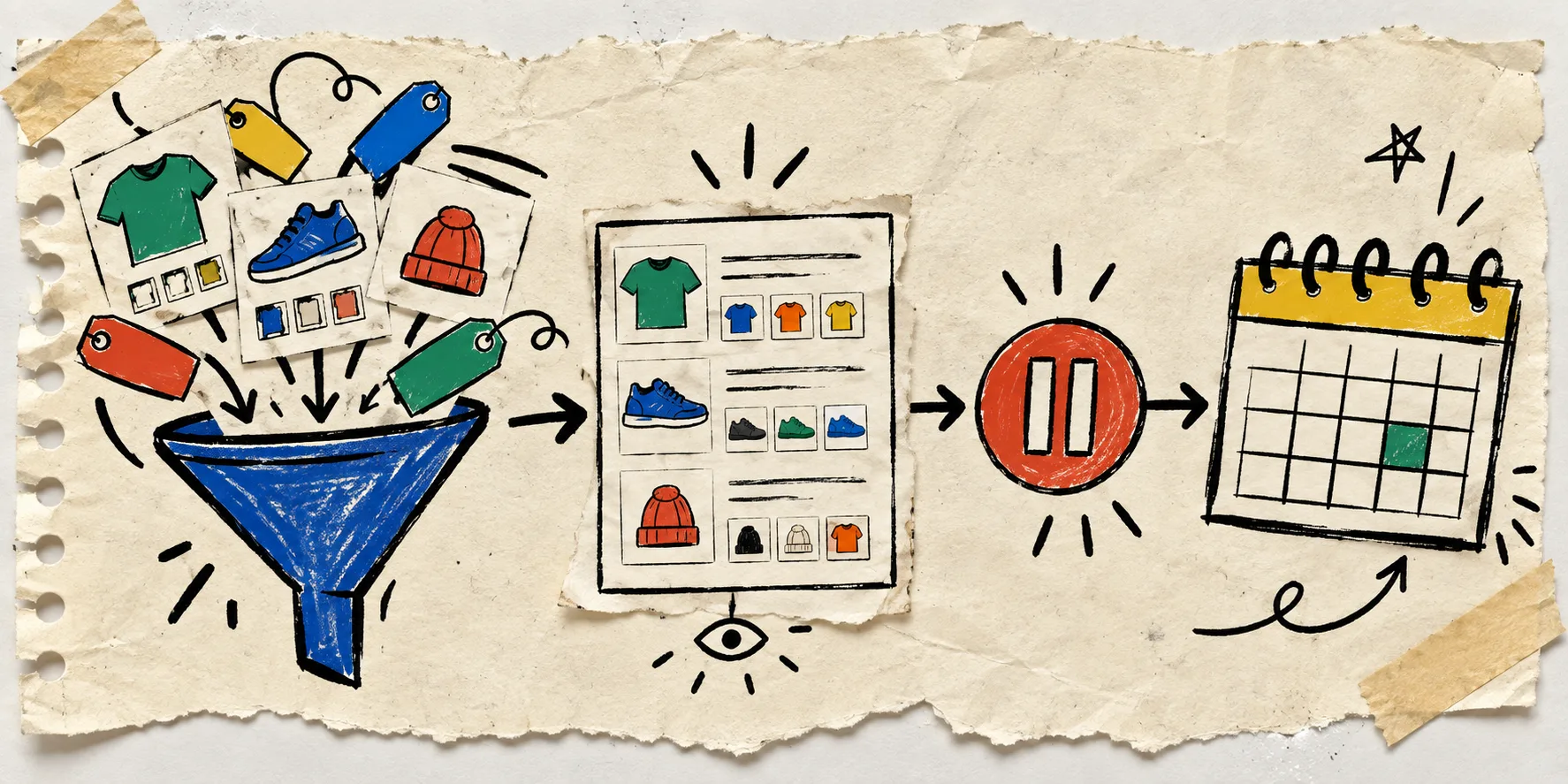
The three cards on my desk
My starting point is three deliberately boring cards:
- Selection: which products and variants belong in this change?
- Operation: what exact field changes, and by what rule?
- Exit check: what would make me stop before running it?
That separation matters. If I cannot describe the selection without saying “the ones we mean,” it is not ready. I write down the collection, tags, status, vendor, or variant condition that makes an item eligible. I also write down exclusions: gift cards, bundles, low-stock variants, or anything already in another promotion.
For the operation, I keep the language equally plain: decrease price by a percentage, round cents, or set a known value. Ultimator Bulk Editor supports bulk product and variant edits, including price and compare-at price, so it fits the task when the intended rule is already clear. Its workflow is essentially the one I want on paper: choose the items, define the update, then run it now or schedule it.
The exit check is where the sketch earns its keep. Mine usually says: “If the sample includes a product outside the sale collection, stop.” Another common one: “If a variant already has a lower sale price, stop.” A tiny stop condition prevents a very large cleanup later.
I make the first pass intentionally small
I do not begin with the whole catalog. I make a narrow selection I can inspect like a human: perhaps one collection, one vendor, or a tag created for the campaign. Then I check a handful of both products and variants.
This is the same habit that helped me when I split a Shopify catalog cleanup into three reversible bulk tasks. A cleanup becomes safer when each batch has one purpose and one obvious success condition. Pricing work deserves the same restraint.
For a percentage discount, I ask three questions before I proceed:
- Does every selected item have a price I expect to change?
- Are there variants whose prices should remain independent?
- Do I need a consistent rounding rule so the storefront does not look accidental?
If any answer is fuzzy, I create another filter or another task. The extra task is cheaper than explaining why one premium variant got discounted with the basics.

Preview the result, not just the rule
A rule can sound correct and still create awkward output. “Decrease 15%” is not an outcome; it is an instruction. I want to see whether the resulting prices look right across low, middle, and high price points—and whether cents need rounding.
My mini sample is usually five to ten items: a simple product, a product with variants, a high-price item, a low-price item, and one that ought to be excluded. I compare the expected before-and-after values in a note. It is a manual step, but only for a few rows, and it catches misunderstandings early.
This is especially important if your store has accumulated campaigns over time. The operational pattern is familiar from retiring Shopify products in bulk without hiding the wrong items: the safe work is less about clicking faster and more about proving the filter means what you think it means.
Decide whether “now” is actually now
Once the selection and result both look sound, I choose the run time. An instant update is fine for a contained correction. A scheduled update is better when the price change belongs to a campaign, an email, a collection refresh, or a team handoff. Ultimator Bulk Editor can run tasks immediately or schedule them, which is useful because it keeps the execution step attached to the same defined task.
Before scheduling, I add one final operational note: who checks the storefront after it runs? That person might be me, but it needs to be explicit. I open one product with variants, one collection page, and one product that should not have changed. If the campaign uses product-page content or merchandising rules, I also check that the price change has not made the page’s message misleading. My one-content-system-for-three-catalogs field note is a useful reminder that catalog data and the surrounding content system are one operating surface.

My one-page bulk-change checklist
Here is the version I keep next to the task:
- Name the campaign and the intended live window.
- Define the selection with store data, not memory.
- State the exact price or compare-at-price operation.
- Inspect a mixed sample, including one intentional exclusion.
- Choose a rounding rule where needed.
- Run immediately only for a contained correction; otherwise schedule it.
- Check representative product pages and collection pages after it completes.
That is also why I would use a bulk editor rather than ad hoc spreadsheets for a live catalog change: the task keeps the selection, operation, and timing in one place. If you are still building the habit, start with one narrowly scoped update in Ultimator Bulk Editor, document the sample you reviewed, and keep the next campaign small enough to verify.
Bulk editing is not about bravely changing thousands of rows. It is about making a change so clear that you can explain what happened, spot a surprise quickly, and run the next one with less drama. Today’s next step: sketch the three cards for your next catalog update before you open the bulk tool.