
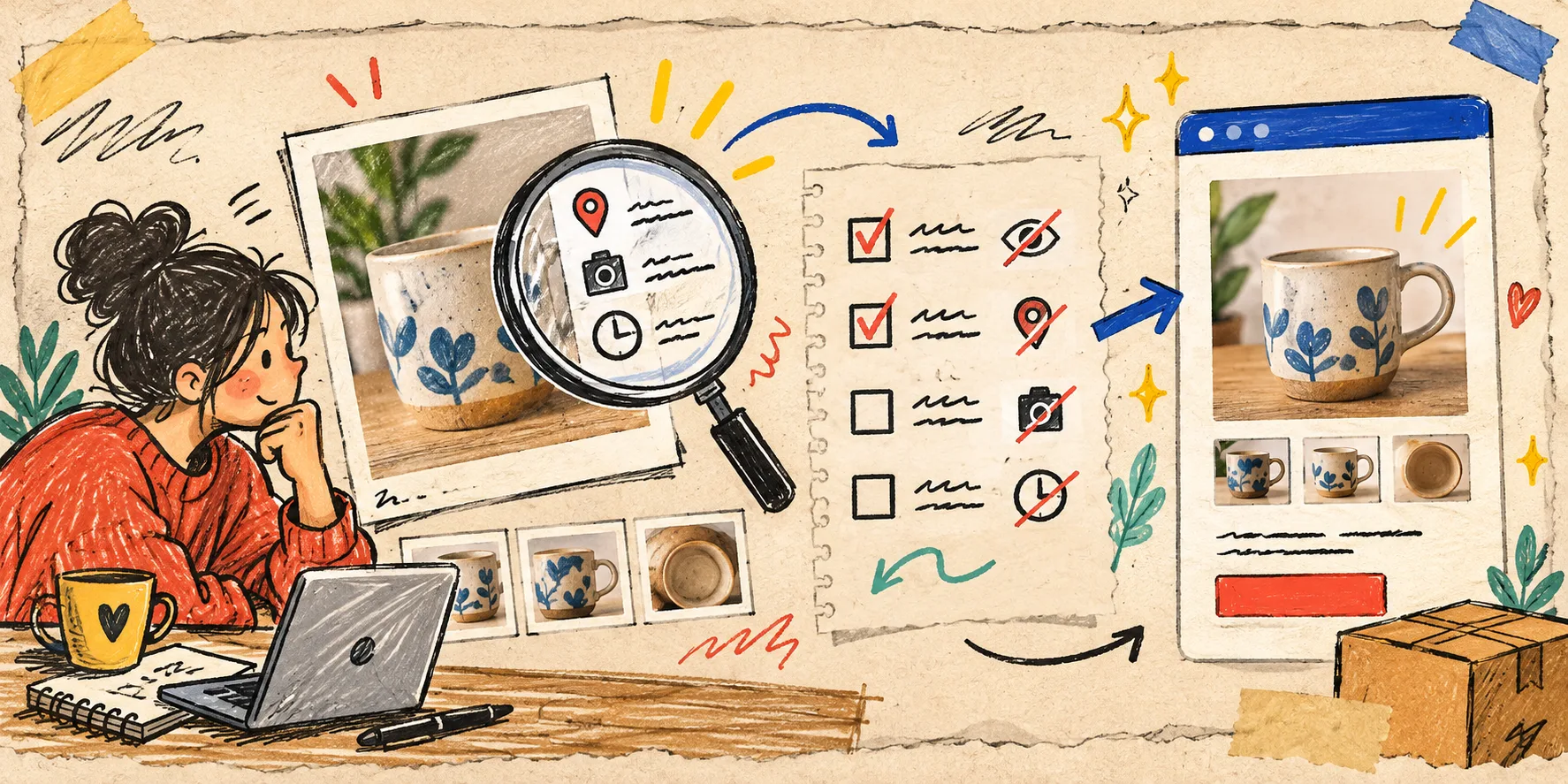
I used to treat product-photo metadata as somebody else’s problem. The image looked good, the file name was sensible, and the product card was ready—so I uploaded it. Then I started sharing source images with freelancers, sending selects to partners, and reusing photos across launch folders. That is when a tiny question became a useful release habit: what is actually travelling inside this file?
For a small ecommerce team, this is not about turning every image into a compliance project. It is about making one quick, repeatable distinction: the photo I keep as an original is not always the photo I send, upload, or share. I now do that check in the browser with Tiny Online Tools, a free collection of no-account utilities that positions its work around browser-based processing.

The tiny preflight that caught a bigger workflow gap
A product photo can carry more than pixels. Depending on the format and source, it may include camera information, capture time, software history, comments, colour-profile details, and sometimes GPS coordinates. None of that necessarily makes a file unsafe. It does mean I want to decide whether it belongs in the version leaving my laptop.
My first stop is the Image Metadata Viewer. I drop in the exact JPEG, PNG, or WebP I am preparing to use and look at what is there. I am not trying to memorize every field. I check for information that changes the sharing decision: location, capture time, device details, or a note that tells me this is still an untouched source file.
That quick inspection also prevents a different kind of mistake: stripping a file blindly and later discovering I needed the original’s information for an archive, a photographer question, or a production handoff. The original stays put. The output becomes a deliberately prepared copy.
My three-file rule for product images
The process is boring by design:
- Keep the source. I leave the original product photograph in its source folder, unchanged.
- Inspect the share candidate. I open the version intended for a storefront, a contractor, or a campaign folder in the metadata viewer.
- Create the clean copy only when needed. If the metadata does not need to travel, I use Remove Image Metadata on a duplicate—not the source—and label the result as an export.
The removal tool is useful here because it is specific about the job: stripping embedded EXIF, GPS, XMP, ICC profiles, and comments from supported image files. I still test the exported image in the place it will be used. Removing metadata is not an excuse to skip the visual check. It is a separate, small handoff decision.

Why I do this before Shopify, not after
Shopify is usually not where I first share an asset. A product image may pass through a shared drive, an agency folder, a support ticket, a press request, or a marketplace spreadsheet before it reaches the store. The earliest outward-bound copy is the right point to make the call.
This is also why I keep metadata cleanup beside other humble release checks. Before I make a crop permanent, I look at the product image on the actual card. Before I call a theme update finished, I run the kind of contrast check I use before publishing. And before a batch of images becomes a catalogue upload, I use the same restraint described in this product-image preparation workflow: make one change at a time and check the result in context.
Those checks are not glamorous. They reduce the number of mysteries that appear after a launch.
A practical decision guide
I do not remove metadata from every image by default. I keep it when the original needs to remain traceable—for example, when a photographer’s capture details matter, when a production archive needs a faithful master, or when the file is still inside the working library.
I make a clean copy when a product photo is headed outside that controlled context: a public download, a broadly shared press folder, a contractor handoff, or a sensitive location where the embedded details add no value. If I am unsure, I inspect first and choose the smallest change that solves the actual sharing problem.
That rule matters because it avoids two bad habits at once: accidental disclosure on one side, and destructive “cleanup” of every source file on the other.

Put the check where the work already happens
The best version of this habit takes less than a minute. I add it to the moment I already duplicate an export, resize an image, or name a deliverable folder. Tiny Online Tools also has a broad set of image utilities, so I can move from inspecting a file to a closely related one-off task without opening another account or installing a heavyweight app.
If a launch is especially busy, I write the rule directly into the handoff note: source stays archived; shared copy gets inspected; cleaned copy gets visually checked. It is short enough that somebody else can follow it without a meeting.
My next action is simple: open the next product photo you are about to send outside your team, inspect its metadata, and decide whether that information belongs in the exported copy. A tiny preflight is a much better moment to make that decision than after the image has already travelled.