
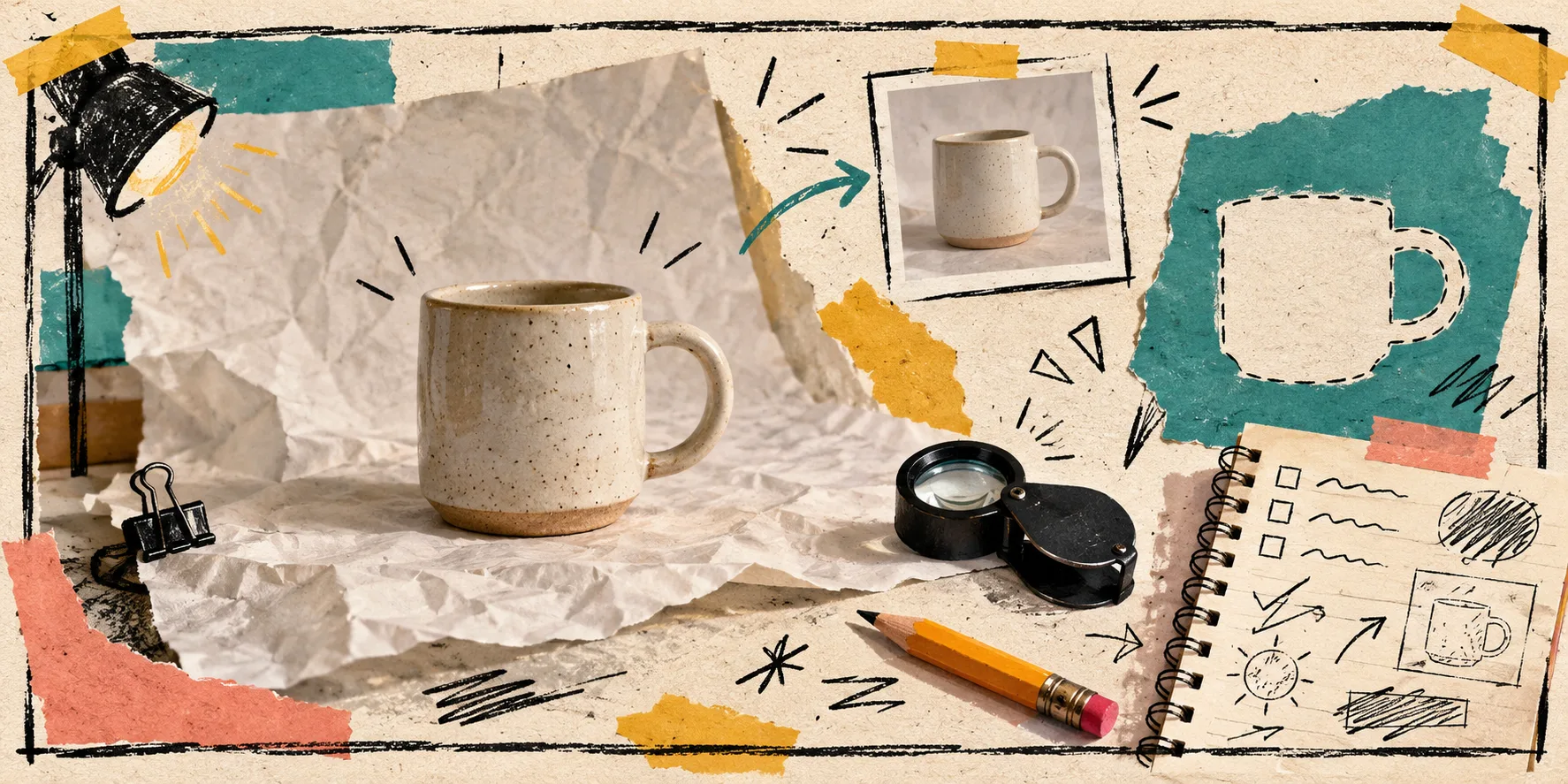
A product photo does not need to be a disaster to need a recovery note. Last week I had one of those almost-good files: the product was accurate, the light was flat, there was a distracting crease in the backdrop, and someone had already suggested ‘just ask AI for a prettier one.’
That is exactly when I slow down. A prettier replacement can quietly change a color, edge, material, included accessory, or scale cue. The fix I want is narrower: preserve the product, repair the presentation, and leave myself an editable way back. ImageFlow is useful here because it is a browser-based, editable workspace for layers, masks, adjustment layers, smart objects, PSD/PSB work, and export—not a one-click promise that the original no longer matters.
Here is the recovery note I now make before touching pixels.
1. Write the product truths at the top
I begin with a tiny list of facts the edit is not allowed to change. For a mug, it might be: warm off-white glaze, brown speckles, one right-facing handle, no included saucer. For a shirt: the exact fabric texture, seam placement, hem length, and color family.
This takes a minute, but it stops the edit from drifting into merchandising fiction. It also tells me what to inspect at 100% zoom later: labels, logos, transparent edges, reflections, stitching, and fine surface texture.
If the source is a PSD from another teammate, I keep that master intact and make changes in an editable copy. My earlier PSD handoff check is still the right preflight for that case: know which layer, mask, or smart object is the actual source before fixing the visible composite.
2. Pick one repair job—not a makeover
My recovery note has one primary job. Usually it is one of these:
- remove a background distraction;
- create a clean cutout while retaining the real product edge;
- lift shadows or tone with adjustments;
- remove one accidental object with content-aware fill;
- crop and export a useful storefront, collection, or marketplace version.
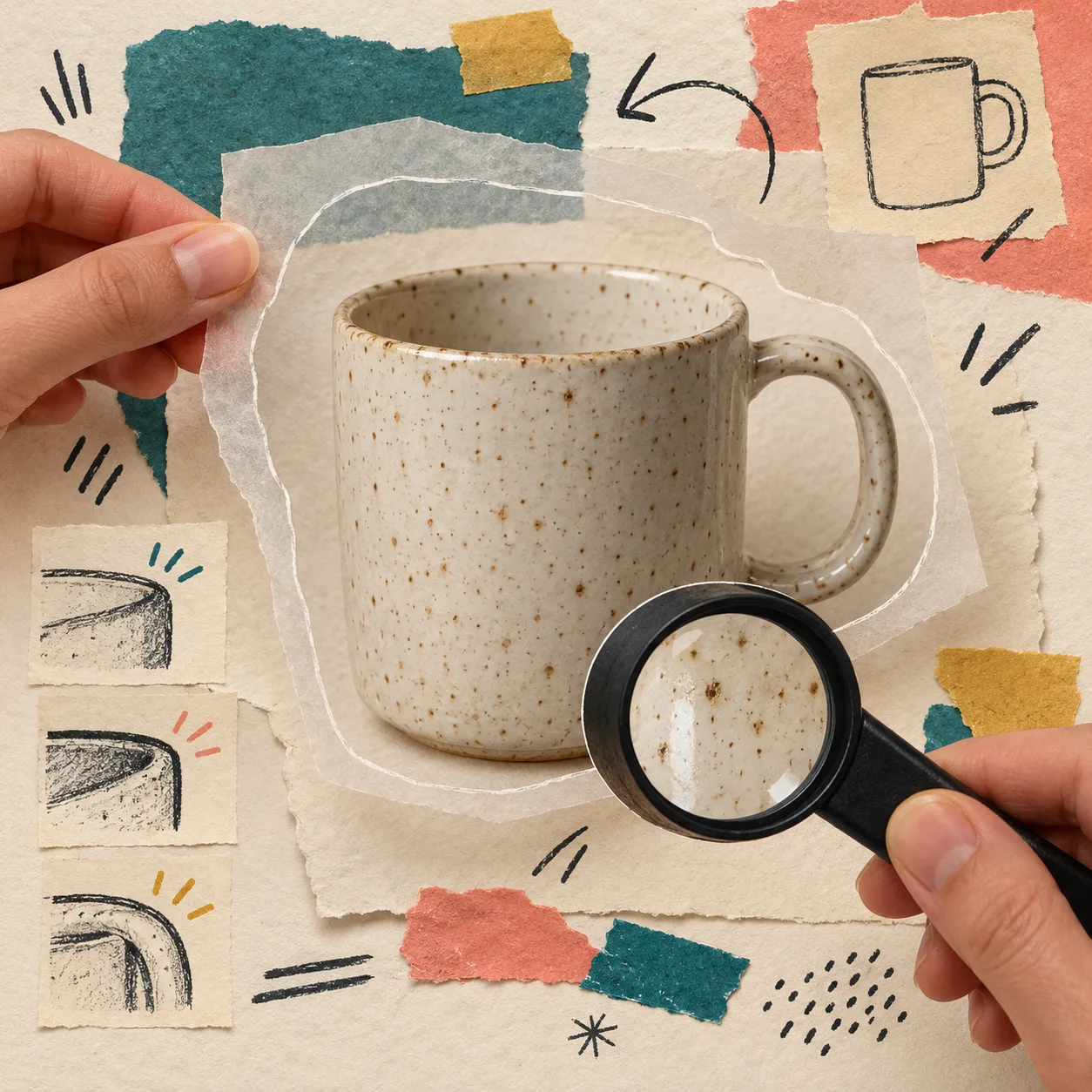
One job means one clear success test. ‘Make it premium’ is not a test. ‘Remove the paper crease without changing the mug silhouette’ is.
For a cutout, I use a selection as a starting point, then put the decision in a mask. ImageFlow’s on-device selection and background-removal tools can speed up that start, but a mask is where I can review and refine it instead of accepting an opaque result. That is especially important around transparent material, hair-like fibers, glossy edges, and soft shadows. If you need a deeper pass on the mechanics, this browser mask-refinement workflow is a good companion.
3. Keep the correction separate from the product
My default structure is boring on purpose: product layer, product mask, background layer, then adjustment layers above or clipped where they belong. If I need to hide a distraction, I do that on a new repair layer. If I need tonal help, I use an adjustment layer rather than baking the correction into the only pixels I have.
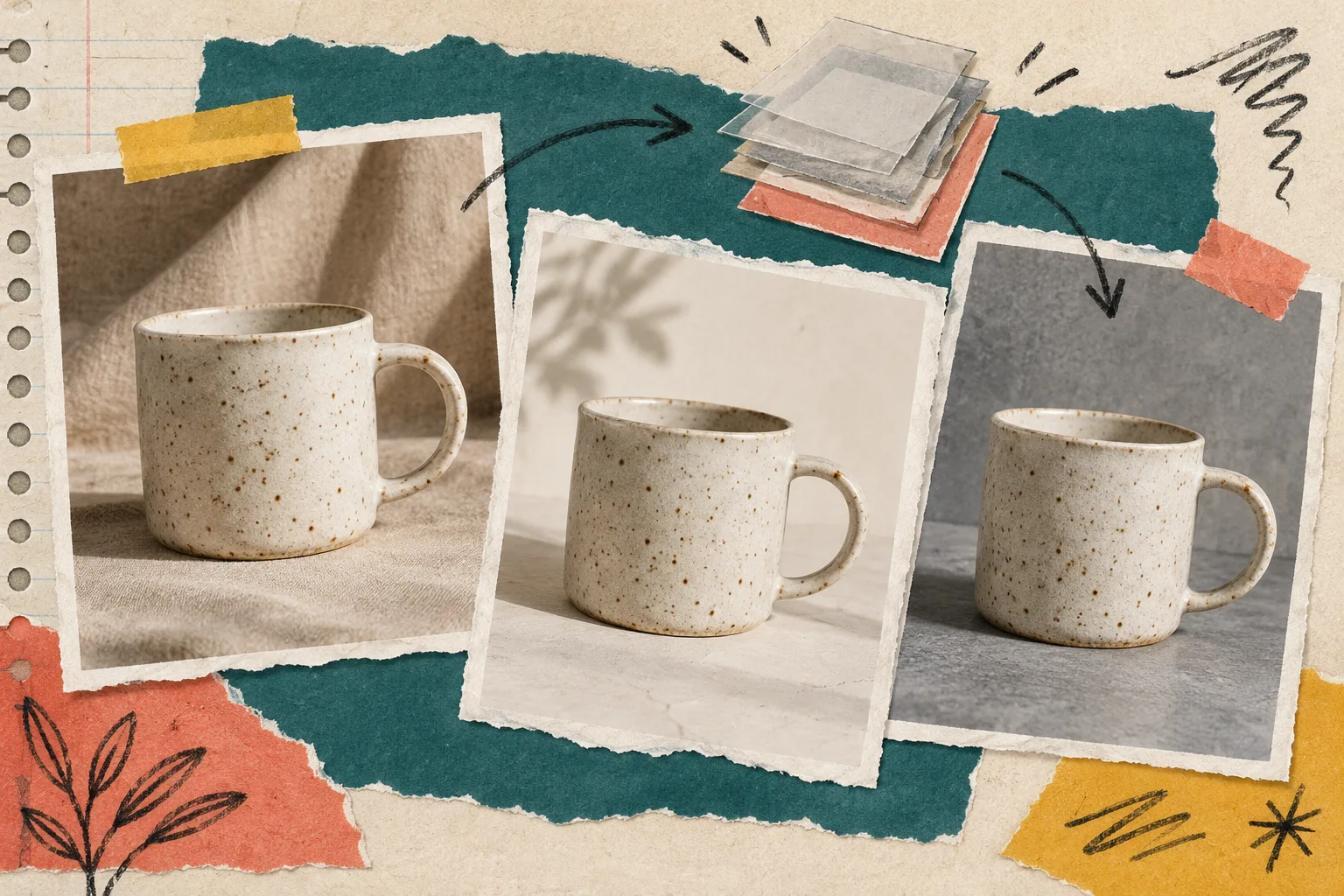
The practical win is reversibility. A marketplace needs a clean white background; an email may need a softer scene; a collection card may need a tighter crop. I can make those variants without starting the product over each time. That is the same principle behind building browser-ready variants from one master: changes should be deliberate branches, not a chain of overwritten exports.
4. Use the ‘would a customer notice?’ pass
Before export, I toggle the edit off and on. I am not looking for whether it feels more dramatic. I am checking whether it feels more faithful and easier to understand.
My quick pass is:
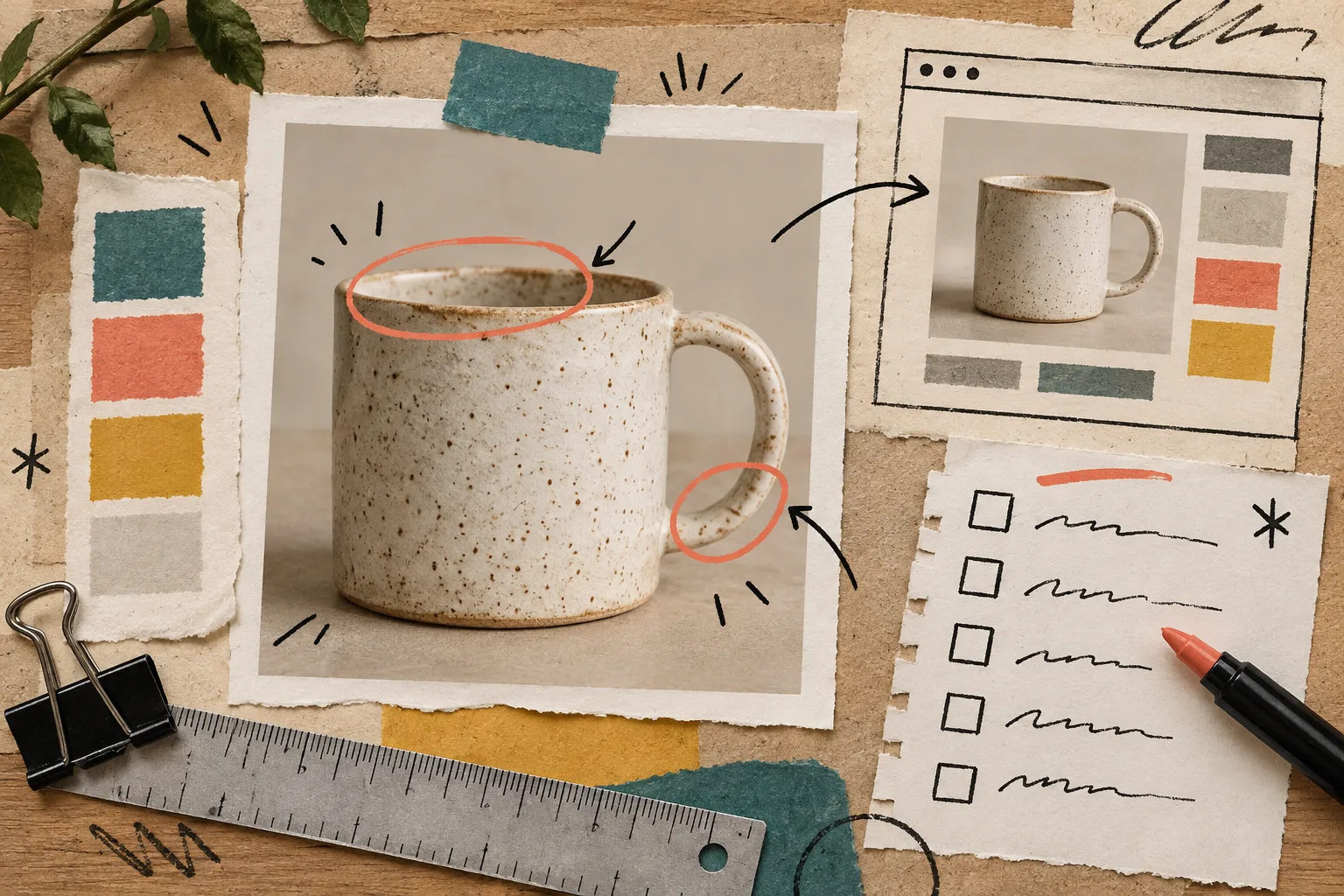
- Zoom into the outer edge and check for halos, clipped corners, or lost detail.
- Compare color and material against the original; do not let a lighting fix turn cream into gray or texture into plastic.
- Check that content-aware cleanup has not invented a repeated pattern or swallowed a product detail.
- View the image at the small size customers will actually see.
- Open the export once outside the editor.
This is also where I decide whether the fix is worth shipping. A difficult reflection or very fine detail may be better left truthful than aggressively ‘corrected.’ The broader browser photo cleanup guide has more examples of where that line tends to show up.
5. Export the version with a purpose
I name exports for their destination: mug-collection-1600.jpg, mug-marketplace-square.jpg, or mug-email-crop.png. It sounds fussy, but it means the team can tell an approved product image from a working proof without opening both.
Then I leave one note: what changed, what stayed protected, and what to revisit if the source photo is reshot. That note is the tiny bridge between an individual edit and a reusable ecommerce system.
The smallest useful next step
Open ImageFlow with one real product image—not a throwaway test. Write three product truths, choose one repair job, and make the change with a layer or mask you can turn off. If you want a quick orientation first, the official ImageFlow overview shows the browser-based editor in action.
That is enough to turn a last-minute rescue into a repeatable practice: not ‘make it prettier,’ but ‘make it clear, accurate, and editable.’