
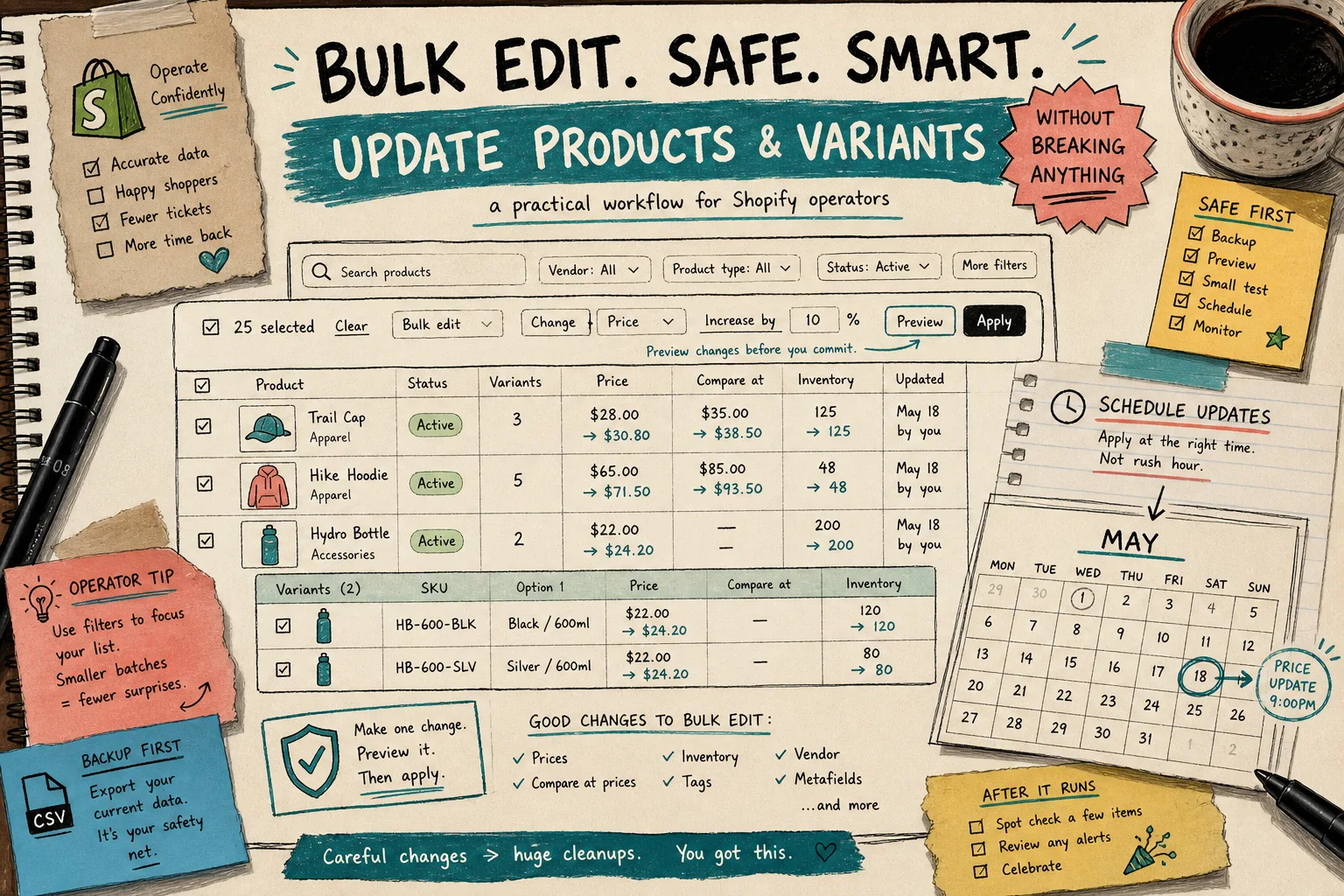
How I Bulk Edit Shopify Products Without Breaking Variants
I used to treat bulk edits like a minor disaster I was choosing on purpose. One wrong spreadsheet move, one copied value in the wrong column, and suddenly the store has broken prices, weird tags, or variant data that makes no sense anymore.
Ultimator Bulk Editor is the kind of tool I wanted for that job: pick a set of products or variants with search criteria, define the change, and either run it now or schedule it for later. If you want the product page first, the Shopify App Store listing is Ultimator Bulk Editor, and the app site is ultimate-bulk-editor.sktch.io.
Start With the Filter, Not the Change
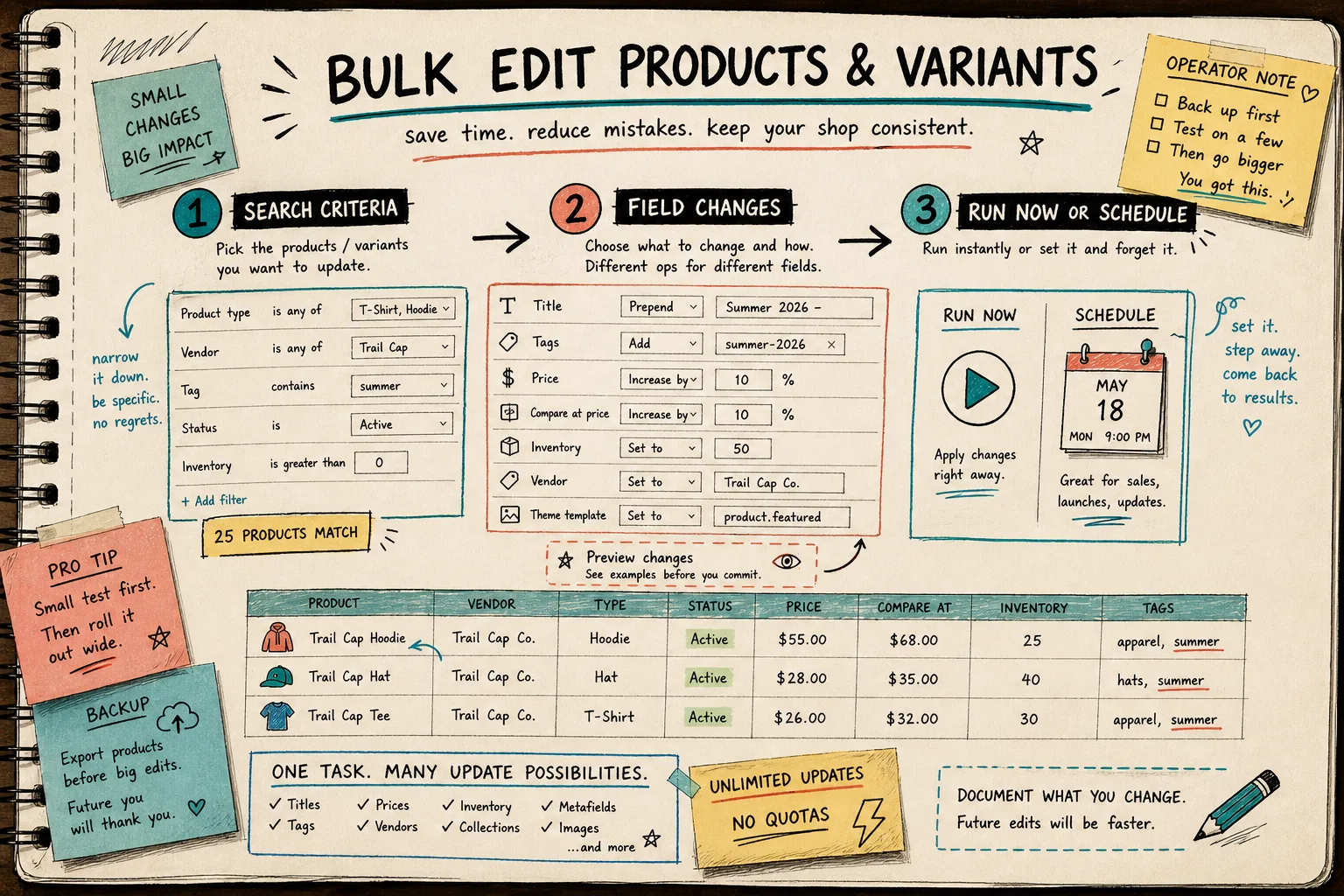
The safest bulk edit is the one that touches a small, specific set of items.
I do not start by asking, “What should I change?” I start by asking, “What exactly should be included?” The product lets you define search criteria first, which is the part that keeps the rest of the process sane.
That means I can narrow the task to something like:
- one vendor;
- one product type;
- one tag set;
- active products only;
- a specific subset of variants.
That is the difference between a precise update and a store-wide accident.
The pattern I trust is simple:
- Filter the smallest group that still matters.
- Review the list once.
- Decide the update.
- Preview before applying it.
That also makes the follow-up easier. If something looks wrong, I know the scope is small enough to inspect.
Map Products and Variants Separately
The reason bulk editing gets messy is that products and variants are not the same thing.
The product side can include title, handle, description HTML, tags, price, compare-at price, inventory, product type, SKU, vendor, status, theme template, collections, images, options, metafields, SEO title, and SEO description.
The variant side goes deeper: price, compare-at price, inventory, track inventory, SKU, weight, barcode, tax code, taxable, requires shipping, option 1, option 2, option 3, metafields, and even deleting a variant.
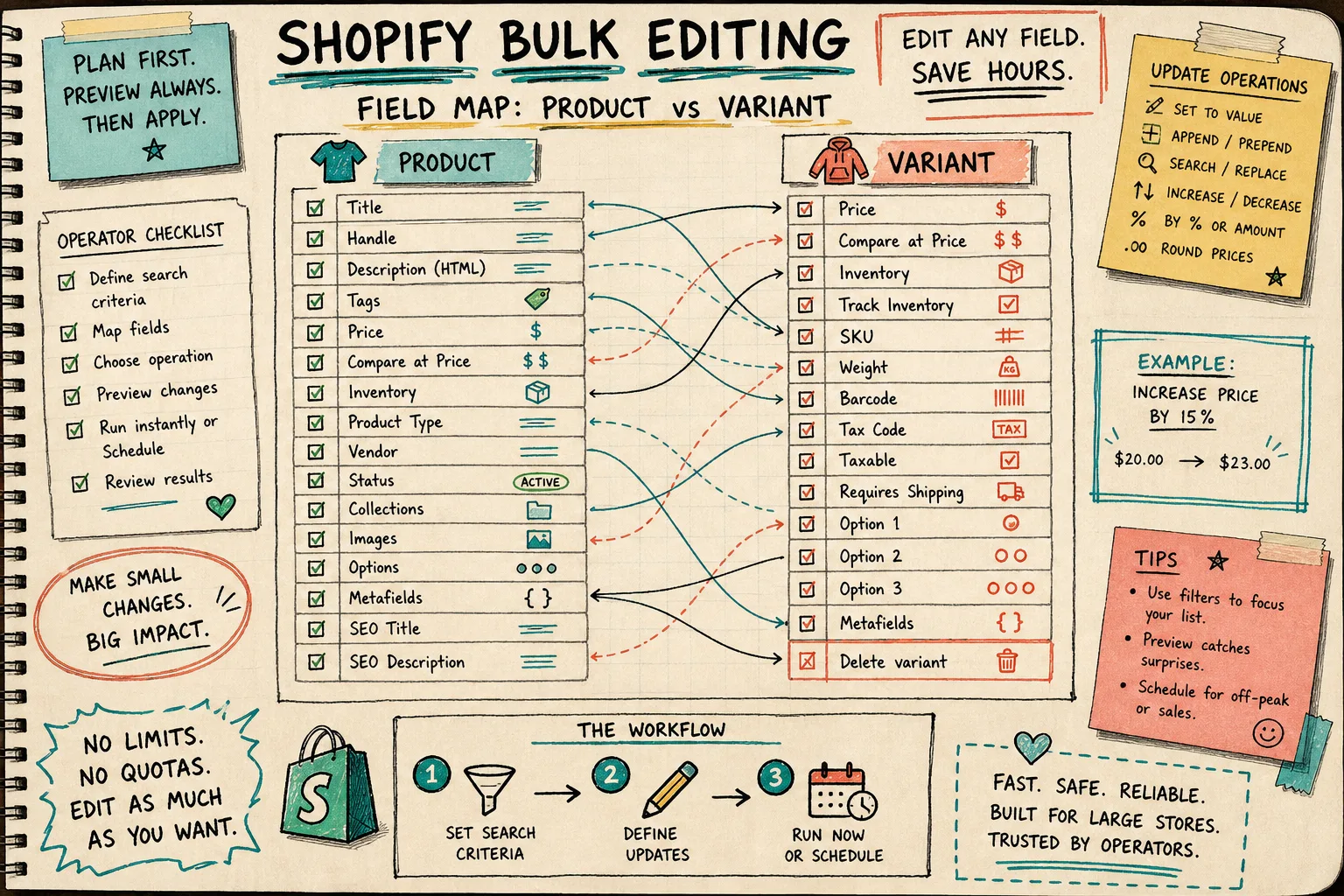
This is where I stop thinking in vague “update content” terms and start thinking field by field.
If I am changing text, I want the title tools that make sense for text:
- set a new value;
- append to the end;
- prepend to the front;
- search and replace.
If I am changing price, I want price-specific controls:
- set a value;
- increase or decrease by amount;
- increase or decrease by percentage;
- round the cents off when the change needs to look clean.
That separation matters. A title update and a price update are not the same kind of risk, so they should not be treated like the same kind of action.
Preview Before You Push
The thing I like most about a bulk editor is not that it can change a lot at once. It is that it lets me check the change before I commit to the larger batch.
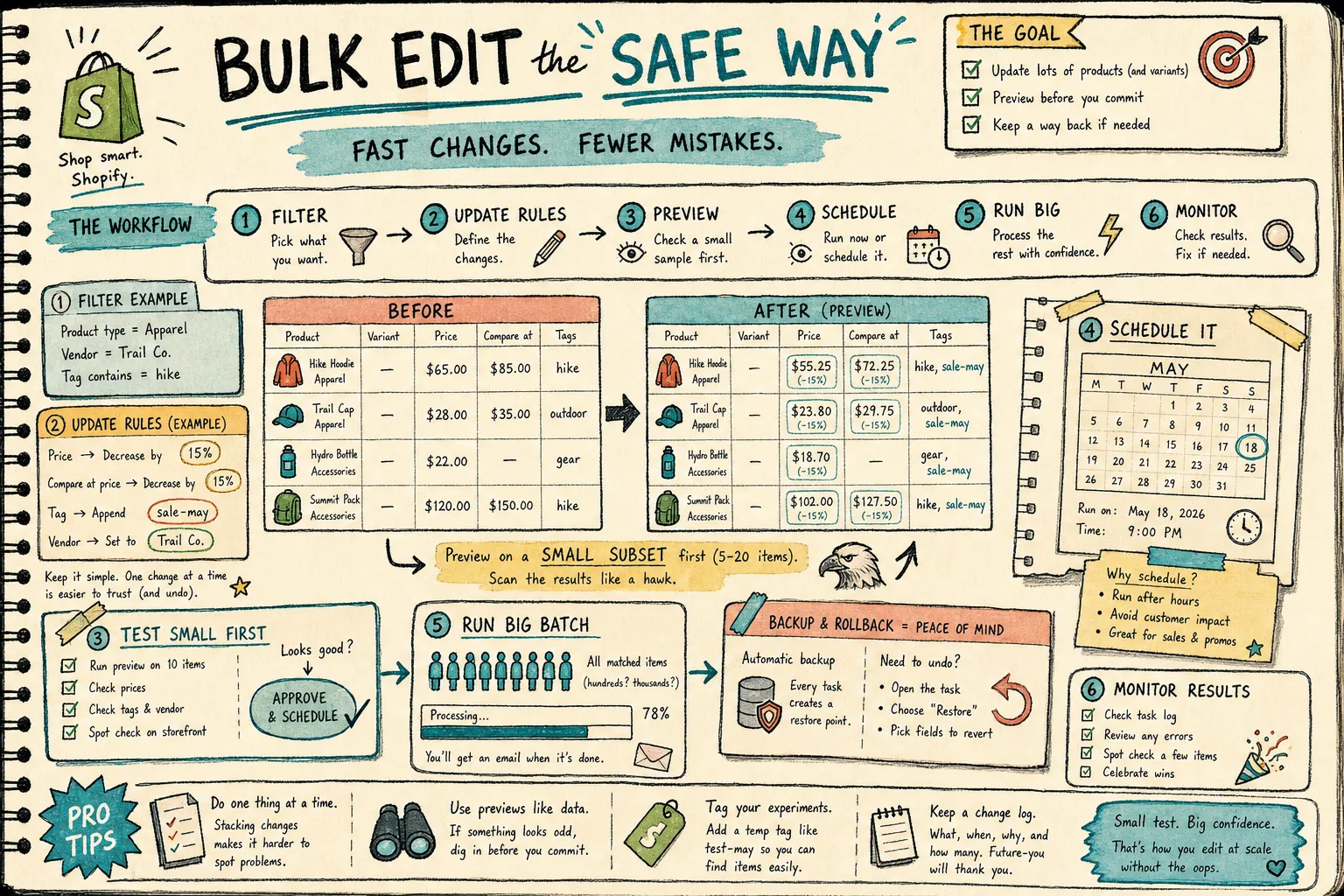
My rule is to make one change, inspect the preview, and only then decide whether to run the bigger batch. That sounds slow until you compare it to fixing a store full of unintended edits.
For real store work, I usually keep the first pass boring:
- change one field only;
- test on a small sample first;
- confirm the preview matches what I meant;
- run it instantly if timing does not matter;
- schedule it if I want the update to land off-peak.
That last part is useful for sales, launches, or content cleanup jobs that should not happen in the middle of a busy hour.
What I Change First
If I am using Ultimator Bulk Editor on a live store, these are the edits I reach for first:
- price corrections across a filtered group;
- compare-at price updates for a sale;
- inventory fixes after a stock sync;
- tag cleanup for search and merchandising;
- SEO title and SEO description cleanup;
- vendor or product type normalization;
- variant SKU or weight corrections.
Those are the kinds of changes where a bulk editor saves real time without forcing me to gamble on manual copy-paste.
The app also says it handles unlimited products with no quotas or restrictions, which matters once you move past tiny stores and start dealing with real catalog cleanup.
If you are already thinking about the storefront side of the catalog, I would pair this with How I Set Up Shopify Color Swatches on Product and Collection Pages Without Code and How to Build a Shopify Swatch System for Variants and Linked Products. If you want the same cleanup mindset applied to editing strategy itself, How to Bulk Edit Shopify Products and Variants Safely and How to Bulk Edit Shopify Products, Variants, and SEO Fields Without Mistakes are the two closest companion reads.
The Rollout I Trust
When I am doing this for a real store, I keep the rollout small and repeatable:
- Pick one narrow filter.
- Decide the smallest possible update.
- Preview the result on a sample.
- Run it now if I need speed or schedule it if I want control.
- Spot-check the result before moving on.
That is it. No heroic workflow. No spreadsheet drama. Just a way to move product and variant data in bulk without losing track of what changed.
Bottom Line
I do not want to babysit product edits one cell at a time. I want a tool that lets me target the right records, change the right fields, and verify the result before the store feels the impact.
That is why Ultimator Bulk Editor makes sense to me. It is built for Shopify catalog maintenance, it covers both products and variants, and it gives me enough control to keep the process safe.
If your store is already past the point where manual edits are reasonable, start with one narrow batch in Ultimator Bulk Editor. Verify the preview, run the update, and then scale it only after the first pass looks boring in the right way.