
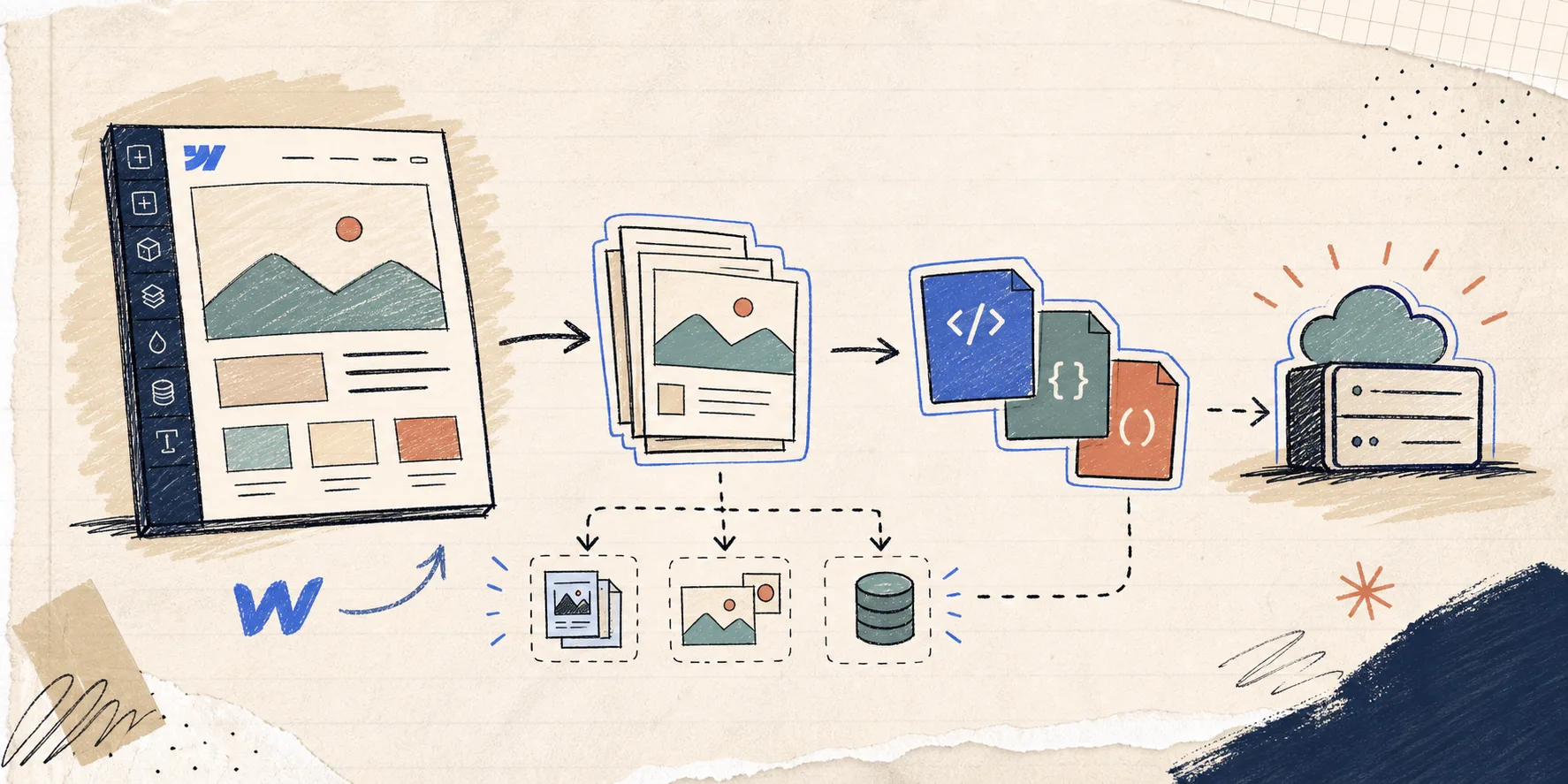
I keep coming back to the same operator question: if the design is right but the hosting model is wrong, do you rebuild the site or export it? Most of the time, you can export the Webflow site, keep the important pieces intact, and move to static hosting without turning the project into a rewrite.
That is the lane ExFlow is built for. ExFlow.site exports Webflow sites as downloadable static content and gives you a path to Git, S3, FTP, or hosted output when you want to keep control of deployment.
If you want the fuller migration version of this problem, I’d read How I Exported My Webflow CMS Site to Static Hosting Without Rebuilding It. It is the same decision, just explained from the middle of a real move.
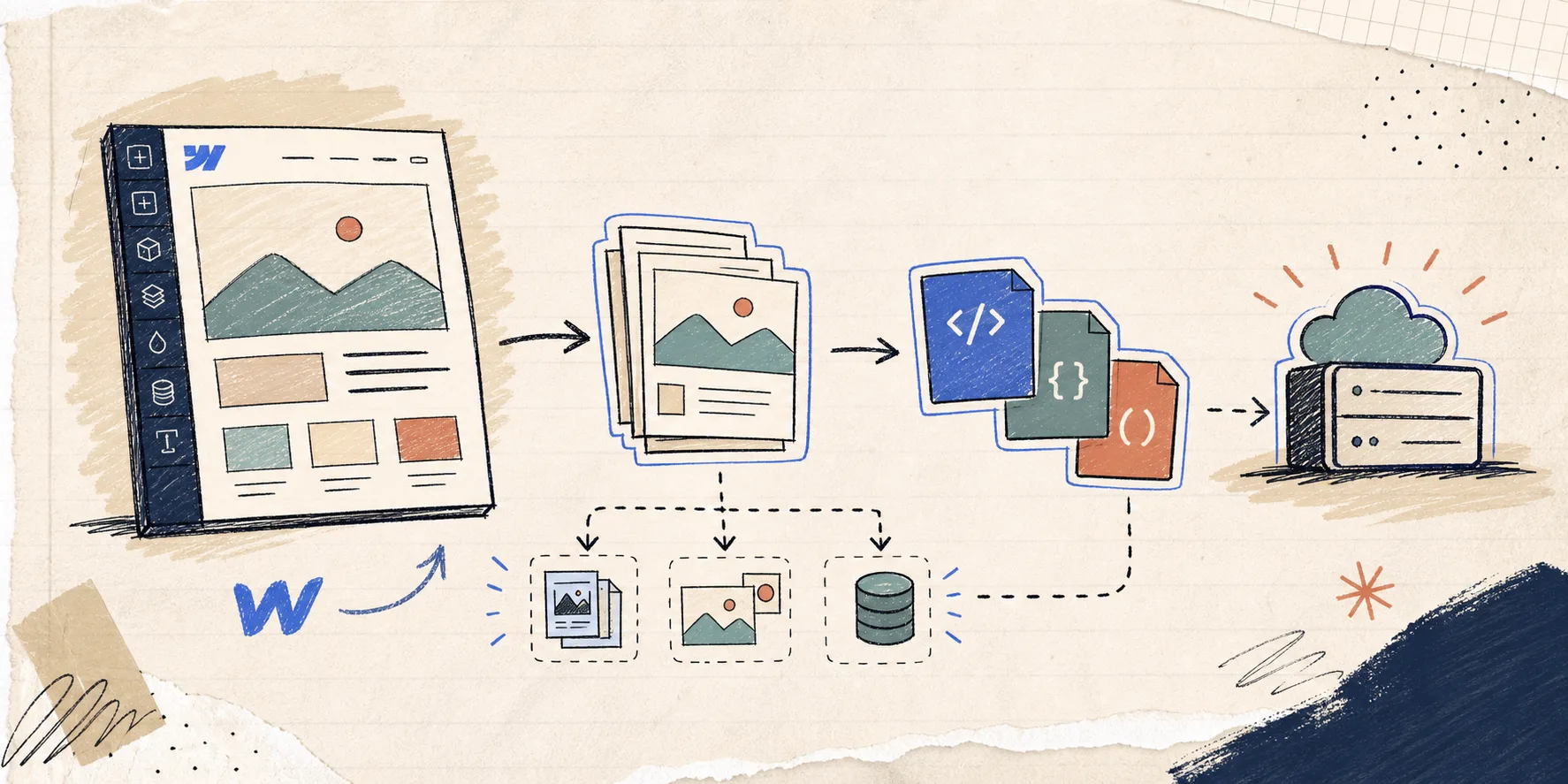
What this checklist is for
This checklist is for the point where Webflow still does the design job well, but you want a more portable output.
Use it when you need:
- a static copy of a Webflow site
- a way to keep CSS, JS, images, and pages together
- a cleaner hosting setup than managed Webflow hosting
- a release process you can hand to a small team
If the site depends on highly dynamic backend behavior or needs live content editing all day long, export may not be the right final state. But if you want a durable site shell and a simpler deployment path, this is a good place to start.
1. Decide what has to survive the export
Before you click anything, list the pieces that actually matter after the move. I like to separate them into four buckets:
- core pages
- CMS pages or collections
- custom scripts and styles
- images, video, and other media
That sounds basic, but it is where export projects usually get messy. Teams often think in terms of “the website,” then discover later that the real risk is one missing embed, one broken asset path, or one page that was never included in the release.
ExFlow is useful because it is not trying to be a generic site grabber. It is meant for Webflow exports, including CMS content, so the output is closer to the structure the site already has.
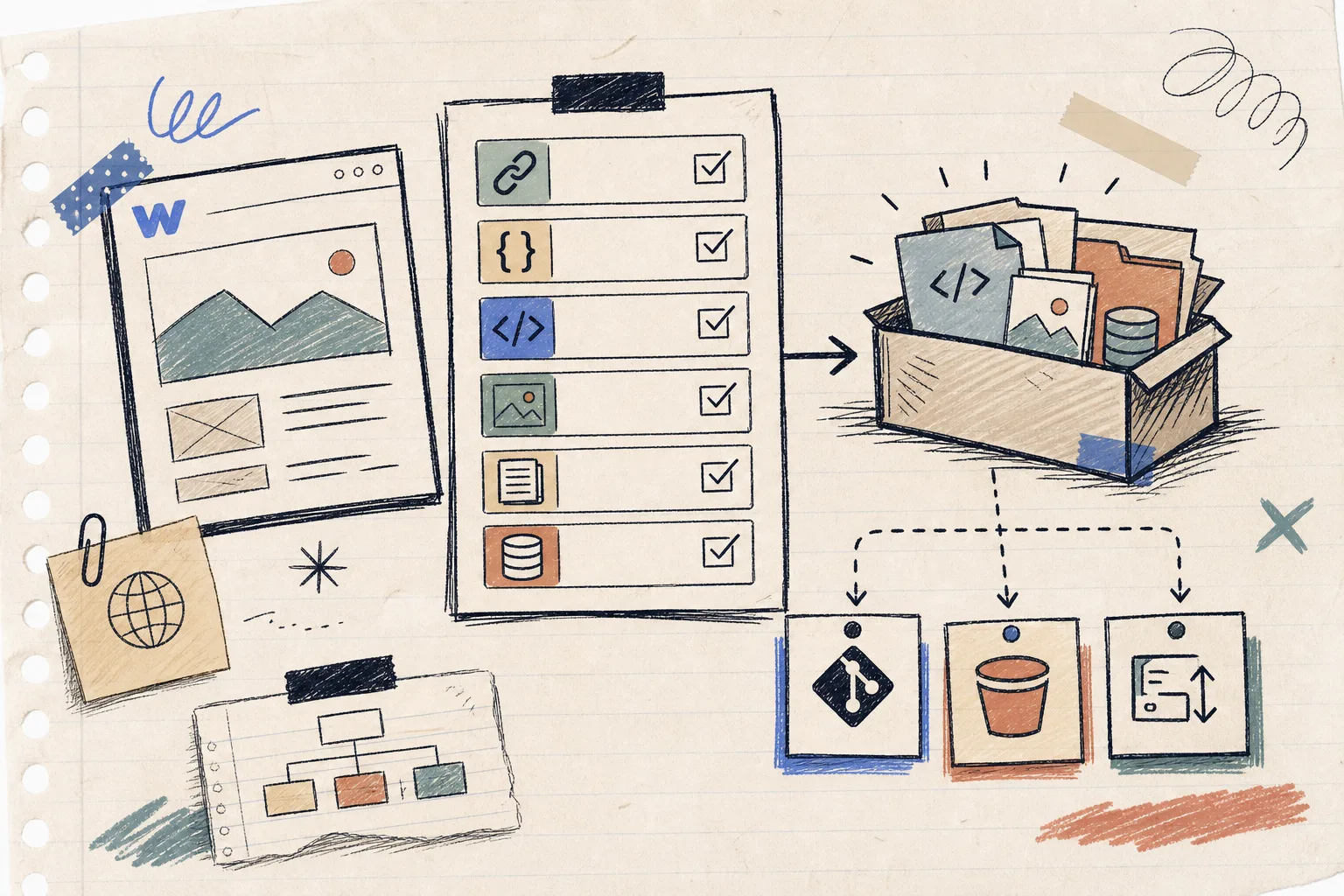
2. Check the export settings before you ship
The settings worth reviewing are the ones that control what leaves Webflow and what stays behind.
The product supports options like:
- the site URL
- exporting CSS files
- exporting JS files
- exporting images and media files
- exporting all pages
- removing the Made with Webflow badge
- adding custom script.js and style.css files
- syncing to Git, S3, or FTP
- hosting and hosting status
- unlimited bandwidth on the hosted side
I would not turn everything on by default. I would choose the smallest set that matches the site you are actually trying to ship. If the export is for a staging copy, keep it simple. If it is a real migration, make sure the full page set and assets are included before you trust the output.
One small detail that matters: export settings should produce normal static pages, which means you want the exported pages to land cleanly as .html files.
3. Pick the hosting path before the export
This is the part where the decision stops being a design question and turns into ops.
ExFlow gives you a few obvious directions:
- host it on ExFlow if you want the least friction
- sync it to Git if your team wants versioned deploys
- sync it to S3 if you want cheap static hosting
- sync it through FTP if you are landing on a conventional server
If you are using Git, S3, or FTP, treat the credentials like sensitive deployment secrets. Have them ready before you start, but keep them out of shared notes and out of casual copy-paste workflows.
The same choice shows up in How I Export Webflow Sites to Static Hosting, Git, or FTP. That post is helpful if you want a more release-oriented version of the same setup.

4. Review the export like a release, not a screenshot
Once the files are out, check the site like you would check a release candidate.
I look at:
- navigation paths
- CMS listing pages
- custom embeds
- forms or external integrations
- relative asset paths
- internal links
- image loading
- whether the page still feels coherent without the Webflow runtime
This is also where Webflow-specific export is more useful than a generic downloader. A general site grabber can miss the structure that made the site work in the first place. ExFlow is built for Webflow’s export model, which is exactly why it is a better fit than a scraper when you care about the result.
5. Know when not to export
Static hosting is a good fit when the site is mostly presentation, SEO, and controlled publishing. It is not the cleanest move when the site is changing all the time or needs live CMS behavior for every visitor.
If you are comparing the same decision in other builders, the pattern is similar. I have seen the export move explained well in How to Export a Framer Site to HTML, CSS, JS, and Images and How to Export a Squarespace Site to HTML and Self-Host It. Different platforms, same basic question: can you move the site without rebuilding the whole thing?

The short version
If Webflow still gives you the design you want but you want more control over deployment, export first and rebuild only if you have to.
My practical rule is simple: decide what needs to survive, choose the hosting path up front, export once, and then review the result as if it were a real release. That keeps the project small and the tradeoff obvious.
If you want to try that workflow on a real site, start with ExFlow.site, type in the Webflow URL, and export one clean copy before you change production. That one test gives you the answer fast: stay on managed hosting, or move the site with confidence.