

I had a product page that looked thorough, but the inbox told a different story. Shoppers kept asking four versions of the same thing: Will this fit my setup? What is it made from? How do I look after it? When will it arrive? My first instinct was to add more prose. That would have made the wall taller.
The useful move was to treat those questions as a sorting exercise before touching the product template. A question is evidence of a decision a shopper cannot make yet. Once I put the questions on cards, the product-page structure became much easier to sketch.
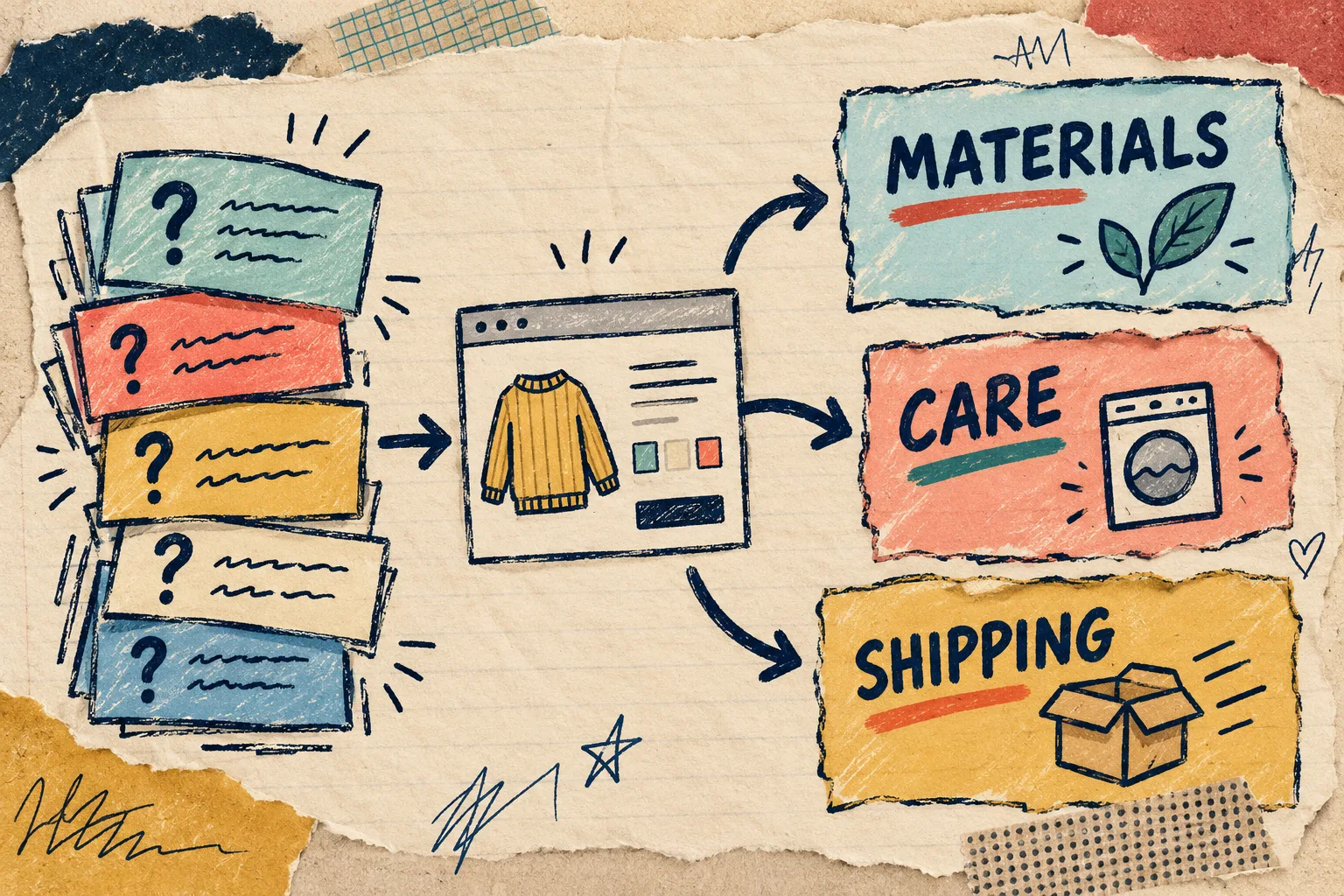
My three-pile question sort
I copied a small sample of recurring questions from support, product reviews, and sales conversations into a sheet. I did not count every message; I just wanted enough repeats to see a pattern. Then I gave each one one of three homes.
- This changes by product or variant. Dimensions, materials, compatibility, ingredients, and care instructions belong in product data. Shopify metafields are a good fit for details that need a distinct value on each product.
- This is stable across a group of products. Shipping expectations, warranty language, and a general care policy should come from one shared source, not be pasted into thirty descriptions.
- This needs an answer before a shopper can commit. Put these high in the product-page sequence. A question that decides whether the item works for someone should not be buried below a brand story.
That split stopped me from creating a tab named More info, which is the tab equivalent of a junk drawer. It also echoed the catalog approach I used when I built a specs, care, and delivery system that scales: make the source decision before the presentation decision.
Turn piles into labels a shopper recognizes
My first labels were too internal: Product data, Ops, and Policies. Accurate, maybe. Helpful, no. I rewrote them in the language of the question card:
- “What is this made of?” became Materials & details.
- “Can I use this with my model?” became Compatibility.
- “How do I wash or maintain it?” became Care.
- “When will it get here and what happens if it is wrong?” became Shipping & returns.
Notice that the labels describe the answer, not our back-office system. This is the same scanability principle behind the product details map I use before adding tabs, but the question cards give you a much better edit test: could the person who asked this find the label without guessing?
Build one small set before scaling it
For a pilot collection, I made a deliberately boring four-part set: Details, Care, Shipping & returns, and one product-specific decision tab such as Compatibility or Sizing. Then I connected each one to the right source.
With Supra Tabs & Accordions, that means a tab can pull from a product description, metafield, store page, or metaobject field; it can also hold an image, file, or app-written content. The useful bit is that I can target the set by collection, tag, vendor, product type, or selected products, then add its theme app block once to the product template. The app is free, with no trial, tiers, or card requirement.
I kept the set intentionally small because it exposes bad source decisions quickly. If only two products have a Compatibility value, an empty tab should not sit there pretending it has something to say. Supra Tabs & Accordions hides tabs with no matching content, so the same setup can cover a collection without making every product look identical.

Test the question path on desktop and mobile
The next sketch was not visual polish. It was a task test. I opened a wide product page and a narrow one, then tried to answer four real questions with no knowledge of the store.
- On desktop, can the labels be scanned without a crowded row?
- On mobile, does each accordion have a comfortable tap target and a single obvious answer?
- When labels overflow, is scrolling, wrapping, stacking, or a More control the least confusing treatment?
- Does every important answer still have a clear heading in the page content?
That last one matters: an organized presentation should not turn essential information into a mystery box. The goal is clarity, not hiding copy. For a related test, I like the way this mobile-tabs-and-accordions guide frames the desktop/mobile switch as one content system, not two competing pages.
Add an overlap check before the app block
My final field-note item is boring and worth doing: write down which products each rule should touch. If summer-gear and waterproof both assign a different tab set, someone needs to know which wins before a customer sees it. Supra shows match counts and overlap warnings in the preview, so I check those before adding the app block.

Here is the tiny release checklist I kept beside the laptop:
- Every label answers a recognizable shopper question.
- Product-specific facts come from product data, not copied policy text.
- Shared answers have one maintained source.
- The pilot includes a product with missing optional data.
- Desktop and mobile both pass the four-question test.
- Targeting rules have no surprise winner.
If your product description is growing because you are trying to answer everything at once, do not start by choosing a tab style. Pull ten recent questions, sort them into these three piles, and sketch four plain-language labels. That fifteen-minute exercise will tell you what content deserves a home before you create one.