

I have learned to distrust the phrase ‘quick catalog cleanup.’ It is usually followed by a spreadsheet-shaped mess: a price rule catching the wrong collection, a title append applied twice, or a product status change that quietly removes a group of items from a sales channel. The fix was not another heroic final review. It was making a tiny safety packet before I run a Shopify bulk edit.
That packet gives me a repeatable way to work in Ultimator Bulk Editor: choose the exact records, define one change, run a small pilot, then decide whether to run it now or schedule it. The app can bulk-edit product and variant fields—from tags, descriptions, collections, and SEO fields to prices, SKUs, inventory, options, and metafields—so the real job is narrowing the blast radius before the button looks tempting.
The Safety Packet Is One Page, Not a Process Document
Before opening a task, I write down four things in my working notebook:
- The population: which products or variants should change, and which similar records must stay untouched.
- The field and operation: for example, append a seasonal suffix to titles, increase a price by a percentage, or search-and-replace an old material note in HTML descriptions.
- A proof set: five to ten products that include the boring case, the edge case, and the one item I would hate to damage.
- The rollback clue: where I can see the old value or recreate it if the result is wrong.
This makes a bulk task legible to a future me. It also stops me from mixing unrelated edits in one run. A pricing change, a tag cleanup, and a metafield migration may all be small individually, but they fail differently. I give them separate tasks.

Start With the Selection, Not the Update
In Ultimator, the first step is search criteria. That is where I spend the extra two minutes. I name the target in plain language first: ‘active products in the new fall collection, excluding gift cards’ is better than ‘the stuff for the campaign.’ Then I compare the returned count against what I expected. A count that feels surprisingly large or small is a reason to stop, not a reason to click faster.
I also make the proof set intentionally awkward. Include a product with several variants, a product with a long title, a discounted item, and anything with a special workflow. If the task touches a field used by storefront logic, I check that dependency first. For example, our earlier field-note on planning product tabs around shopper decisions is a good reminder that product data often feeds more than one visible component.
Define One Observable Change
The second step in the app is defining updates. I phrase the desired result so I can inspect it in one glance: ‘append — Fall Edit once,’ ‘round prices after a 12% increase,’ or ‘set this metafield only when empty.’ Ultimator supports field-specific operations, including setting values, appending or prepending titles, search-and-replace, and increasing or decreasing prices by an amount or percentage.
My small rule: do not combine transformations merely because the selected products are the same. Separate runs create cleaner evidence. They also make a follow-up easier when somebody asks why a particular value changed. If the task is price-related, I pair it with the decision framework from how I plan a Shopify promotion without damaging prices: decide the commercial rule first, then use the tool to execute it consistently.
Pilot the Awkward Cases
I run the change on the proof set before I touch the whole result. A pilot is not a watered-down version of the job; it is the fastest way to expose a bad assumption. I inspect the exact field that changed, then check one downstream view that matters: collection membership, variant display, the storefront title, or an export.
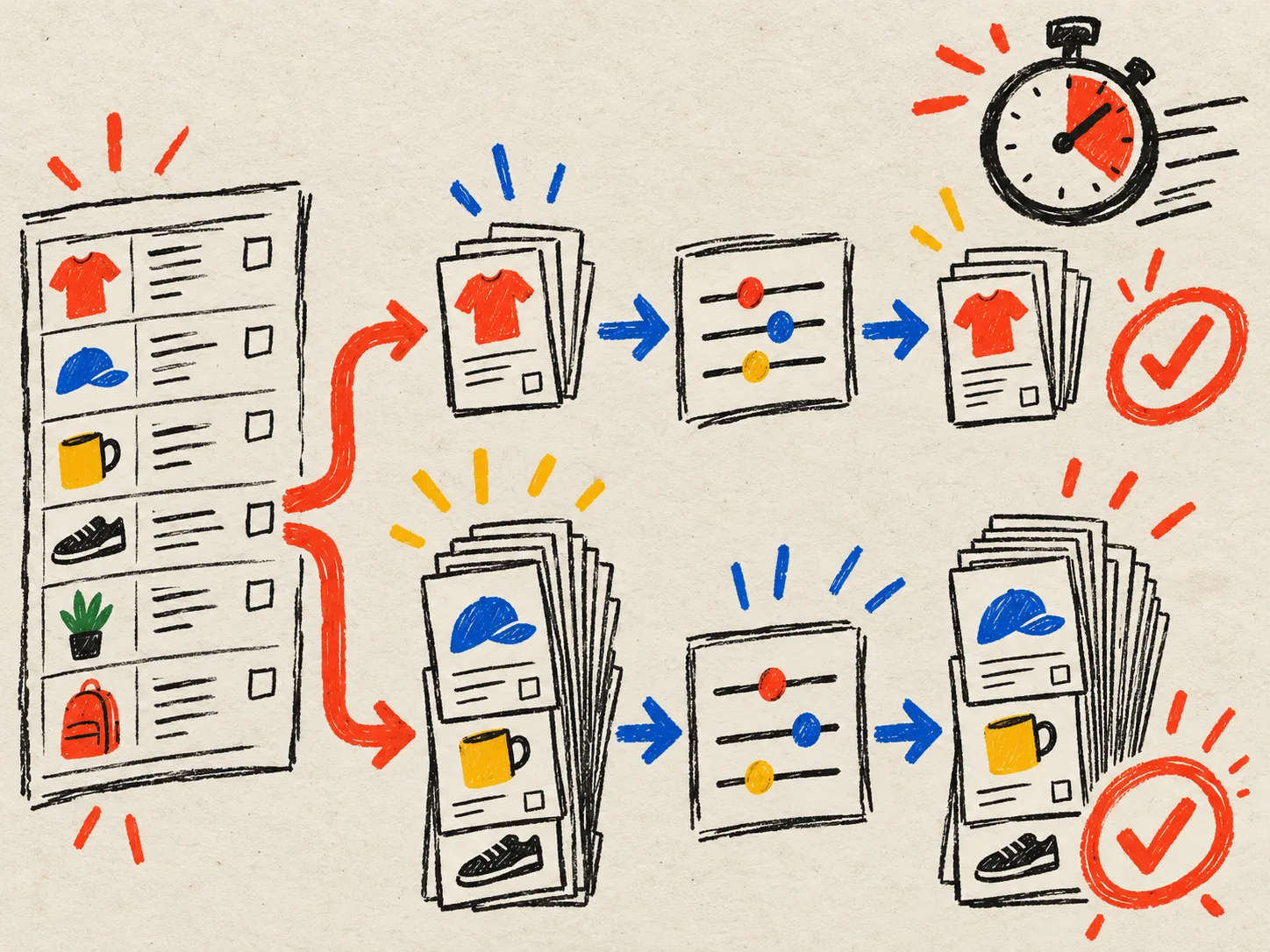
For catalog work, I keep a three-question review beside the pilot:
- Did every intended record change?
- Did any excluded record change?
- Did the updated value still behave correctly where customers or teammates use it?
That last question is easy to skip. It is why I often borrow the habit in this product-photo metadata handoff checklist: check the thing itself, then check the context it travels into.
Choose the Release Window Deliberately
Ultimator lets you run a task immediately or schedule it for a future date and time. I use that choice as an operational decision, not a convenience toggle. Immediate runs suit a small repair I can watch. Scheduled runs suit larger changes that deserve a quiet window and a named person ready to verify the result.
For scheduled work, my packet gets three extra lines: launch time, first check time, and owner. That is the practical companion to safely scheduling a Shopify bulk product update. Scheduling buys breathing room only if someone uses the breathing room to check the outcome.

A Five-Minute Closeout
After a successful batch, I do not just close the tab. I record the task name, selection logic, operation, item count, and a couple of checked examples. Then I ask whether the result changed a related workflow. If I updated collection or product copy, I may revisit the content plan; if I changed a display-related field, I do a storefront spot check.
This is the unglamorous part that keeps bulk editing useful. Install Ultimator Bulk Editor when you need to make a defined product or variant change across a large catalog—but bring a small safety packet with you. Today, pick one repetitive catalog task and write the population, field, proof set, and release window before you build it.