
I used to treat a first 3D product model like a photography task: put the object on a table, walk around it with a phone, and hope the upload did the clever part. The missed step was deciding what good enough to publish meant before I took frame one.
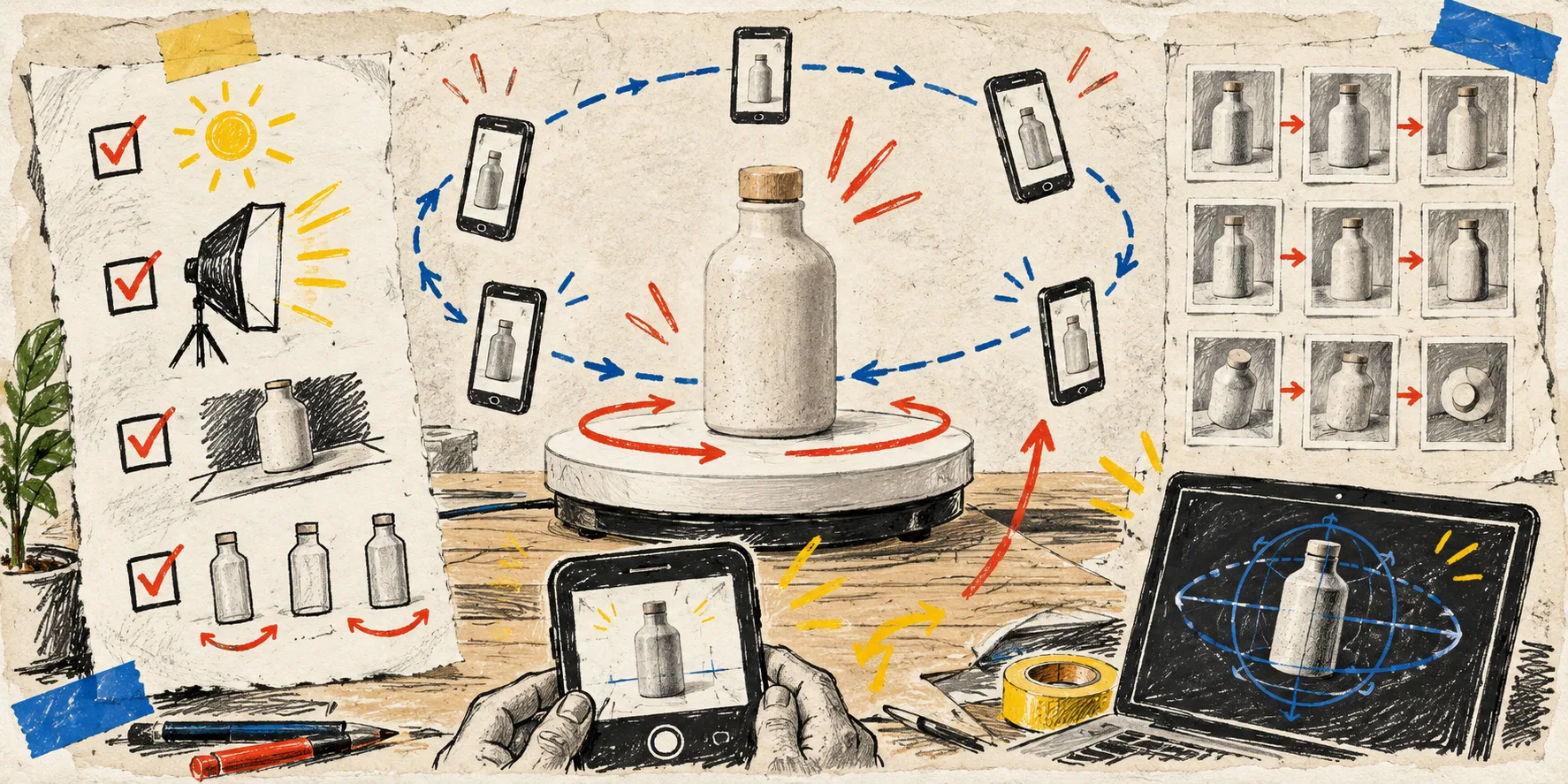
Now I make a one-page capture card. It is not a technical spec. It is a small, repeatable note that tells me which SKU I am testing, which views have to survive scrutiny, and what I will check on the actual Shopify product page. It has made 3D feel far less like a special project.
Supra 3D Capture is the tool I would use for this kind of pilot: it guides a phone-photo orbit, turns the shots into a web-ready GLB, and can publish it as Shopify-native 3D media or through an Online Store 2.0 app block. The important part is that the capture card keeps the input deliberate.
The card starts with one shopper question
The card has one line at the top: What can a shopper understand by spinning this that they cannot understand from the gallery?
That keeps me away from choosing a 3D SKU just because it looks impressive. A compact bag with depth, a ceramic vessel with an interesting silhouette, a shoe with a useful side profile, or a piece of furniture with legs and proportions all give the shopper something to inspect. A flat printed card, a very glossy bottle, or a transparent object is a tougher first rehearsal.
If I need help narrowing the candidate list, I use the same “value before novelty” filter from my first Shopify 3D SKU note: choose a product whose shape, scale, or construction already creates a question on the page. Then keep the pilot small.
My capture card has five boxes
- SKU and variant. Name the exact product and color. A model for the wrong finish is not a harmless approximation when the material is part of the buying decision.
- Surface callout. Write down anything reflective, clear, fuzzy, very dark, or thin. Those are not automatic deal-breakers, but they are a signal to slow down and inspect the result rather than assume every scan will behave the same way.
- Viewing job. Pick the two or three views the model must make easy: side depth, sole shape, handle clearance, lid fit, or overall proportions.
- Capture setup. Note the stable surface, even light, clean background, and whether the product itself will stay still while the phone moves around it.
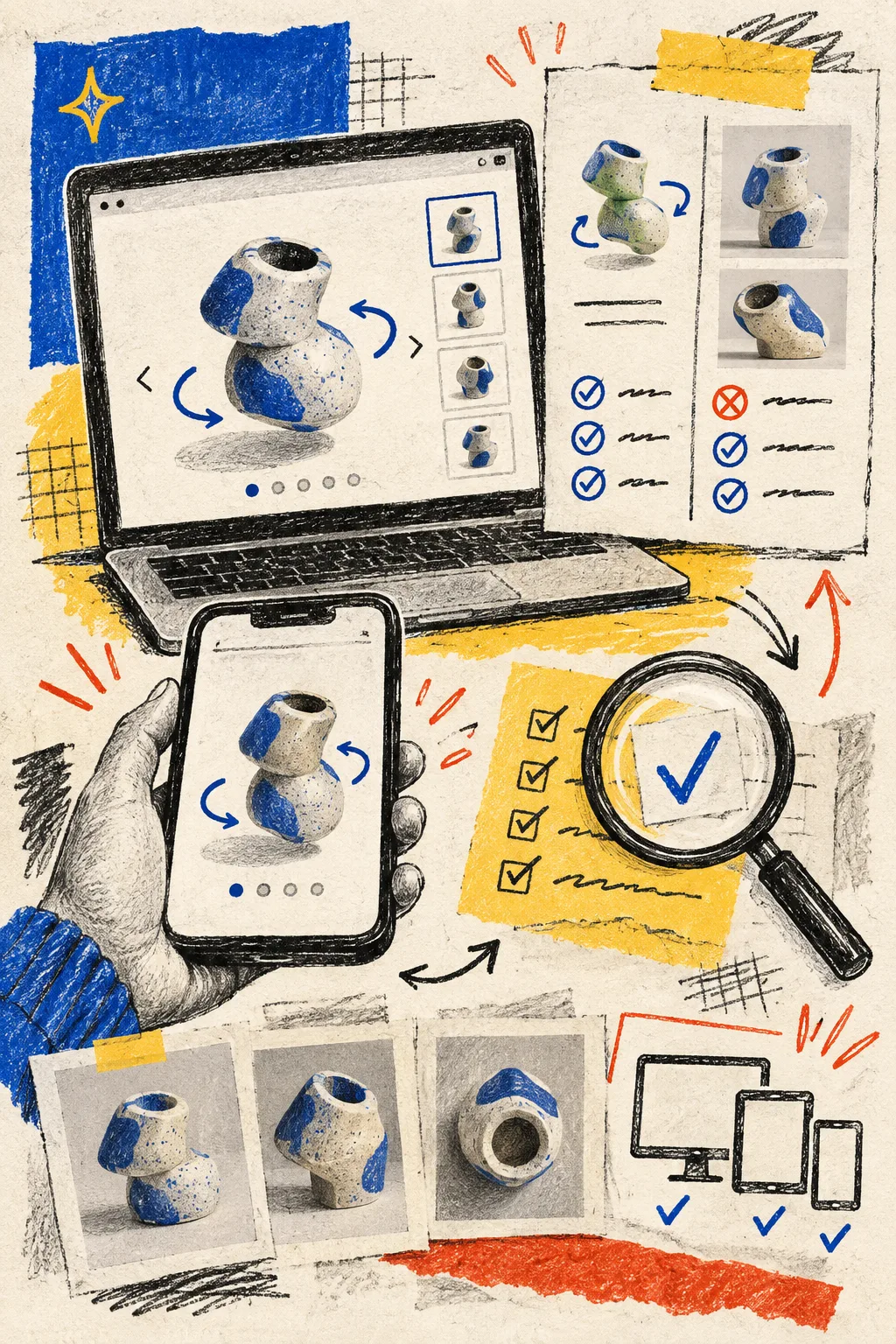
- Publish check. Decide where the model will appear and which devices you will test before it goes live.

The point is not to create paperwork. It is to avoid discovering halfway through a capture that a shiny detail was the whole reason the SKU needed 3D.
Build a boringly repeatable phone-photo orbit
Supra 3D Capture is designed around a guided phone capture session; the practical preparation still matters. I set the object on a non-busy, matte surface and give it even, soft light. Then I keep the product fixed and orbit the phone around it at a consistent distance.
I am looking for coverage, not drama. If a shopper should be able to rotate from front to side to back, the input needs those transitions. I also pause between passes to make sure the product has not shifted and that no hand, hard shadow, or moving reflection has swallowed an edge. The app’s guidance is useful here, but it should support a deliberate orbit rather than rescue a random one.
This is why I would not begin with a huge catalog migration. The theme-integration guide for Shopify 3D media makes the integration approachable; a capture card makes sure the actual asset deserves that destination.
Treat the GLB preview as a product-page proof
After processing, I inspect the model against the viewing job I wrote down. Can I rotate to the intended sides? Do the thin parts, joins, and silhouette look coherent? Is the important material cue still understandable?
I do not use the result to promise a perfect digital twin. I use it to close the gap between a flat gallery and a shopper trying to understand a physical object. If the model is not clear on the exact thing the card identified, I recapture rather than bury it lower on the product page.
That restraint helps when the next step is publishing. A GLB can be attached to a Shopify product as native media, and Supra 3D Capture also offers a theme app block for a more intentional placement. For pages with lots of detail, I like the same structure-first thinking in this note on product details from metafields and metaobjects: decide which question each element answers instead of adding components until the page feels busy.
Run the publishing check on a real device
The final box on my card is deliberately mundane: open the product page on desktop and phone, rotate the model, and check the surrounding page. I want to know that it loads where I planned, feels discoverable next to the gallery, and does not compete with essential purchase information.
I also compare the experience with the original photos. The model should add a new way to inspect shape and proportions, not replace useful close-ups, scale cues, or material detail. That is close to the broader principle in my shopper-question product-page rebuild: every block needs a job. Here, the 3D viewer’s job is exploration.
Expand only after one card survives contact with the page
Once a pilot works, I keep the capture card with the SKU notes and turn it into a template. The next person does not have to relearn the light setup, the intended viewing job, or the product-page test. Then I choose the next SKU because it has a similar customer-confidence problem—not because it is merely next in a spreadsheet.
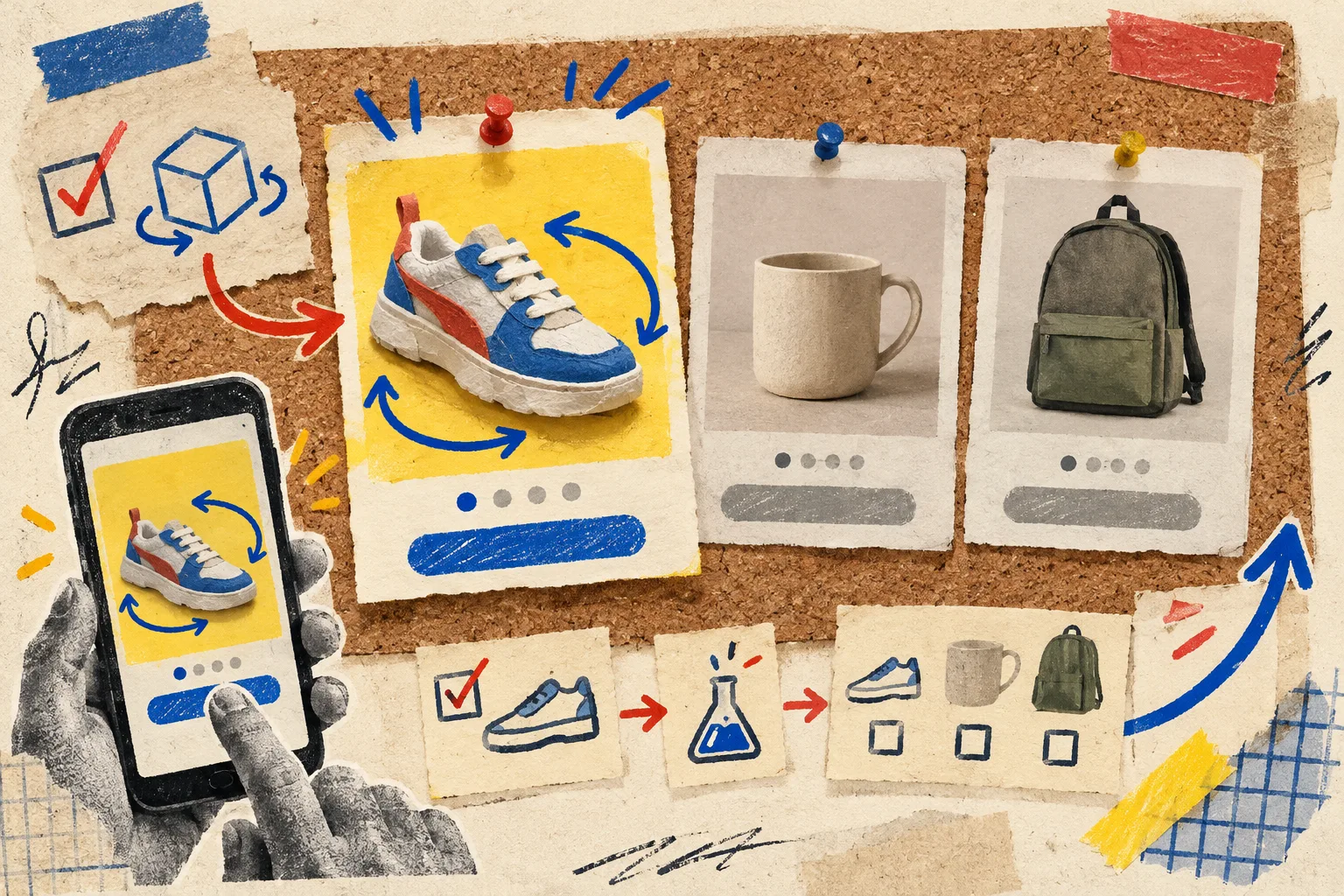
If you want to try the workflow, start with one product that has genuine depth or construction to inspect, open Supra 3D Capture, and write the five boxes before you start the guided orbit. That is enough to turn a phone-photo experiment into a repeatable Shopify 3D media practice.