

How I Schedule a Shopify Price Change Without Discounting the Wrong Variants
When a Shopify promotion has a start time, I do not begin by selecting everything that looks seasonal. I make an exclusion ledger first, then build the update around the variants that pass it. That small detour is how I can schedule a price change with Ultimator Bulk Editor without quietly discounting bundles, clearance inventory, or a product that has its own price plan.
The useful distinction is this: a price update is not a product update. Shopify lets a product contain distinct variants—such as size and color combinations—and those variants can have their own inventory and details. Shopify’s variant guide is a good reminder that the customer is choosing a specific sellable version, not an abstract parent product. My task is to say exactly which versions belong in this promotion.
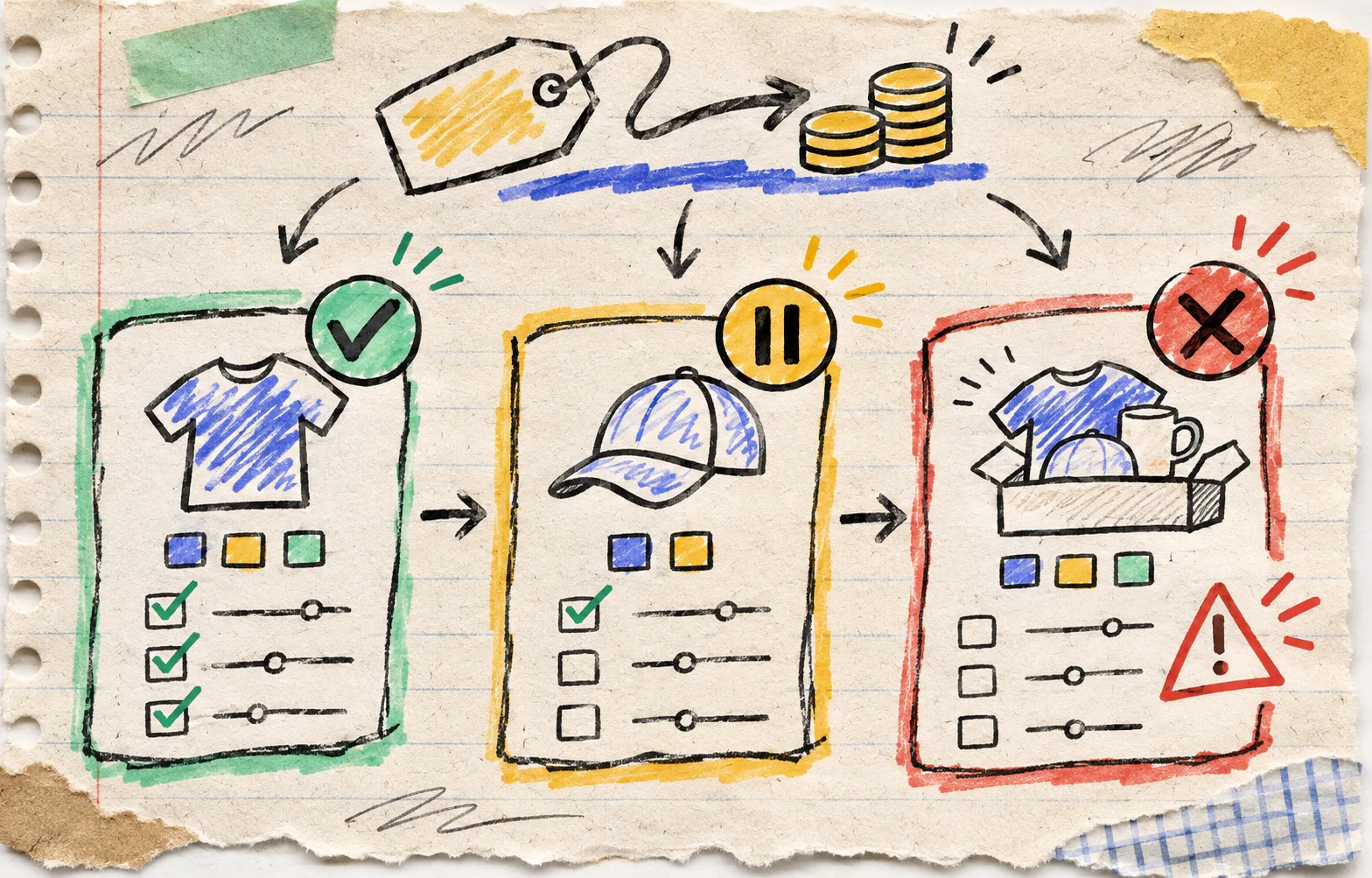
The exclusion ledger comes before the bulk task
I make a tiny sheet before I open the editor. It is not a complete catalog export; it is a decision record for anything that could make a blanket discount misleading.
| Listing or variant group | Promotion rule | Action | Why |
|---|---|---|---|
| Current-season tees, standard colors | 15% off | Include | Same campaign and margin rule |
| Low-stock or final-sale variants | No additional reduction | Exclude | Their price is already constrained |
| Gift sets and bundles | Keep bundle price | Exclude | A component-level discount can distort the offer |
| Products with a separate launch date | Review later | Hold | Different timing and message |
The list has one job: turn a fuzzy campaign idea into a search condition plus explicit exceptions. Shopify describes product details such as price, tags, SKUs, and product types as both customer-facing and organizational data, so I check which of those fields I can safely use as a boundary rather than assuming a collection is enough. Its product-details documentation is useful context here.
A quick warning from the messy middle: do not use a tag as a safety guarantee if the tag itself has been drifting. In that case, use the tag to find candidates, then add exceptions by SKU, product, or collection in the task setup. The ledger stays beside the task until the promotion is done.
Build one narrow task, then decide what the new price means
Ultimator’s App Store listing describes a three-part flow: select products or variants with search criteria, define the update, then run it immediately or schedule it. It also lists product and variant price fields, search/filtering, and scheduled tasks among its capabilities. That is enough for a disciplined promotion workflow; it is not a reason to skip the selection decision.
Here is the setup I write in my notebook before touching the button:
Task: Spring tees — 15% scheduled reduction
Include: tag = spring-tee AND status = active
Exclude: SKUs in the exception ledger
Change: decrease variant price by 15%; round to my store’s pricing rule
Compare-at price: leave unchanged unless the campaign owner has approved it
Start: campaign date and store time zone
Proof: one included variant, one excluded variant, one mobile storefront check
That compare-at price line earns its place. A lower price and a comparison price tell different merchandising stories. I treat a compare-at edit as a separate, approved decision rather than letting it hitch a ride on a price change. If you are doing a catalog-wide cleanup instead of a timed promotion, the five-record bulk-edit receipt is a good companion pattern.

Use a three-variant proof before the schedule fires
A task can look correct and still select the wrong slice of the catalog. I choose three purposeful records:
- The obvious include — a normal, in-stock variant that should receive the new price.
- The boundary case — a product that matches one condition but ought to be held, such as a special color or low-stock size.
- The obvious exclude — a bundle, final-sale item, or SKU from the ledger.
For each, I record current price, proposed price, compare-at price, inventory state, and expected result. This is not a claim that three records prove every variant is correct. It is a fast way to catch the most expensive mistake: a search rule that is broader than the promotion brief.
The App Store currently says Ultimator can run bulk updates instantly or schedule them, and lists a 7-day trial on its single plan; confirm the listing in your own admin before relying on any commercial detail. The operator decision is still the same: schedule only after the proof set has a clear expected outcome.
The storefront check is a separate finish line
When the time arrives, I do not call the job finished because the editor reports success. I check the result where a buyer sees it:
- Open the obvious-included product and select the exact variant.
- Confirm price and, when applicable, comparison-price display match the campaign decision.
- Open the excluded product and verify it did not change.
- Repeat the included product on a phone-sized view.
- Save the task name, scheduled time, selection rule, and exclusion ledger with the campaign note.
This is especially useful when color options, collections, or product links are part of the shopping path. If that is your release, pair this check with a keyboard pass for Shopify color swatches so the price you changed is also reachable in the buying interface. And if your promotion relies on a physical insert, the small-batch QR checklist is a good reminder to test the destination, not just the printed code.
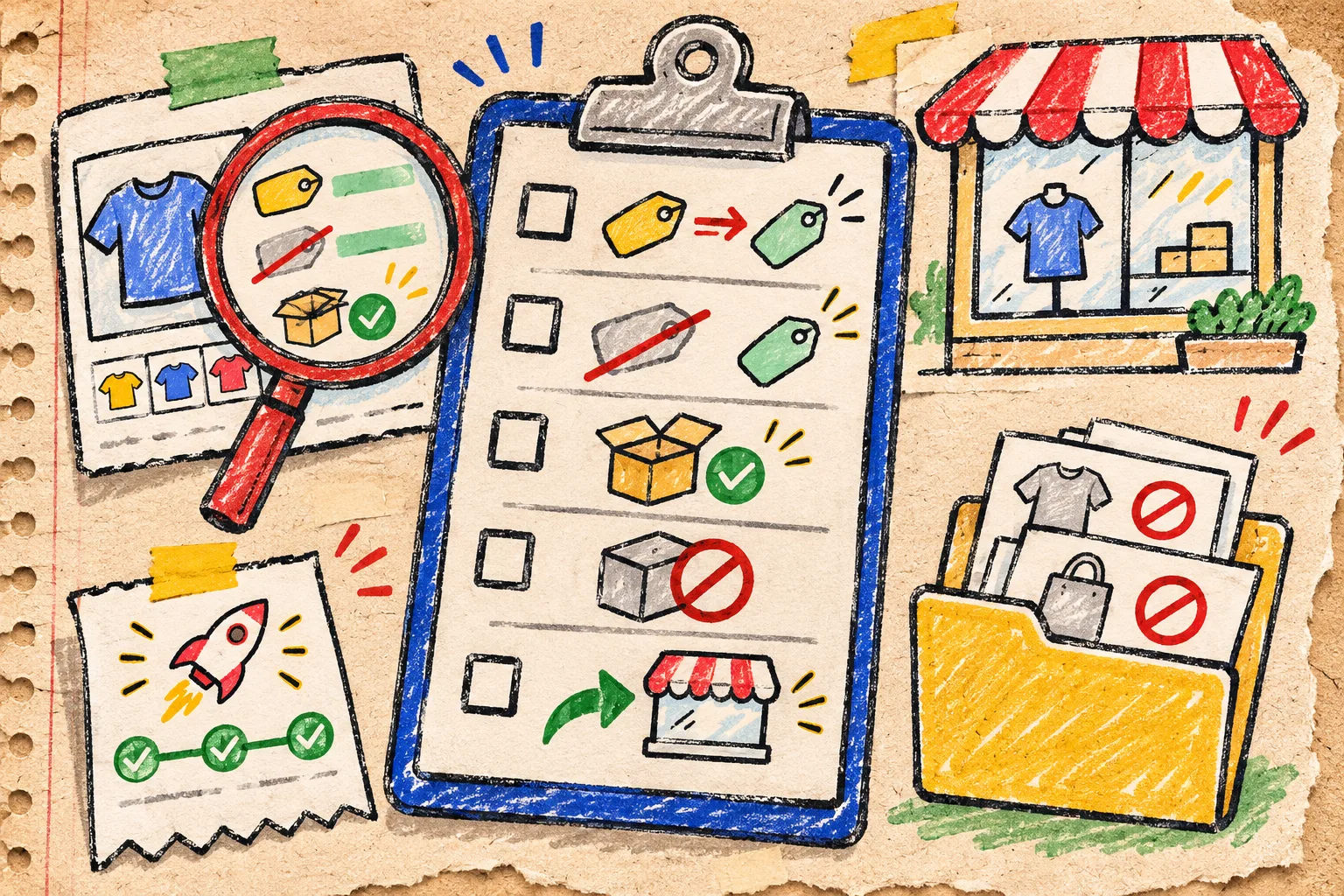
My five-minute release receipt
Before I move on, I keep this compact receipt:
[ ] Promotion rule matches the approved campaign brief
[ ] Selection rule and exclusion ledger are saved together
[ ] One include, one boundary case, and one exclude match expectations
[ ] Price and compare-at treatment are checked separately
[ ] A buyer-facing product page is correct on desktop and mobile
A bulk editor is the right tool when the rule is stable and the exceptions are visible. It is the wrong tool for a campaign that has not decided what counts as eligible. Start by writing the exclusion ledger, then set up the narrow bulk task in Ultimator. The next action is simple: choose one upcoming promotion, list three exclusions, and make the selection rule prove it can leave them alone.