
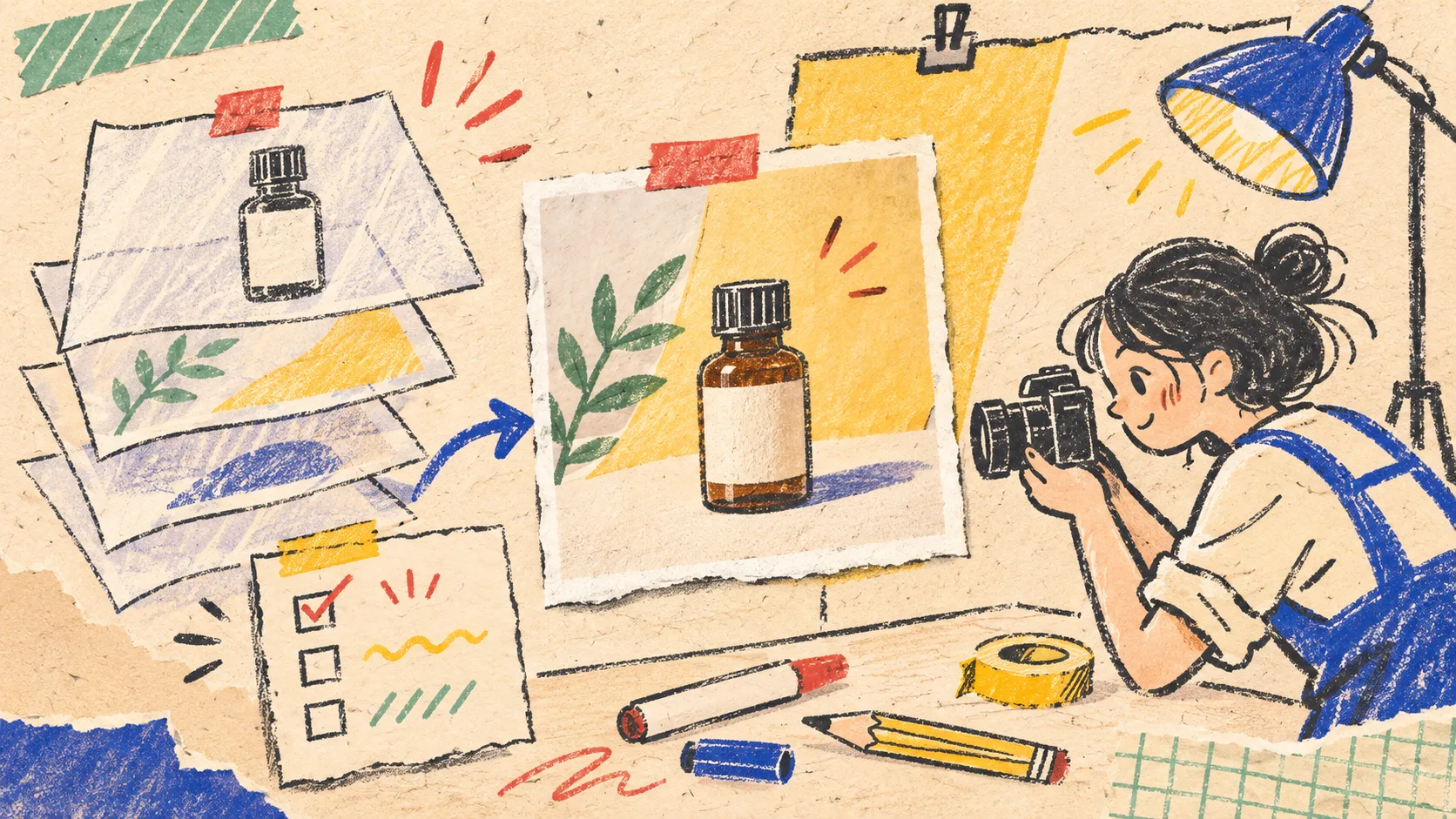
How to Create Truthful Product Photo Variants From One Master
My product-photo rule is now slightly boring on purpose: make variants from an editable master, write down exactly what may change, then inspect the export as if it were a new product. That is the quickest way to make a collection crop, promotion background, or marketplace-ready image without accidentally changing the item you are selling. ImageFlow is useful here because its browser editor gives you layers, masks, adjustment layers, smart objects, and PSD/PSB import and export in one local-first workflow.
The goal is not to make every image look different. It is to make each image fit its placement while the product, label, colour, material, scale cues, and included accessories remain truthful.
Start with an editable master, not the last export
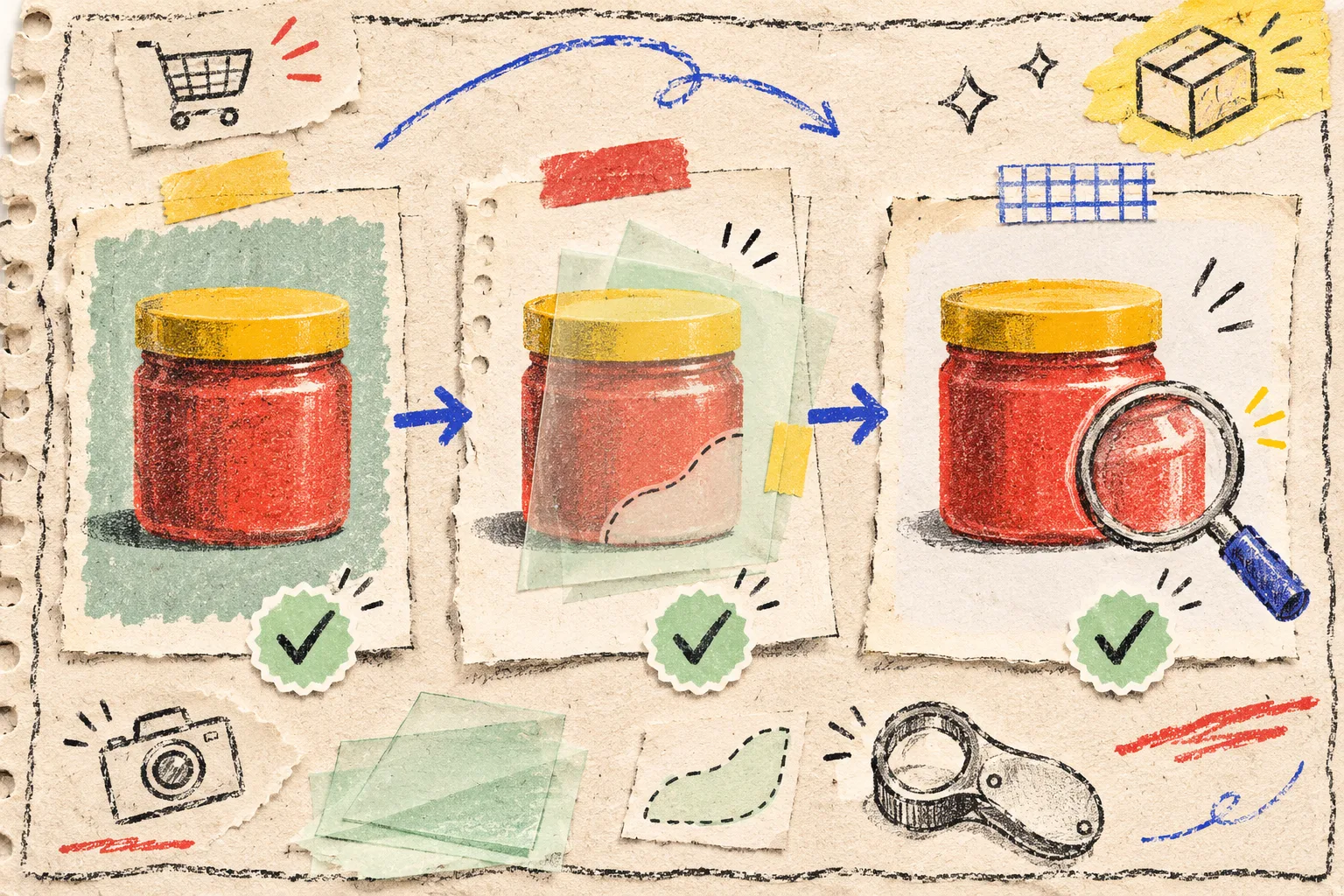
A flattened JPEG is a delivery file. It is a poor starting point for the next change because every correction becomes permanent or forces you to rebuild the work. Keep one master with the original pixels protected and the edits separated: background in one group, product mask in another, adjustment layers above, copy in its own text layer.
In ImageFlow, that can mean importing the PSD or PSB you already received, or making a new layered document. The product lists layer masks, clipping masks, non-destructive adjustment layers, smart objects, and smart filters; those are the useful parts of the promise here, not a claim that a browser editor replaces every desktop workflow. If a production file contains unusual effects, test one round trip before making it the team default.
This is the same separation principle behind a three-image product-photo gate: the storefront image can be persuasive without becoming a different product.
Make a tiny change–preserve–check note
Before touching a layer, make a three-line note. Mine looks like this:
| Change | Preserve | Check before export |
|---|---|---|
| Crop to a square for collection cards | Product shape, pack size, label copy | No important edge is clipped |
| Replace a messy sweep with a neutral background | Colour, reflections, shadow direction | Mask edges and contact shadow still make sense |
| Brighten an underexposed scene | Actual material and finish | Whites are not clipped; finish is not falsely glossy |
| Add campaign text in unused space | Product and variant identity | Text does not cover required product detail |
That note creates a boundary around the edit. A new background is usually fine. Removing an included attachment, making fabric look smoother than it is, or shifting a shade toward a trendy campaign palette is a merchandising decision with customer consequences. Stop and get a new photo or approval instead.
Build the variant with reversible layers
Here is the short working sequence I would give a small store team:
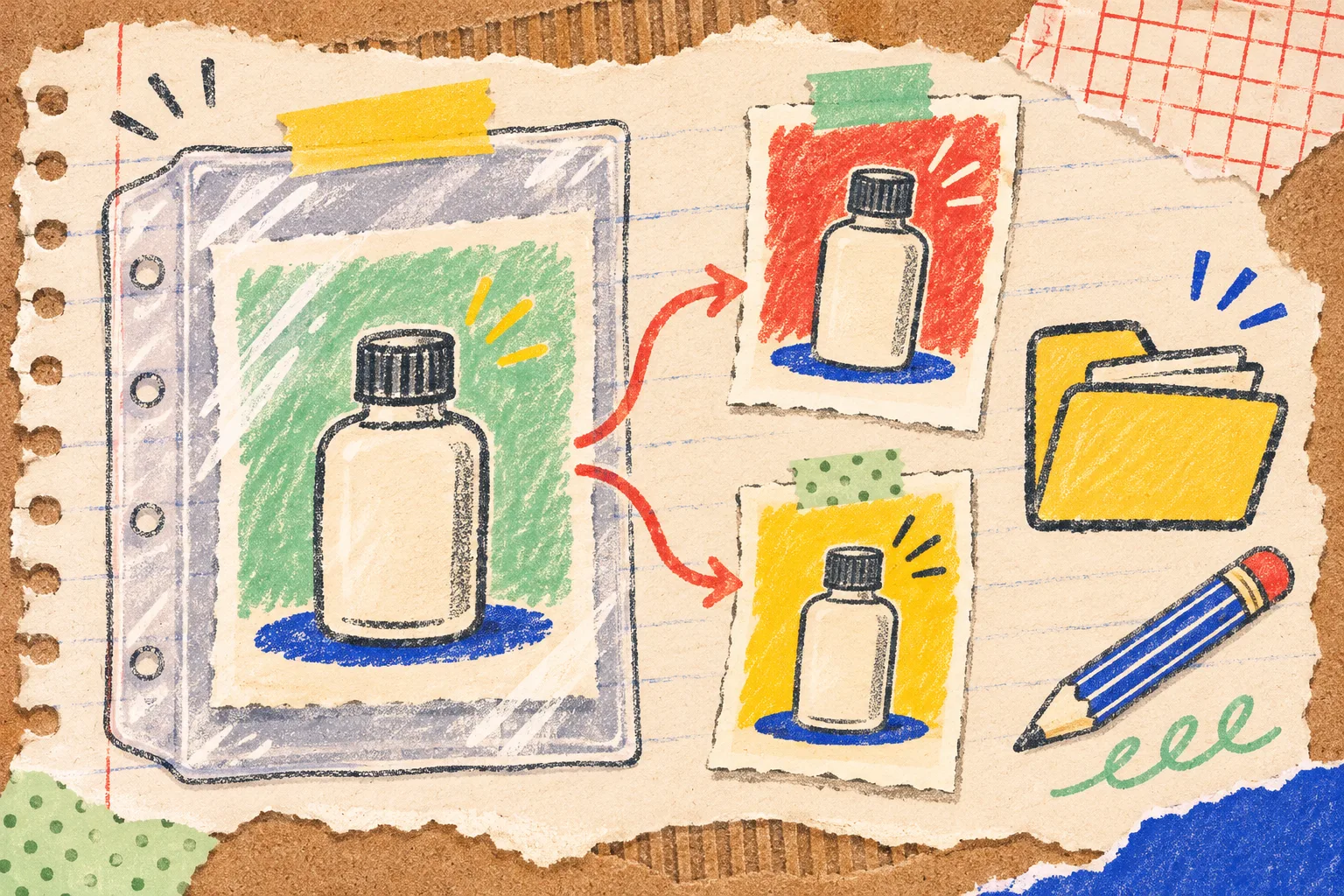
- Duplicate the master into a clearly named variant document; do not overwrite the source.
- Keep the product on a mask instead of erasing pixels. ImageFlow’s on-device selection and background-removal tools can give you a starting point, but they do not remove the need to refine edges.
- Put the new background, colour treatment, crop guides, and any campaign copy in separate layers or groups.
- Use adjustment layers for exposure and colour changes so they can be dialled back later.
- Export a delivery copy only after the review below; keep the layered working file.
For catalogue feeds, put the proposed output dimensions and naming convention in the same task. The small bit of admin prevents the right image becoming the wrong SKU’s primary photo. If you are preparing Etsy items for an ad catalog, this feed contract before Meta import is a useful companion check.
Review the places automation gets overconfident
A clean selection is not automatically a credible listing image. Zoom in around hair-like fibres, transparent packaging, chrome, glass, straps, embossing, and logo edges. These are the regions where an automatic mask or fill can quietly invent an outline. Content-aware fill can be handy for a stray cable or a background blemish, but it is not evidence that a missing product detail was never there.
Relighting needs the same restraint. Use it to make an existing scene easier to read; do not use it to imply a material, colour, or product finish that shoppers will not receive. If the item itself has changed, photograph it again.
Run the four-point export check
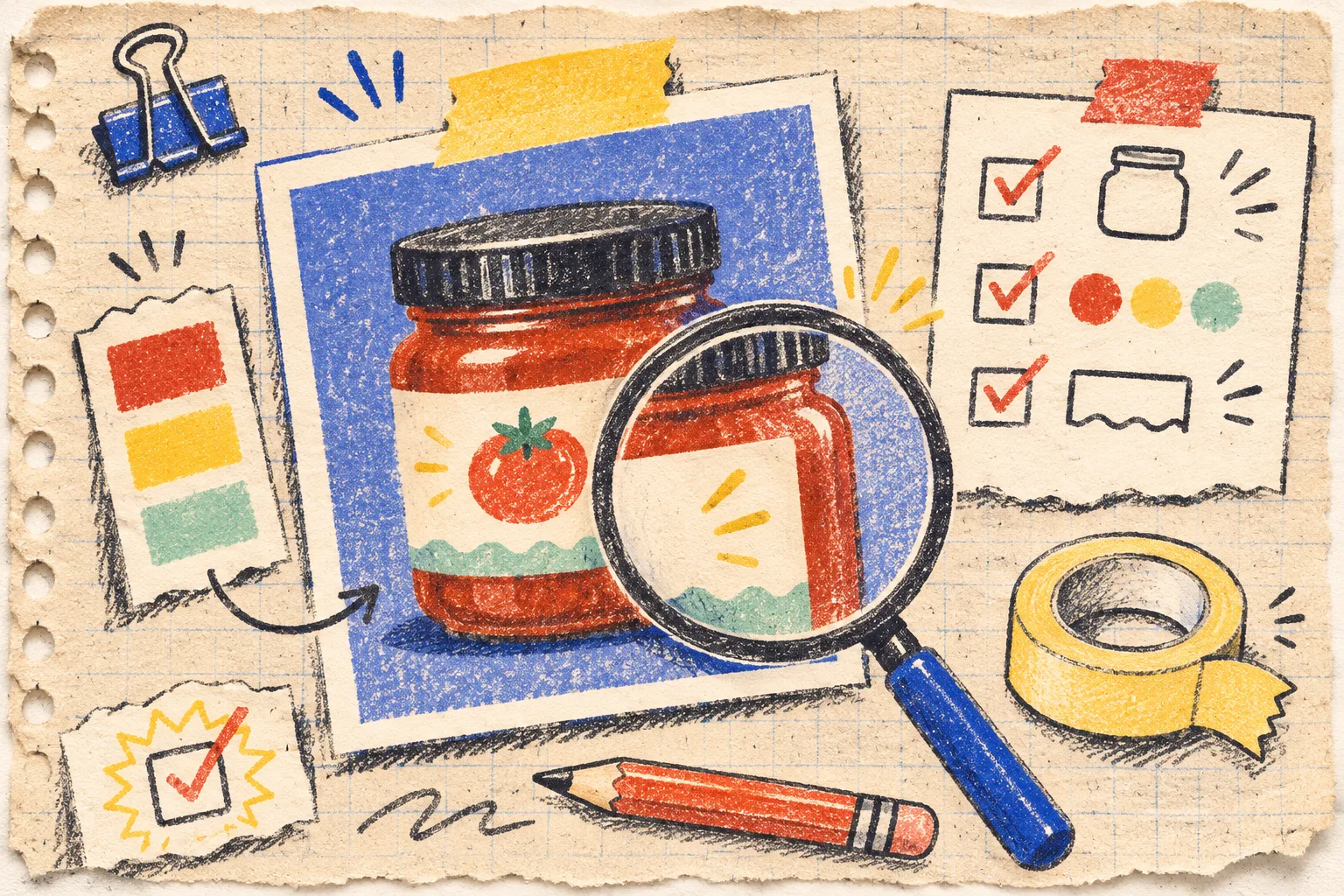
Open the final file at full size and check four things before it leaves the folder:
- Identity: Can someone read the label, shape, included pieces, and variant correctly?
- Edges: Do the mask, shadow, reflection, and transparency look physically plausible?
- Colour: Does the exported file still represent the product under the storefront’s expected colour handling?
- Placement: Does the crop work where it will appear—collection card, product page, marketplace tile, or ad—without hiding the thing a buyer needs to evaluate?
For a more detailed mask-specific pass, use this background-removal fidelity check. And if AI is supplying a new scene rather than editing the existing photograph, first decide what the image is allowed to communicate with this product-photo role card.
Give every export a job
The payoff is not a larger pile of files. It is a small, legible set: one editable master and variants that each have a stated job. The collection image can prioritise a clean silhouette; the detail image can show texture; the campaign tile can reserve room for copy. Each still traces back to the same truthful source.
Open ImageFlow with one real product photo today. Make the smallest useful variant—a crop, a non-destructive exposure correction, or a background cleanup—then run the four-point check before you publish it.