
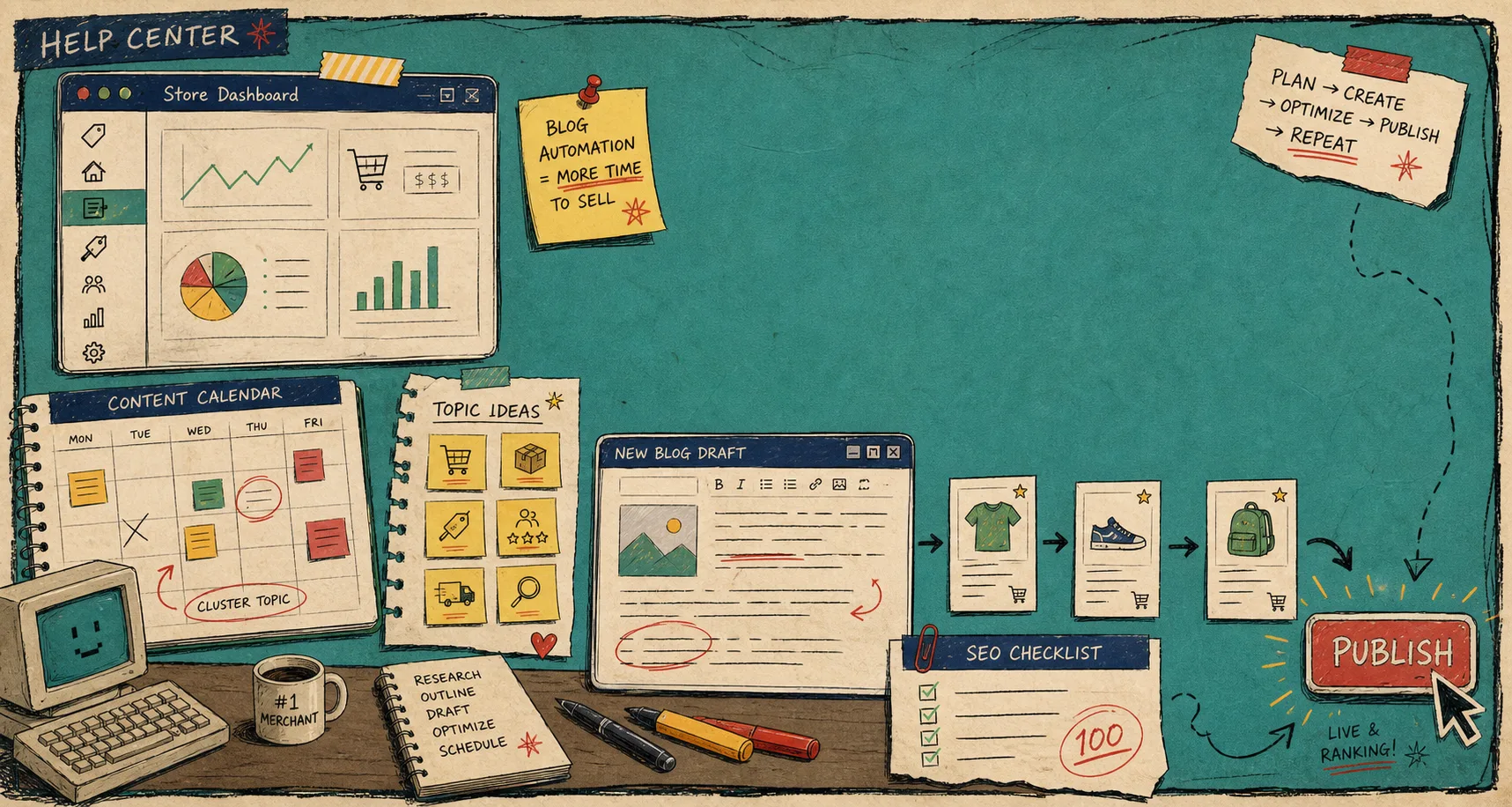
How to Keep Shopify Blog Drafts Product-Aware and Reviewable
I keep seeing the same failure mode in Shopify content: a tool can generate a post quickly, but the draft still reads like it came from nowhere. The topic is broad, the links are generic, and the visuals do not match the store. That is useful only if you want more drafts, not better ones.
What I want instead is a reviewable draft. I want the app to do the repetitive parts, then leave me with something I can check, fix, and schedule without rebuilding it from scratch. That is the lane where Supra Blog Automation makes sense. It is built to generate, schedule, optimize, and publish SEO-focused Shopify blog posts, and the Shopify App Store listing makes the same positioning plain.
The trick is not to automate the judgment out of the workflow. The trick is to automate the blank page and keep the review step intact.
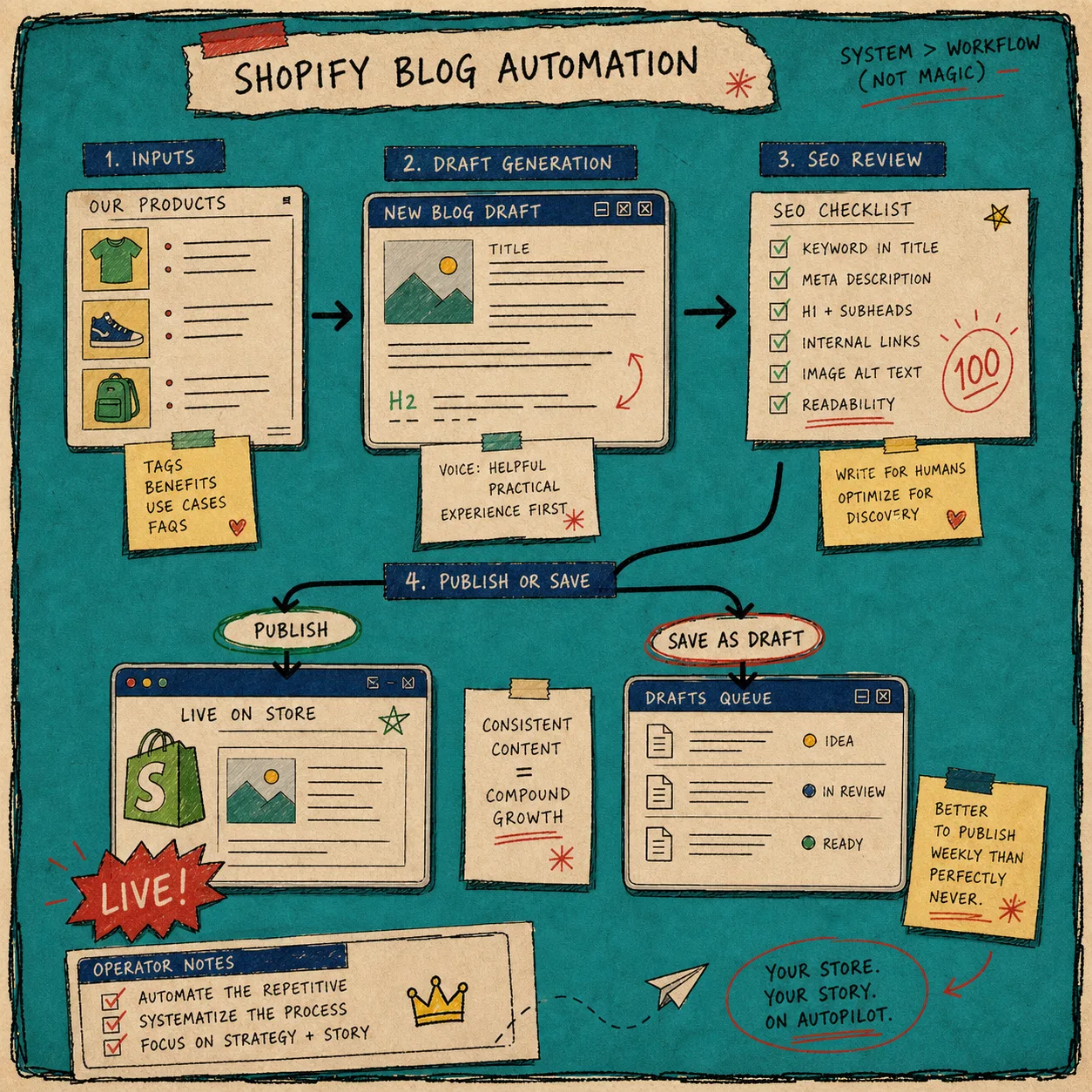
1. Pick One Product Problem
I start with the problem the reader actually has, not with a keyword dump. If the product is a swatch app, I am not writing about “color theory.” If the app helps with blog automation, I am not writing about “content marketing trends.” I am writing about the thing a store owner needs to solve this week.
That is also where product-aware blogging beats generic AI copy. The draft should name the product, the collection, the customer pain point, and the next action. If I have to add all of that later, the generator did not really save time.
When I need a better topic source, I compare it against How to Keep a Shopify Content Calendar Full Without Inventing Topics and How to Turn Product Updates Into Reviewable Shopify Blog Drafts. Those posts are useful because they keep the idea grounded in a real catalog, not a vague prompt.
2. Give The Generator A Tight Brief
Once I know the angle, I feed the app a brief that is narrow enough to be useful. I include the topic, the goal, the tone, the product or collection to feature, and the image approach I want to allow. The product file says the app supports product-aware content, built-in SEO, internal links, visuals, and publish-or-draft control. That combination is the reason it is worth using.
This is the point where a lot of drafts go wrong. A broad brief usually produces a broad article. A sharp brief usually produces a draft that needs less surgery.
The review step starts here, not after publication. I want the draft to already have a structure I can inspect: headings, product mentions, internal links, a CTA, and a visual path that makes sense.
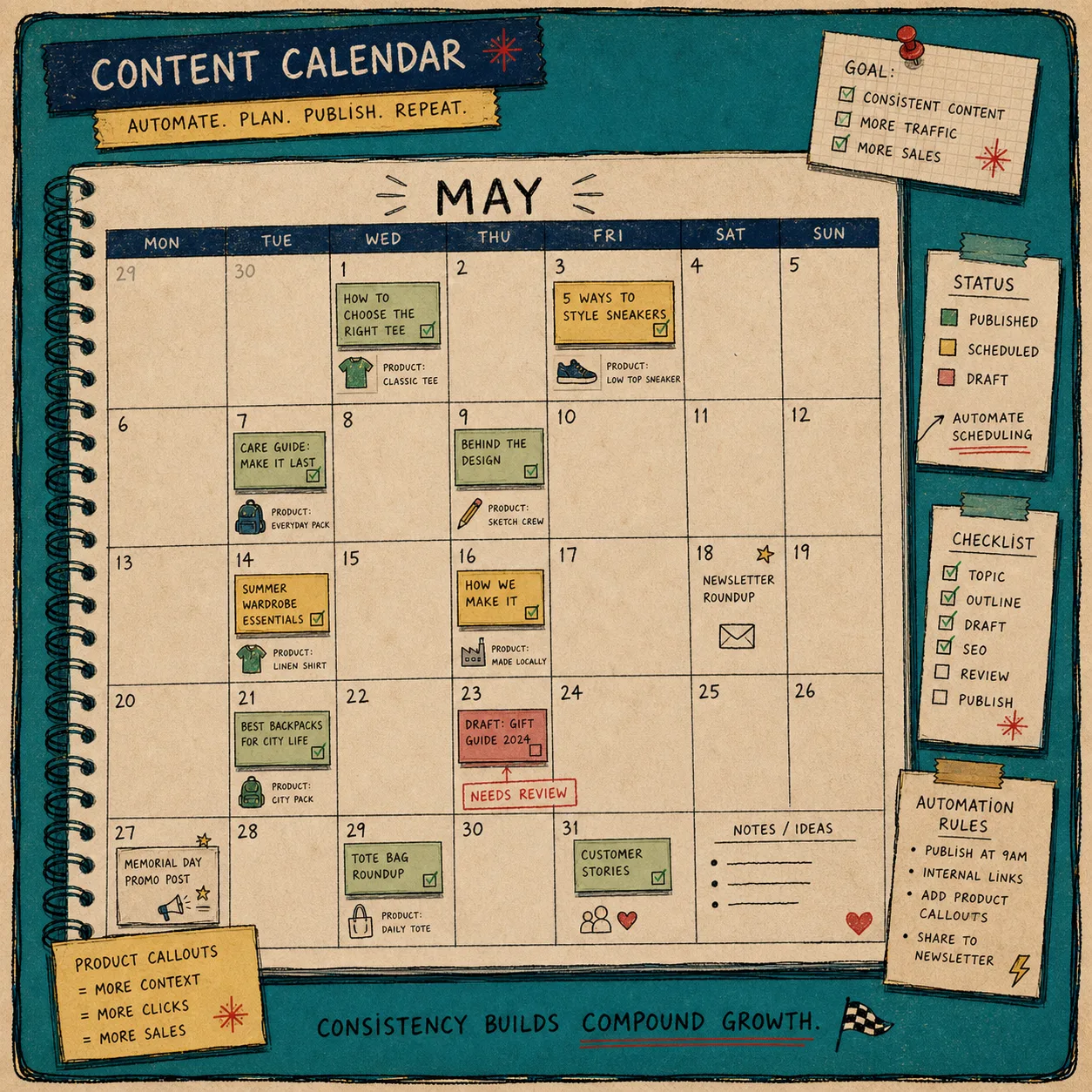
3. Generate One Draft For One Job
I try not to ask a single article to do three unrelated jobs. A post can educate, support SEO, and promote a product, but it should still have one primary job. That keeps the language cleaner and makes the review pass much easier.
For Shopify merchants, the strongest version is usually a solution-led post. It explains the problem, shows the workflow, and points to the product only where it helps. The app can publish immediately or save as a draft, which is the right balance for teams that want speed without giving up control.
If I want a broader picture of why that matters, I compare it with How to Automate a Shopify Blog With Product Review and SEO Checks and How to Automate a Shopify Blog Without Generic AI Copy. The first keeps the workflow honest. The second is the thing I am trying not to produce.
4. Keep Visuals Tied To The Section
Images are where generic automation gets exposed fastest. If the visual looks unrelated, the whole post feels flimsy. I want the banner and inline visuals to reinforce the same story as the copy: topic, review, schedule, and publish.
That is why I prefer visuals that match the workflow instead of random decorative art. A content calendar makes sense when I am talking about cadence. A checklist makes sense when I am talking about review. A dashboard sketch makes sense when I am talking about brief setup.
I also like to keep visual planning adjacent to the broader asset pipeline, especially after reading How I Build a Shopify Product Photo Pipeline That Feeds Every Channel. The principle is the same: the asset has to help the next step, not just fill space.
5. Review The Draft Before It Touches The Blog
This is the part I would not skip. I check the claims, the product names, the internal links, the CTA, the image relevance, and the tone. If the post sounds like it was written for “Shopify merchants” in the abstract, I rewrite it. If the links feel forced, I remove them. If the post is trying to explain too many things, I cut it down.
The good news is that review gets easier when the draft is already product-aware. The article is not trying to discover its purpose during editing. It already has one.
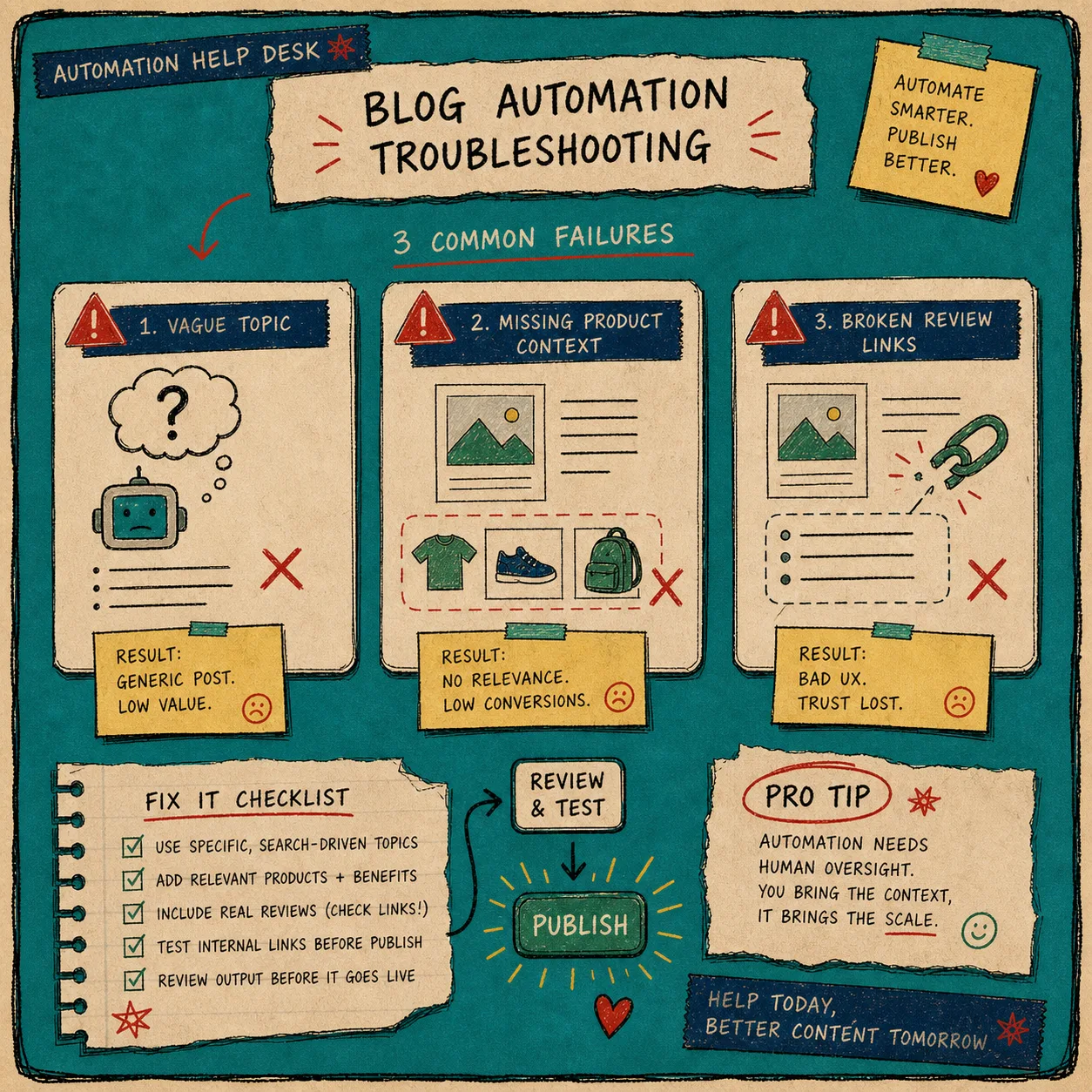
Troubleshooting
If the draft feels generic:
- Add a clearer product or collection reference.
- Replace broad keywords with a real customer problem.
- Ask for a narrower goal, like comparison, setup, or checklist.
If the internal links feel random:
- Keep links tied to the exact section they support.
- Use prior posts that share the same workflow or audience.
- Drop the link if it does not add value.
If the visuals do not match the copy:
- Rebuild the prompt around the section, not the topic title.
- Make the image describe the workflow step you are discussing.
- Do not reuse a decorative image just because it is available.
If the schedule is too aggressive:
- Save the post as a draft first.
- Reduce the cadence until the review loop is stable.
- Only turn on recurring publishing when the input quality is consistent.
If you want the content system to keep moving without turning sloppy, that is the pattern I would start with: one product problem, one tight brief, one review pass, then publish or schedule.
Supra Blog Automation is the sort of tool that makes that process repeatable. If you want to try it, start with the landing page or the Shopify App Store listing, and build one reviewable draft before you scale the cadence.
The point is simple. Automation should save the blank-page time, not delete the judgment step.