
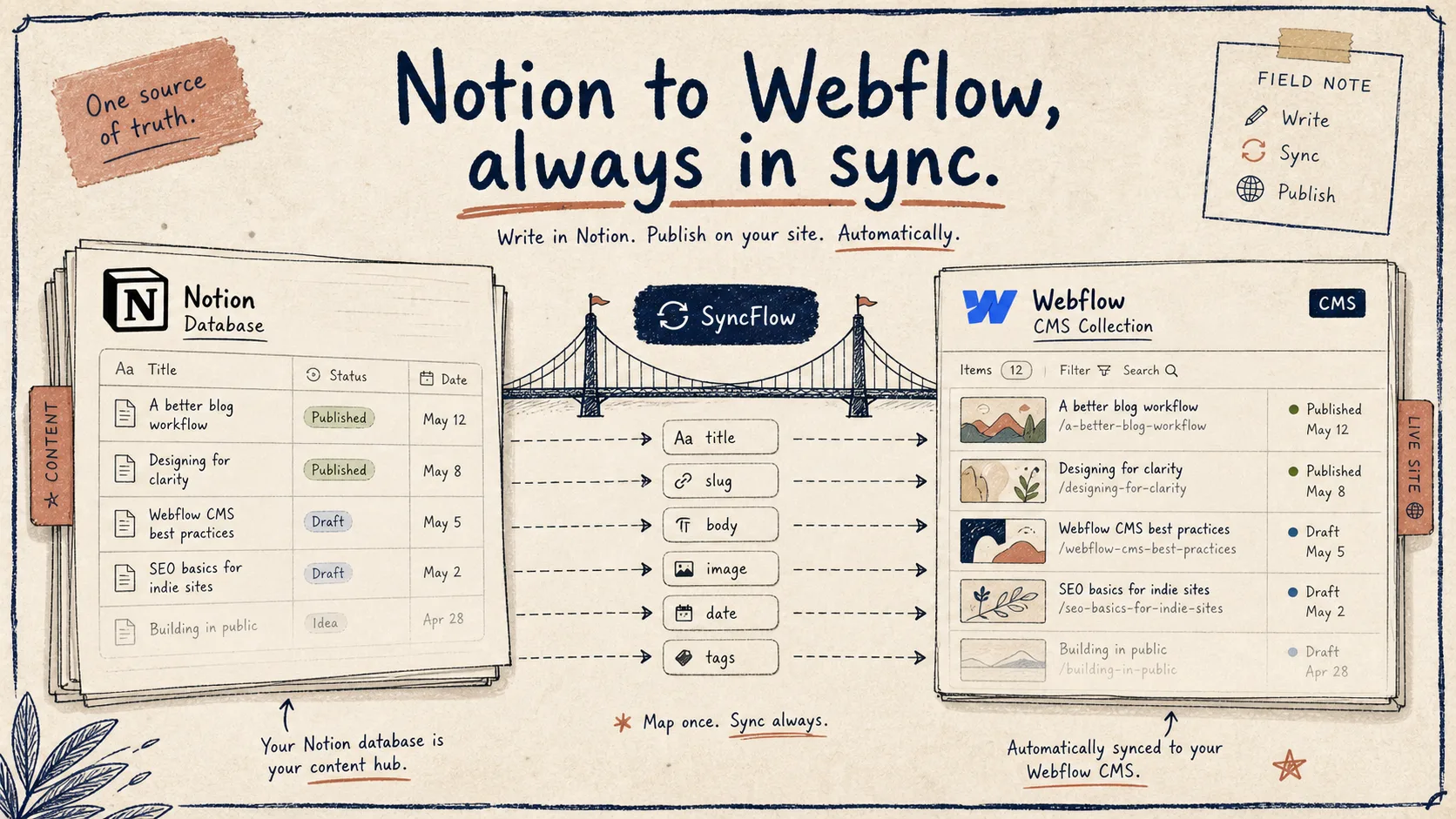
I keep seeing the same failure mode: a Notion draft looks finished until someone has to copy it into Webflow by hand. Then the title changes, the slug drifts, the cover image gets swapped, and the CMS item stops matching the draft. SyncFlow is the bridge I reach for when I want Notion to stay the writing surface and Webflow to stay the published surface.
If you want the shorter version, the rule is simple: map the fields first, decide what should not sync, and keep one human review step before you let auto-sync run freely.
If you want the deeper field-mapping notes, How I Map Notion Databases to Webflow CMS Without Rebuilding Pages is the cleanest companion post.
Start With The Schema, Not The Paragraphs
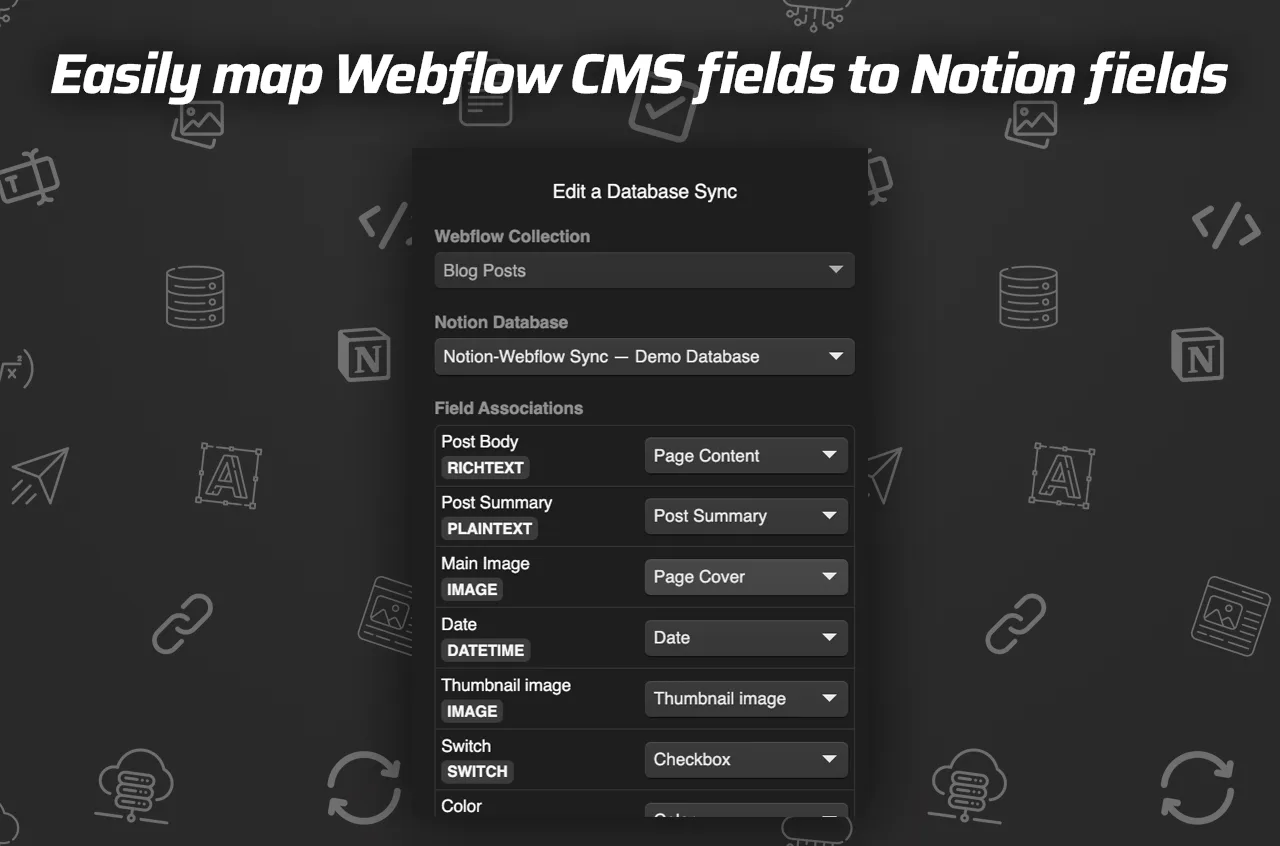
I do not start with the article body. I start with the fields that have to survive the trip from Notion into Webflow.
For most blog content, that means I care about:
- title
- slug
- summary or excerpt
- cover image
- publish date
- tags or categories
- body content
That order matters because schema mistakes are expensive. If the title field is wrong, every downstream step is wrong. If the slug is wrong, the URL is wrong. If the image field is wrong, the post might technically publish and still feel broken.
That is why I treat the first mapping as a model of the content, not a formatting exercise. SyncFlow is useful here because it lets me connect a Webflow CMS collection to a Notion database directly instead of rebuilding the same page structure every time I revise the draft.
The workflow I use in practice is the same one I described in How I Turn Notion Drafts Into Webflow CMS Posts With SyncFlow: keep the source of truth in Notion, then let Webflow render it once the field map is stable.
Decide What Should Not Sync
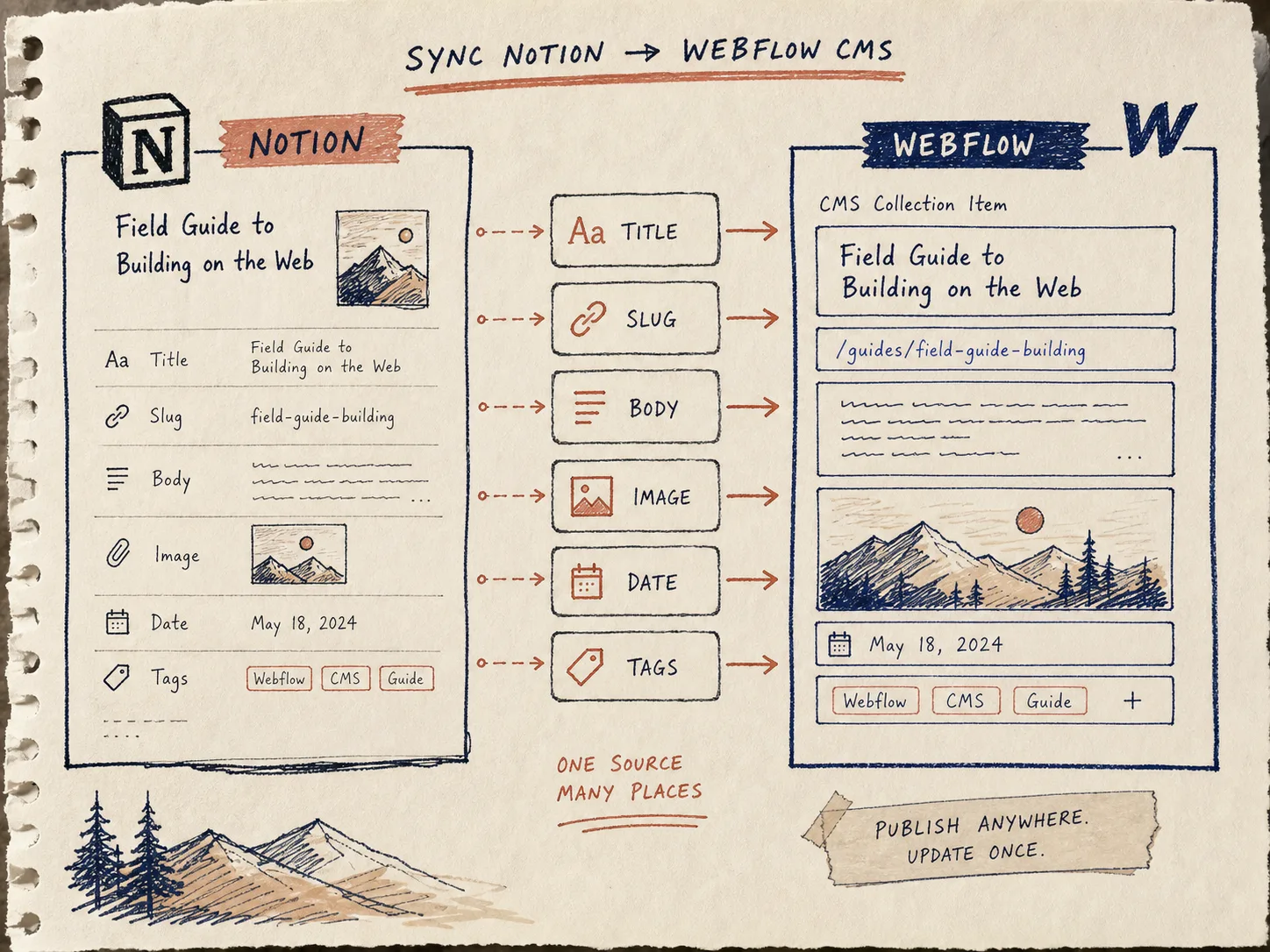
The biggest mistake I see is trying to sync everything because the tool can technically carry it over. That usually creates more cleanup, not less.
I keep these out of the sync unless they are truly structural:
- scratch notes
- editorial comments
- draft-only experiments
- internal reminders to myself
- temporary embeds or placeholders
Anything like that belongs in the writing layer, not the published CMS layer. If the field does not help a reader or a publisher, I leave it behind.
That decision line is the same one I wrote about in How I Decide What Should Sync From Notion Into Webflow. The useful test is boring: if the field is required to render the page, sync it; if it is only useful while drafting, keep it in Notion.
Keep Formatting Rules Boring On Purpose
Once the fields are mapped, I look at the formatting rules next. That is where SyncFlow starts to earn its keep.
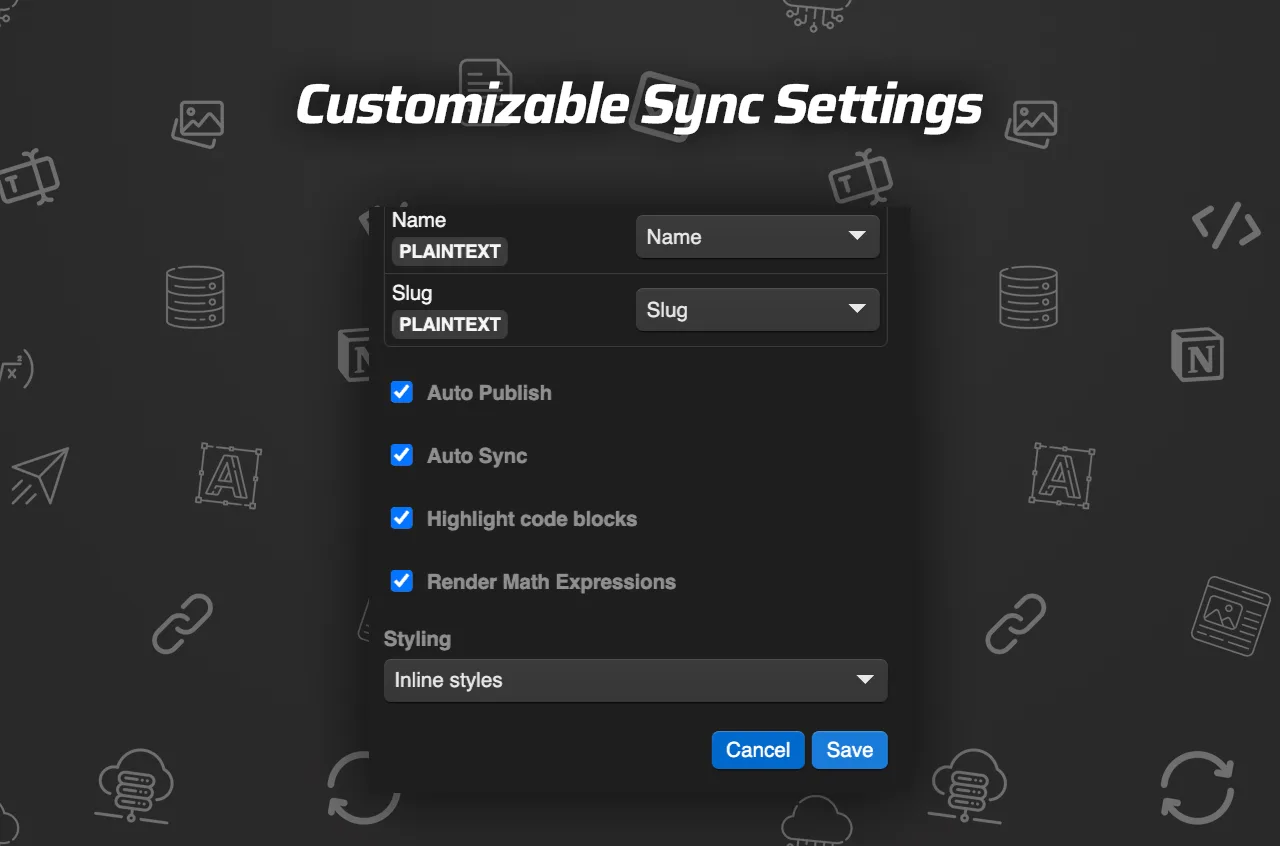
The product supports auto-sync, manual sync, page linking, code highlighting, TeX rendering, and options for inline styles or classes. Those details sound small, but they determine whether the Webflow page feels native or like a loose export.
My rule is to keep the first pass conservative:
- use manual sync until the mapping is stable
- turn on auto-sync only after the field map is trustworthy
- choose inline styles when I want the Notion formatting carried through exactly
- choose classes when I want Webflow to control the final presentation
- verify that links between Notion pages become links between Webflow posts
- check code blocks and math before I trust the workflow on technical content
That keeps the system predictable. A content pipeline is only useful if the output is still readable after three edits and one resync.
If you need the broader checklist version, My Checklist for Syncing Notion Articles Into Webflow CMS is the version I would hand to someone before their first real import.
Use One Human Review Pass Before Auto-Sync
I do not turn on auto-sync until I have tested one post end to end. One clean round-trip tells me more than ten feature descriptions.
The checklist I use is plain:
- create one test article in Notion
- map the required fields in SyncFlow
- sync once manually
- inspect the Webflow CMS item
- confirm the image landed correctly
- confirm the slug and date look right
- confirm internal links still point where they should
- only then switch on auto-sync
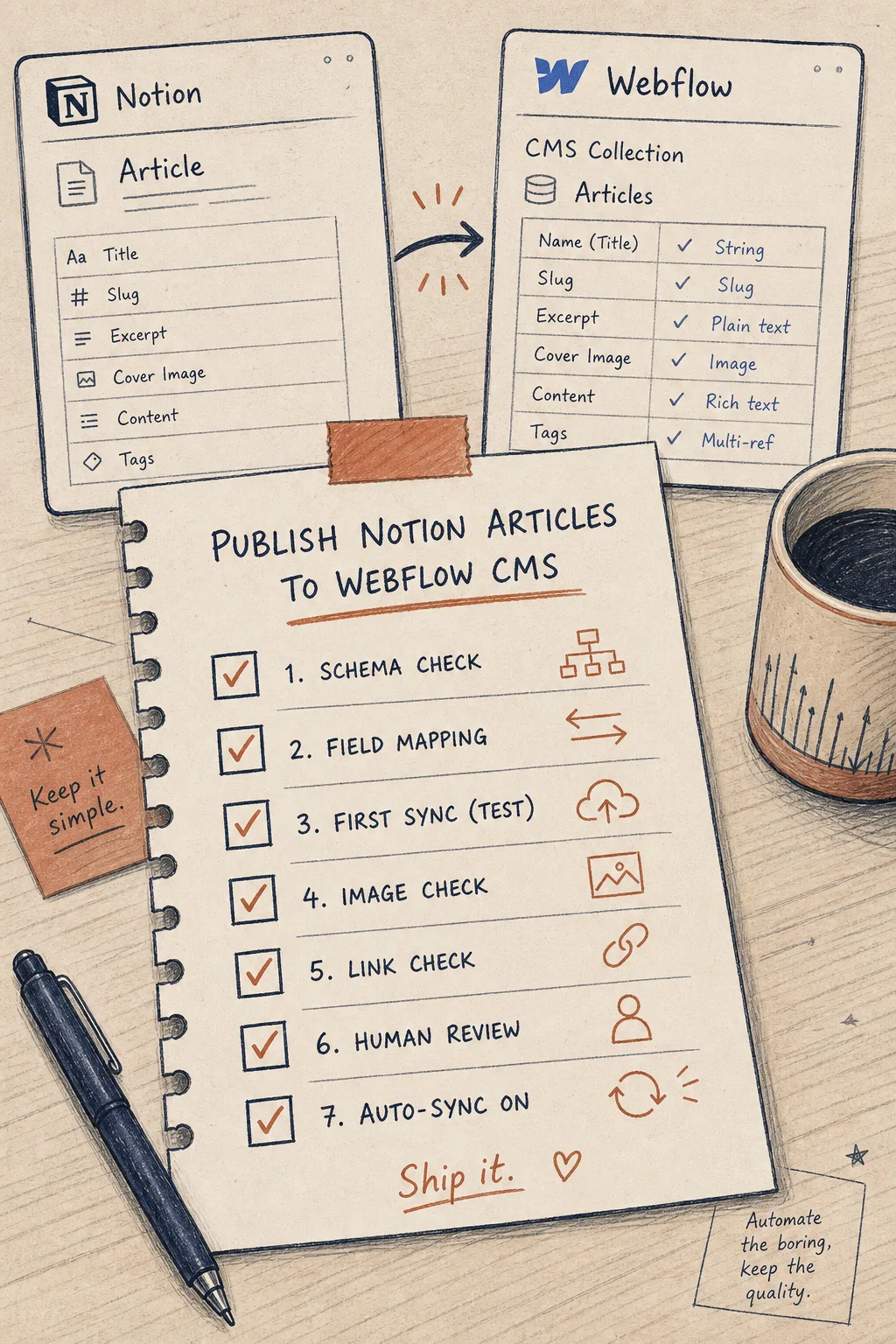
That review gate is not there to slow me down. It is there to stop me from publishing a field mapping mistake at scale. Once the structure is trusted, auto-sync becomes a time saver instead of a liability.
When SyncFlow Fits Better Than Rebuilding
I use SyncFlow when I want Notion to be the place where the article lives and Webflow to be the place where it is rendered. That separation is what keeps the workflow lean.
It fits best when:
- the same content changes often
- the article needs a CMS home in Webflow
- the team wants a review step before publish
- field mapping matters more than redesign
- linked notes or supporting pages should stay connected
If you are still deciding whether Webflow should remain the public destination at all, How I Decide When a Webflow Site Should Be Exported is the adjacent question. Sometimes the right answer is sync. Sometimes the right answer is export. The important part is choosing the system on purpose.
For a quick sanity check, the product page also points to a full tutorial and a trailer. I use those as reference points when I want to confirm that my field map still matches the product’s intended flow.
Bottom Line
The cleanest Notion-to-Webflow workflow is the one that treats sync as a modeling problem, not a copy-paste shortcut. Map the fields that matter, leave draft-only noise behind, test one post carefully, and let auto-sync handle the repetitive part after the structure is proven.
If you want to try that with a real collection, start with one Notion database, one Webflow CMS collection, and one post that you are comfortable checking by hand. Once that round-trip works, SyncFlow does the boring part for you.
You can start from the SyncFlow landing page or the Shopify App Store listing if you want the app details in one place.