
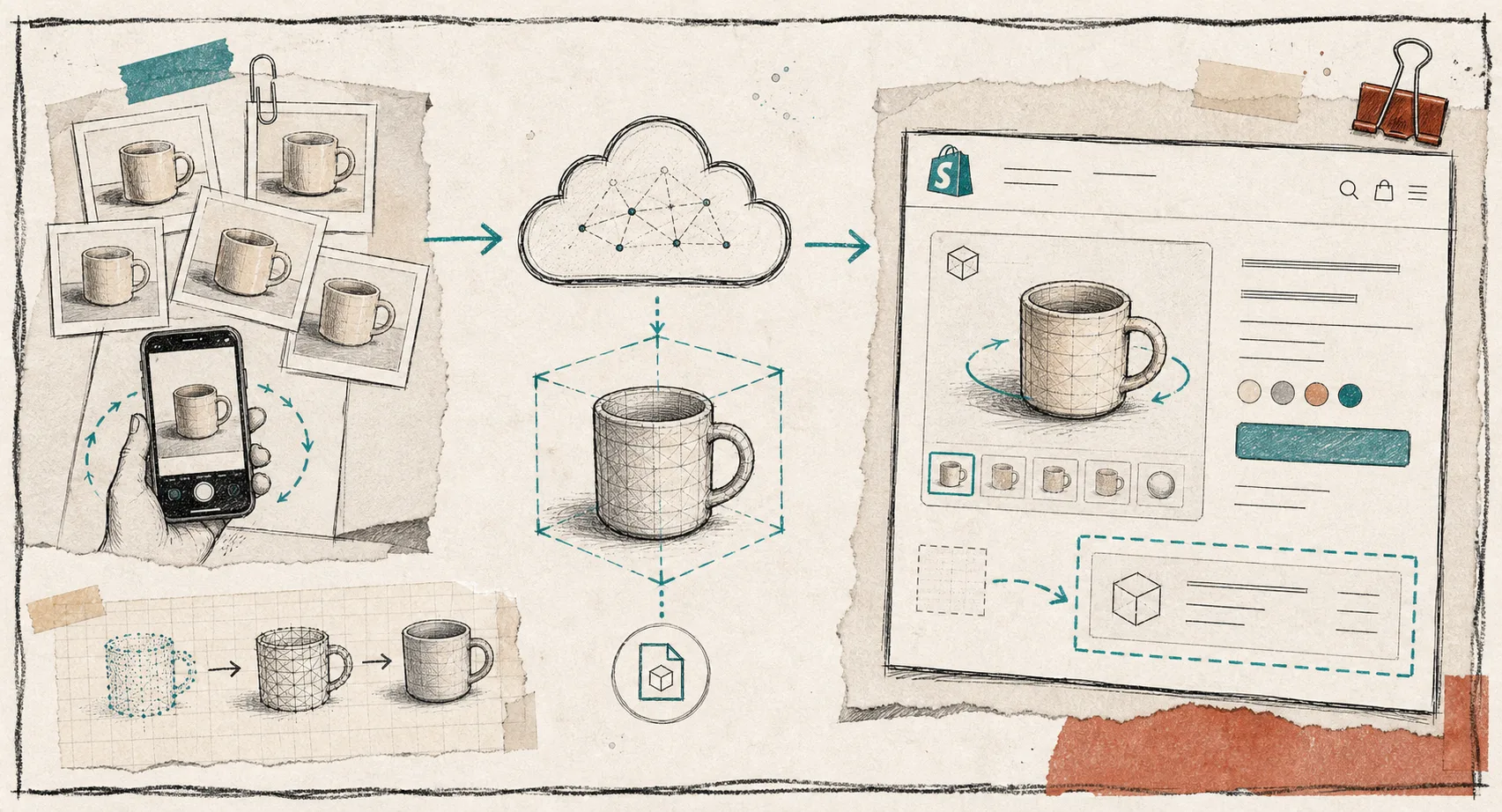
I used to waste 3D sessions on products that looked fine in a thumbnail and fell apart once I tried to reconstruct them. Now I run a scan-readiness check first.
Supra 3D Capture turns guided phone photos into a web-ready GLB and publishes it into Shopify, so the hard part is not the software. It is deciding whether the object, the light, and the orbit are clean enough to deserve the session. If you want the product details up front, start with the landing page or the Shopify App Store listing.
My 5-Minute Scan-Ready Check
- Start with a product whose shape matters.
If flat photos already answer the buyer’s main question, I usually do not spend time on 3D. If the customer needs to understand the side, back, or depth, 3D becomes more useful. That is the same selection logic I use in How I Decide Which Shopify Products Are Worth a 3D Scan.
- Fix the light before I touch the app.
I want a boring setup: one surface, even light, and no hard shadows. I do not need a studio, but I do need consistency. If the source image still needs cleanup before it can help the page, I usually send the photo workflow through How I Turn Basic Shopify Product Photos Into Better Assets first.
- Look at the surface, not just the silhouette.
Matte objects are usually the easiest first scans. Glossy, clear, reflective, fuzzy, or hairy products can still work, but they ask for more control than I want in a first pass. I keep those for later unless I already know the capture flow is stable.

This is the point where I stop thinking about the app and start thinking about the object. A product can be worth scanning and still be a bad first session if the surface will fight reconstruction.
The Orbit Has To Stay Boring
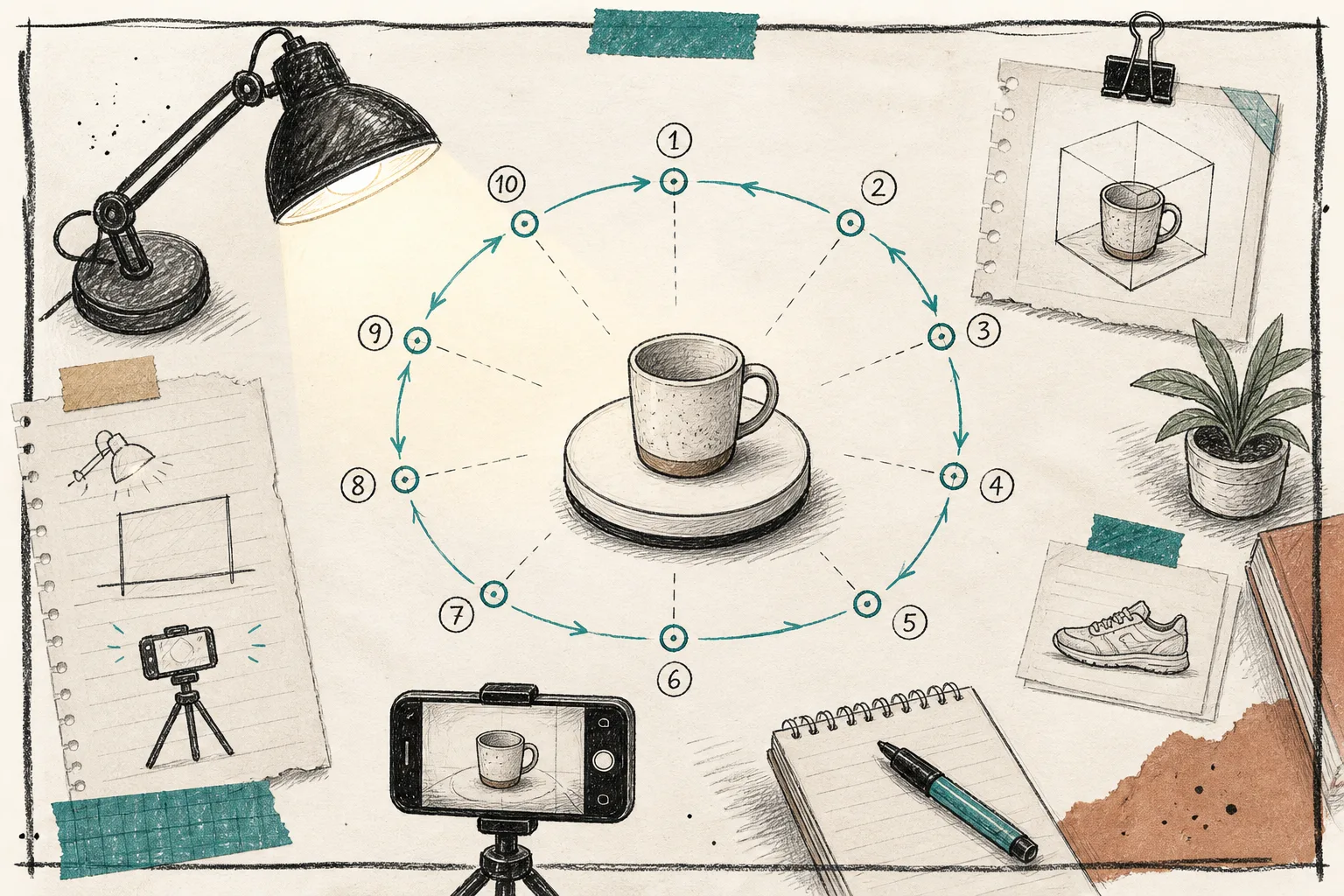
The best captures are predictable. I want the phone to move in a slow circle, the product to stay still, and the shots to overlap enough that the photogrammetry pipeline can reconstruct the shape cleanly. Supra 3D Capture is built around that pattern: a guided photo orbit, cloud processing, then a Shopify-ready GLB.
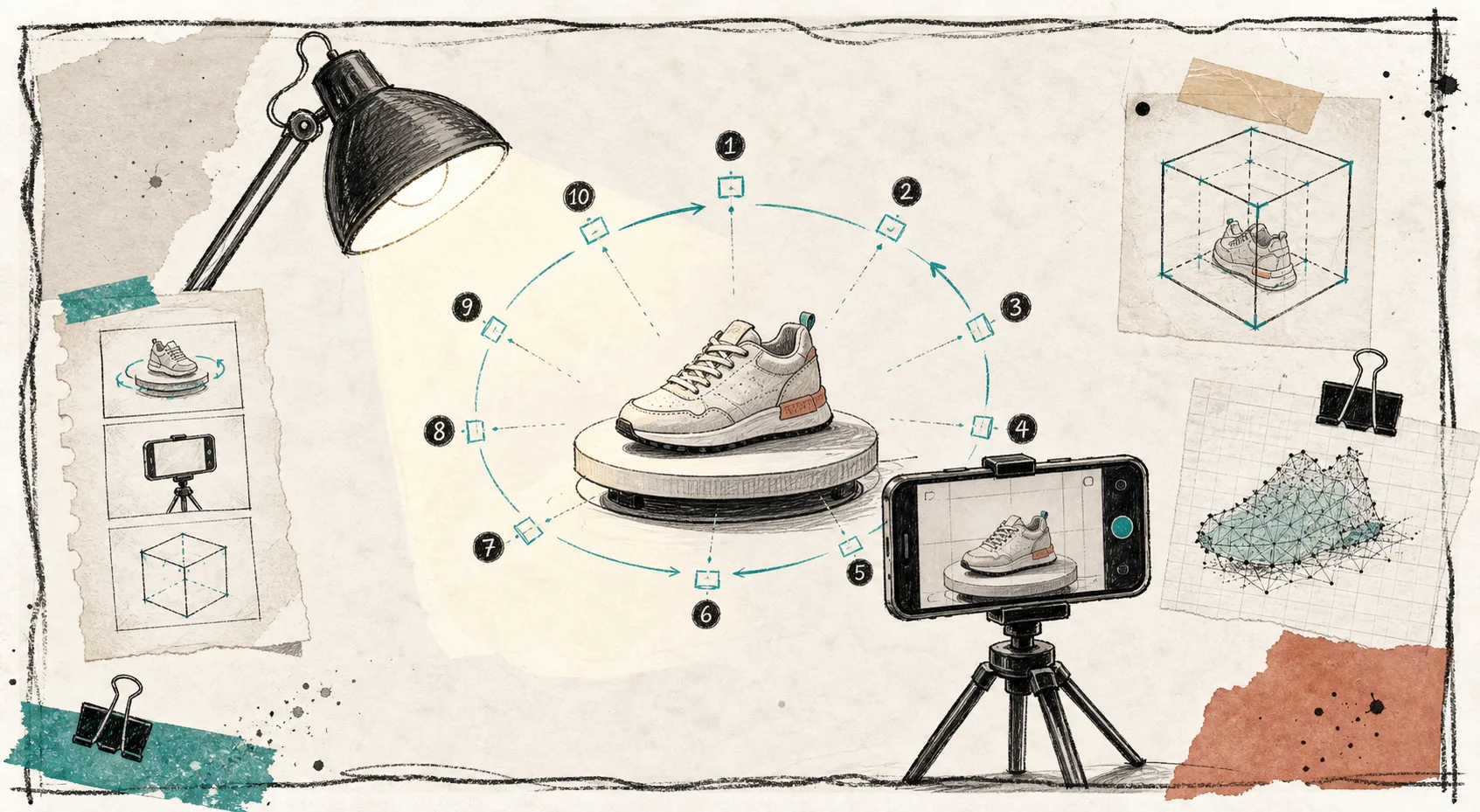
The practical version looks like this:
- Keep the product centered.
- Move the phone in a steady orbit.
- Shoot enough images to give the reconstruction overlap.
- Avoid dramatic shadows and reflections.
- Review the result immediately and reshoot if the shape is wrong.
If I am not sure a SKU belongs in the queue at all, I still use the filter in How I Decide Which Shopify Products Are Worth a 3D Scan before I open the capture session.
What I Leave For Later
I usually do not make these the first product I scan:
- Very shiny items that throw reflections everywhere.
- Clear or translucent objects that need careful lighting.
- Fuzzy products that confuse reconstruction.
- Tiny products that are hard to shoot with enough detail.
- Anything I cannot keep still for a clean orbit.
That does not mean those products should never be scanned. It means I want one or two easy wins first, not a difficult case that makes the workflow feel unreliable.
When a product needs more page-level context than the gallery can give it, I also keep the broader layout note in How I Build a Shopify Product Page Around a 3D Model close by. The scan is only half the story; the page still has to make the model useful.
Where The Model Belongs In Shopify
A good 3D model should answer one more question, not turn the product page into a demo.
When the GLB is attached to Shopify product media, the native viewer gives shoppers a way to inspect the object on their own terms. When a theme needs a dedicated placement, the Online Store 2.0 theme app block keeps the model visible without custom glue. That is the part I care about most: confidence, not novelty.
I like this part because it stays close to what merchants already do. You do not need LiDAR, special gear, or 3D modeling experience. You need a phone, a stable setup, and a product that can survive a clean orbit.
If I want the creative reasoning behind the page itself, I go back to How I Build a Shopify Product Page Around a 3D Model and then decide whether the model should sit in the native viewer or the theme block.
The Short Version
I do not start with the scan. I start with the question: is this product ready to be understood in 3D?
If the shape matters, the light is manageable, and the orbit can stay boring, the session is probably worth it. If any of those pieces are still messy, I slow down and fix the setup first.
If you want to try the workflow on one SKU, the Supra 3D Capture free plan includes Shopify-native publishing, a theme app block, 1 saved 3D model, and 3 scans per month. That is enough to validate the process before you commit to more volume.
For more practical notes, the Supra 3D Capture Blog is the best place to keep digging. My rule is still the same: pick one product, run the checklist, and see whether 3D actually answers a question the gallery cannot.