

If you are trying to move a Webflow site off Webflow hosting, the real question is usually not whether export is possible. It is what you will have to rebuild, replace, or test after the move. That is the audit I run before I use ExFlow.site, the Webflow exporter I reach for when a site needs to become static HTML without losing the important parts of the workflow.
If you want the broader decision framework first, I also wrote How I Decide When a Webflow Site Should Be Exported and Webflow Exporter Checklist: How to Move a Site to Static Hosting. This post is the version I use when I am actually preparing a site for export.
Quick Rule
I export a Webflow site when these four things are true:
- The site is mostly content, not application logic.
- The pages I care about can survive as static HTML plus assets.
- The team can live with a new publishing workflow.
- I have a clear hosting target for the exported files.
If two or more of those fail, I usually slow down and keep the site in Webflow longer.
1. Start With The CMS Shape
The first thing I check is how much of the site depends on Webflow CMS behavior. A simple marketing site is easy. A site with collection pages, filters, and editorial content needs more care.
I ask three questions:
- Which pages are built from CMS collections?
- Which fields do editors update most often?
- Which URLs must stay stable after export?
If the site has a lot of CMS content, I want to know whether the export needs to include all pages and whether the output can still be maintained without turning every content edit into a manual deployment.
ExFlow is useful here because it can export Webflow sites as downloadable static content and includes CMS pages in the export path. That matters when the site is not just a brochure site but a living content system.
How I Export a Webflow CMS Site to Static HTML Without Rebuilding It goes deeper on that part of the workflow.

2. Inventory The Moving Parts
The next step is to list everything that is not plain text and images.
That usually includes:
- interactions and animations,
- embeds,
- custom scripts,
- forms,
- third-party widgets,
- any inline CSS or JavaScript,
- and anything the team added after the original build.
This is the section that saves the most time later. If a site has only a few carefully chosen interactions, export is manageable. If every page depends on scripts and embedded widgets, the post-export cleanup can become a second project.
This is also where I like to test one representative page before I touch the whole site. I do not want to discover broken behavior after I have already moved the content.
ExFlow supports exporting CSS files, JavaScript files, images, and media assets, and it also lets you add custom script.js and style.css files. That gives you room to patch a static export without pretending the site will behave exactly the same way it did inside Webflow.

If you want the export side broken down more mechanically, How to Self-Host a Webflow CMS Site Without Rebuilding It is the closest companion post.
3. Decide What The Static Host Will Be
Once the site passes the content and behavior check, I choose the destination before I export.
ExFlow gives you a few paths:
- host the exported site on ExFlow,
- sync it to Git,
- sync it to S3,
- or sync it to FTP.
That matters because the export is easier to plan when I know where the files are going.
If I want a low-friction path, I start with hosting. If I want a repo-based deployment flow, I pick Git. If I care most about object storage and bandwidth economics, I look at S3. If I am dealing with older infrastructure, FTP can still be the practical answer.
I also keep an eye on credentials here. The Git, S3, and FTP sync paths require credentials, so I treat them like deployment secrets and not as something to improvise halfway through.
The ExFlow export settings screenshot is the fastest way to see those options in context.
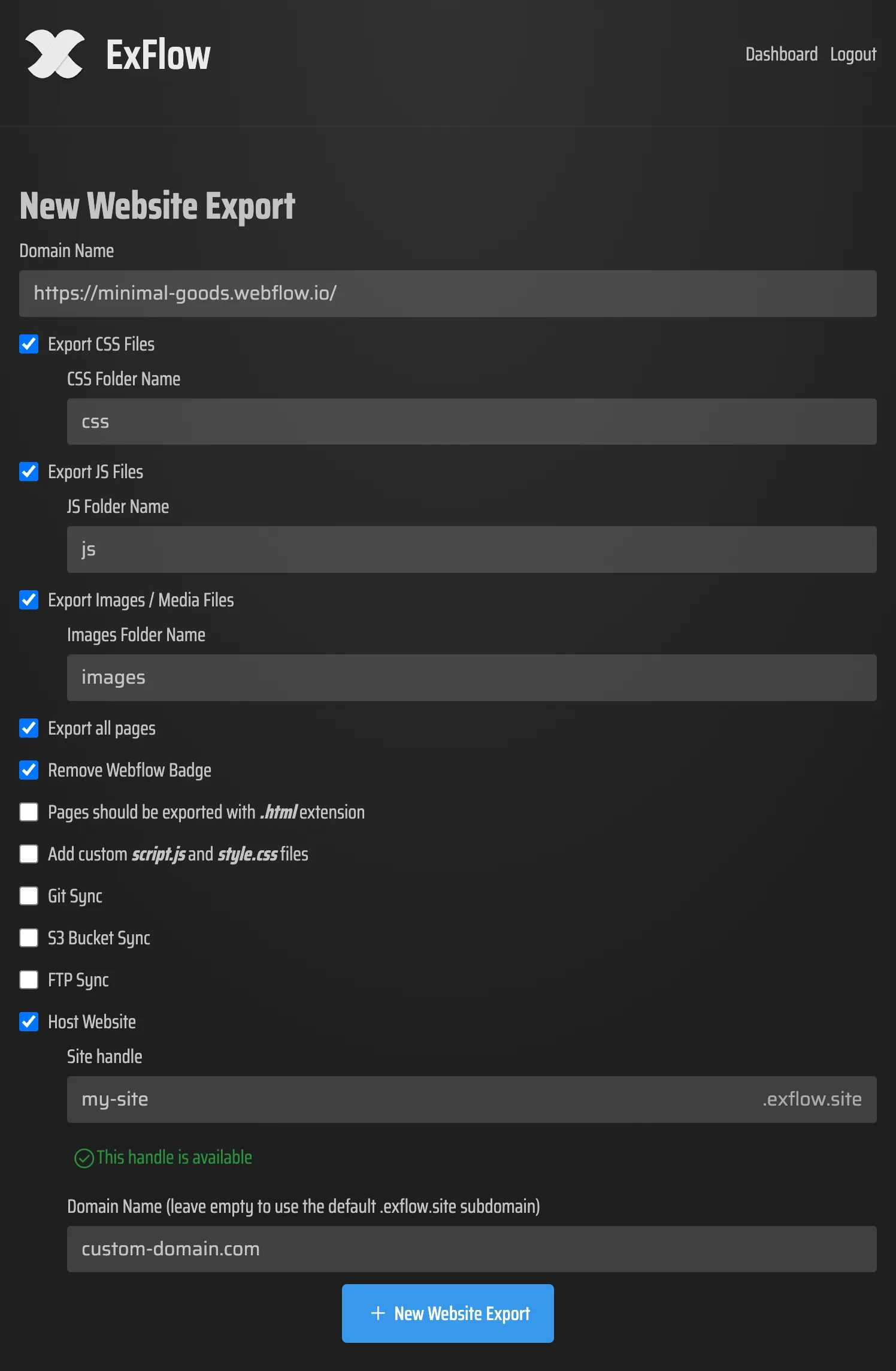
For a more deployment-specific walkthrough, How to Move a Webflow Site to GitHub Pages with ExFlow is the cleanest example in the archive.
4. Map URLs Before You Export
The easiest thing to break in a Webflow migration is not the design. It is the URL structure.
Before I export, I make a list of:
- important page slugs,
- collection item URLs,
- redirects I will need,
- and any canonical or internal links that must stay intact.
If the site has grown over time, there is usually some hidden URL dependency nobody remembers until after the move. This is why I like to audit the current sitemap and compare it to the exported output instead of assuming the slugs will sort themselves out.
If you are thinking about the broader decision rather than the mechanics, How I Decide When a Webflow Site Should Be Exported is still the right high-level filter.
5. Know When Not To Export
I would not export a Webflow site just because export is available.
I usually keep the site in Webflow when:
- the site changes constantly and editors need a very simple publishing flow,
- the design depends on lots of Webflow-native behavior,
- or the maintenance overhead after export would outweigh the hosting savings.
That is why I like to separate the decision from the implementation. The implementation can be straightforward with ExFlow. The decision should still be honest.
If you want a tighter checklist for deciding what should move and what should stay, Webflow Exporter Checklist: How to Move a Site to Static Hosting is the one I would read next.
Final Check
My export checklist is simple:
- Confirm the CMS pages and core URLs.
- Inventory interactions, embeds, scripts, and media.
- Pick the hosting target before the export.
- Test one representative page before the full move.
- Export, verify, and only then switch traffic.
If the site passes those checks, static hosting usually gives you more control and less ongoing cost. If it does not, the site probably still belongs in Webflow for now.
If you want the exporter I use for that workflow, ExFlow.site can download a Webflow site by URL and sync the result to Git, S3, FTP, or hosted static delivery.